# ZEUS Documentation
> ZEUS is a self-custodial mobile Bitcoin and Lightning wallet and node management app. It can run a Lightning node on the phone (Embedded LND or LDK Node) or connect to a remote node, and ships an LSP, submarine swaps, Lightning addresses, Nostr Wallet Connect, Cashu ecash, and a point of sale.
The complete contents of https://docs.zeusln.app, concatenated for LLM
consumption. Each page below is preceded by its canonical URL.
---
# About ZEUS
Source: https://docs.zeusln.app/

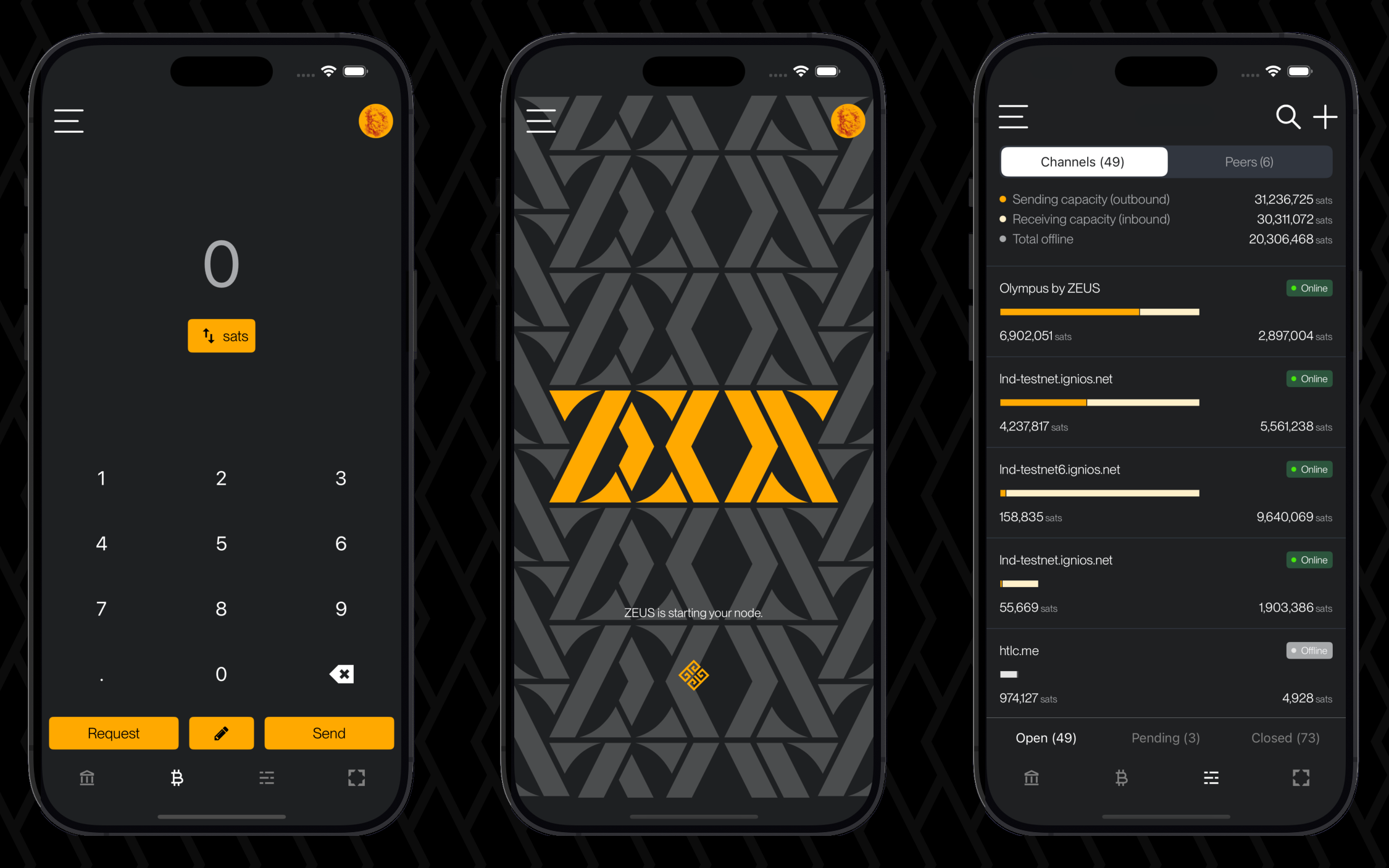
ZEUS is a mobile Bitcoin wallet and node management app with full functionalities of a bitcoin lightning wallet that makes bitcoin payments simple, gives users complete control of their finances, and allows more advanced users to manage their Lightning nodes from the palm of their hand.
ZEUS is available to download on [Google Play](https://play.google.com/store/apps/details?id=app.zeusln.zeus), [Apple App Store](https://apps.apple.com/us/app/zeus-ln/id1456038895), and [F-Droid](https://zeusln.app/download/).
If you are having trouble using ZEUS, would like to contribute to the project, or are just interested in learning more, you can read these docs, reach out to our community on [Telegram](https://t.me/zeusLN), keep up with us on [Twitter](https://twitter.com/ZeusLN), join our [developer slack](https://zeusln.slack.com/join/shared_invite/zt-qw205nqa-o4VJJC0zPI7HiSfToZGoVw#/) or open an issue on [GitHub](https://github.com/ZeusLN/zeus).
## Features
- Bitcoin only wallet
- Self-custodial
- No processing fees
- No KYC
- Fully open source (APGLv3)
- Lightning accounts
- On-chain accounts
- Easy to use activity menu
- NFC payments and requests
- PIN or passphrase encryption
- Privacy mode - hide your sensitive data
- Send to Lightning addresses
- Full LNURL support (Pay, withdraw, auth, channel)
- Connect over Tor
- Connect to your own Lightning node
- Connect LNDHub instances
- [Nostr Wallet Connect service](https://docs.zeusln.app/nostr-wallet-connect/#nwc-service--zeus-as-the-wallet)
- [Nostr Wallet Connect client](https://docs.zeusln.app/nostr-wallet-connect/client)
- Lighting channel management
- Detailed routing reports
- Manage routing fees
- MPP/AMP support
- Keysend support
- Sign & verify messages
- Replace-by-fee (RBF) and Child-pays-for-parent (CPFP) support
- SegWit support
- Fiat currency integrations
- [Multiple languages](https://explore.transifex.com/ZeusLN/zeus/)
- Multi-theme
- [Point of Sale](https://docs.zeusln.app/pos/overview)
- Contact book
- [Embedded LND Node](https://docs.zeusln.app/category/local-wallets)
- [Lightning Service Provider: Olympus by ZEUS](https://docs.zeusln.app/lsp/intro)
- Taproot support
- Simple Taproot Channels
- Self-custodial lightning addresses (@zeuspay.com)
- Standalone Point of Sale
- Contact book Nostr integration
- Watch-only accounts
- Full LND coin control
- External signer accounts
- Batch transactions
- Broadcast transactions
- Partially-signed-bitcoin-transaction (PSBT) Support
## Work-in-progress features
- Hidden profiles
- Vault (multisig) accounts
- Connect a Lightning watchtower
- Advanced security center
- Advanced notifications
- PayJoin
## Who is ZEUS for?
In order to use ZEUS, you must be running a Lightning node at home or in the cloud to connect to. Alternatively, it can be used without your own node, if you configure it to use lndhub accounts from other nodes (LNbits, Alby, various lndhub servers).
Currently ZEUS is for people running [Lightning Network Daemon (LND)](https://lightning.engineering/) or [Core Lightning](https://blockstream.com/lightning/) lightning nodes.
Merchants using [BTCPay](https://btcpayserver.org/) or [LNBits](https://lnbits.com/) or [Alby](https://getalby.com) can also connect to, use, and manage their nodes from ZEUS. Users of [LNDHub](https://bluewallet.io/lndhub/) can also connect to and use ZEUS.
Starting in v0.8, ZEUS will start catering to average users who just want a simple way to make fast, cheap bitcoin payments from their mobile device by having a [built-in mobile Lightning node](https://docs.zeusln.app/category/local-wallets) with an integrated [lightning service provider (LSP)](https://docs.zeusln.app/lsp/intro).
## Supporters
To a list of all our community sponzors, or become one yourself, check out our about page on our [official website](https://zeusln.app/about). You can also contribute and support to ZEUS in [many other ways](https://docs.zeusln.app/contribute/how-you-can-contribute).
---
# Before using ZEUS
Source: https://docs.zeusln.app/for-users/getting-started/before-using-zeus
To start using ZEUS you will need to be running your own Bitcoin lightning node. You can either run a node on your phone using the embedded node option or choose to use a remote connection.
For those that just started with Bitcoin, we recommend you read these resources about Bitcoin's Lightning Network before spinning up your own node. It is very important to understand these new concepts and technical terms that you will encounter while using ZEUS.
ZEUS supports the LND and CLN implementations, as well as lndhub accounts. Below you will find more documentation about these LN implementations and information on running a Lightning node.
### What is a Bitcoin Lightning Network (LN) node?
A Bitcoin node is a computer that connects to the Bitcoin network and uses a peer-to-peer protocol that allows nodes to communicate with each other within the network as well as spreading information on transactions and blocks. Information is distributed among such nodes and they are what the blockchain network consists of. [See more details here](https://en.bitcoinwiki.org/wiki/Node).
The Lightning network is the additional payment protocol (Layer 2), a layer embedded on top of a blockchain to enable users to send or receive payments instantly and at almost zero cost. It involves the use of peer-to-peer payment channels that mean users can defer broadcasting their transactions to the blockchain, making it scale. It is intended to help Bitcoin to scale. [See more details here](https://en.bitcoinwiki.org/wiki/Lightning_Network).
In short:
- Bitcoin network Layer 1 (on-chain) is the base settlement network
- Lightning network Layer 2 (LN) is the payment network
Here is a list of resources that will explain in detail what it is, how it works, what you should do as a node LN operator, and how to manage your LN node.
### LN implementations supported by ZEUS
1. LND - Lightning Network Daemon: [GitHub](https://github.com/lightningnetwork/lnd/) | [Documentation](https://docs.lightning.engineering/)
2. CLN - Core Lightning: [GitHub](https://github.com/ElementsProject/lightning) | [Documentation](https://lightning.readthedocs.io/index.html)
3. LNDHub: [GitHub](https://github.com/BlueWallet/LndHub) | [Documentation](https://bluewallet.io/lndhub/)
### LN explained
- [Explain LN - The Airport analogy](https://twitter.com/CoinCornerDanny/status/1584628950588076032) - by Danny Scott
- [An Overview of Lightning Network Implementations](https://medium.com/@fulgur.ventures/an-overview-of-lightning-network-implementations-d670255a6cfa) - by Fulgur Ventures
- [Lightning Network Resources, LN complete library](https://lightning.how/) - by Jamesson Lopp
- [Beginners Lightning Guide](https://bitcoiner.guide/lightning/) – by Bitcoin Q&A
- [Lightning Network Dev Curriculum](https://github.com/chaincodelabs/lightning-curriculum/) – by Chaincode Labs, very good resources
### LN Guides
- [Lightning Node Management](https://www.lightningnode.info/) – by openoms, excellent guide (also in Spanish)
- [Lightning Liquidity Management Guide](https://blog.lopp.net/lightning-network-liquidity-management-guide/) (article) – by Jameson Lopp
- [RaspiBlitz Documentation](https://github.com/rootzoll/raspiblitz) - by Rootzoll and openoms
- [Raspibolt Lightning Node Manual](https://raspibolt.org/guide/lightning/) (docs) - by the Raspibolt Team
- [myNodeBTC Documentation](https://mynodebtc.github.io/intro/introduction.html) - by the myNode Team
- [Umbrel Documentation Guides](https://community.getumbrel.com/c/guides/) - by DarthCoin (most of them)
- [Start9 Documentation](https://start9.com/latest/user-manual/) - by the Start9 Team
- [nodl Documentation](https://docs.nodl.it/) - by the nodl Team
- [BTCPay Server Documentation](https://docs.btcpayserver.org/) - by the BTCPay Team
- [LNbits Documentation](https://github.com/cryptoteun/awesome-lnbits) - by the LNbits Team
### LN Videos
- [What is a Bitcoin node](https://youtu.be/sVeolsQ3cvU) (Youtube) - by Blockgeeks
- [Everything you need to know about LN](https://youtu.be/bW7hvvjum9o) (Youtube) – by Till Musshoff
- [How Lightning channels work?](https://youtu.be/pOZaLbUUZUs) (Youtube) – by Decentralized Thought
- [LN: The most efficient payment system in the world](https://youtu.be/z9n8WRfMw8M) (Youtube) - by Bitcoin Magazine
- [Lightning Network explained](https://www.youtube.com/user/renepickhardt/videos) – YT channel by René Pickhardt
- [Lightning Nodes Playlist](https://www.youtube.com/watch?v=KItleddMYFU&list=PLxdf8G0kzsUX0sLhQxqCe4S-QziE5tbQG) - YT channel by BTC Sessions
- [Node Management with Zeus LN](https://www.youtube.com/watch?v=hmmehTnV3ys&list=PLxdf8G0kzsUWcgEJLH9AHTN3KQzoN2HTs&index=9) - by BTC Sessions
- [Lightning Network Nodes Tutorials](https://www.youtube.com/watch?v=Lojku8Tstyg&list=PLHcLDToI_2upRgjG-jgNHcHKCmFBy1Xl5) - by Jonathan Levi
- [Core Lightning Node](https://www.youtube.com/watch?v=fvB1SmY-y98&list=PLmoQ11MXEmaionX9w3-jDcixPbprBrAif) - YT playlist by 402 Payment Required
- [LND Lightning Node](https://www.youtube.com/watch?v=q0siLF9zmWo&list=PLmoQ11MXEmajsUw95Fq6fHzXnVmoMPIeV) - YT playlist by 402 Payment Required
- [Video tutorials about Lightning Nodes](https://www.youtube.com/c/MinistryofNodes/videos) – by Ministry of Nodes
- [Getting started with LN channels](https://www.youtube.com/watch?v=KhU_sTiaN8w) – by Start9
- [Payment Channels on Lightning Network](https://youtu.be/Hzv9WuqIzA0) (Youtube) – by MIT OpenCourseWare
---
# Connect a remote node or run a node on the phone
Source: https://docs.zeusln.app/for-users/getting-started/remote-or-embedded
ZEUS is a mobile Bitcoin wallet that can both run a node and wallet locally on your phone, but it can also manage multiple remote nodes. You can connect various nodes not just one, and even use the embedded node in parralel, depending on your needs and usage.
# Embedded node
If you don't have a remote node or account to connect to, you can also use our [local wallet](https://docs.zeusln.app/category/local-wallets), which will run on your phone. This is the simpler path that most people will choose.
# Remote connections
ZEUS supports connections for LND and CLN nodes, and lndhub accounts, through different types of platforms, networks, configurations etc.
[Please choose your specific node platform](https://docs.zeusln.app/category/remote-connections/) to see more details about how to configure your remote connection.
---
# Onboarding to Lightning
Source: https://docs.zeusln.app/for-users/getting-started/lightning-onboarding
Learn about all the ways you can onboard to Lightning
## Intro
ZEUS' embedded node has many different ways to get onboarded onto Lightning with payment channels. This doc details all of the different ways and tradeoffs.
## LSPs - pay for a channel with Lightning
An LSP, or Lightning Service Provider, helps connect users to the Lightning network by opening up payment channels to their nodes. You can [learn more about LSPs here](https://docs.zeusln.app/lsp/intro).
ZEUS has its own LSP, Olympus by ZEUS, that you are connected to by default, but also allows you to use other LSPs.
### Olympus by ZEUS
By default, ZEUS will use its in-house LSP, Olympus by ZEUS. Invoices you generate will be [wrapped](https://docs.zeusln.app/lsp/wrapped-invoices) and you'll be presented with the fees associated with the service if they're paid.
If you don't have inbound liquidity, Olympus by ZEUS, will open up an instant channel to you, deduct the fee, and send you the remaining amount of the payment.
All you have to do is pay the invoice generated for you in ZEUS with another Lightning wallet, and your channel will open instantly.
[Fees](https://docs.zeusln.app/lsp/fees) for the service start at 10,000 per channel but tend to rise when the blockchain finds itself in a high fee environment.
Another benefit of paying for a channel is cheaper routing fees.
## Manual channel open - open a channel with on-chain funds
Since ZEUS also has a built-in on-chain wallet, you can also open channels using on-chain funds. Read about [how channels work in ZEUS](https://docs.zeusln.app/for-users/using-zeus/channels).
### Opening a channel to Olympus by ZEUS
You can open a channel in ZEUS by going to the `Channels` view by clicking the channel icon in the bottom of the main view, and then hitting the `+` icon in the top right corner.
There is a button on the `Open Channel` view you can press to populate the required fields to open a channel to [Olympus by ZEUS](https://amboss.space/node/031b301307574bbe9b9ac7b79cbe1700e31e544513eae0b5d7497483083f99e581).
Unlike paid LSP channels, your channel will require on-chain confirmation; it will not open instantly. You will also need to make sure that the channel is unannounced. We reserve announced channels for our liquidity partners to ensure that our paid LSP users have a great payments experience.
Unlike paid LSP channels, you will not benefit from reduced routing fees.
### Opening a channel to other nodes
Since ZEUS' embedded node is a Lightning node in your pocket with full functionality, you can use it to open channels to virtually any other peer on the Lightning network (providing they accept your channel request). You may want to look for peers on [PlebNet](https://plebnet.wiki/wiki/Main_Page), [Amboss](https://amboss.space/), [LnRouter](https://lnrouter.app/), [Lightning Terminal](https://terminal.lightning.engineering/), or [1ML](https://1ml.com/).
---
# Concepts
Source: https://docs.zeusln.app/for-users/getting-started/tips
Help with some technical concepts.
## What is an Outpoint?
An "outpoint" refers to a specific output of a previous transaction. Every transaction in Bitcoin consists of inputs and outputs. Inputs refer to the funds being spent. It specifies where the bitcoins being spent come from. It uses an outpoint to reference a previous unspent output on the blockchain, while outputs are the destinations where the funds are being sent. This defines who receives the bitcoins and the conditions for spending them.
An outpoint is a reference to a particular output of a previous transaction. It consists of two parts:
- Transaction ID (txid): This is a unique identifier for a specific transaction on the Bitcoin blockchain.
- Output Index (vout): This denotes which specific output of the referenced transaction is being spent.
For example, let's say there's a transaction with the ID `a1075db55d416d3ca199f55b6084e2115b9345e16c5cf302fc80e9d5fbf5d48d`, and it has several outputs. If someone wants to spend the first output of this transaction, they would refer to it using the outpoint `a1075db55d416d3ca199f55b6084e2115b9345e16c5cf302fc80e9d5fbf5d48d:0`, where `a1075db55d416d3ca199f55b6084e2115b9345e16c5cf302fc80e9d5fbf5d48d` is the transaction ID and 0 is the output index (indexing starts from 0).
The transaction above is an actual transaction - the 10,000 BTC used to pay for a pizza in 2010.
Using the transaction ID above on a blockchain explorer like [mempool.space](https://mempool.space) or [blockstream.info](https://blockstream.info) would show you information about the transaction and its input and output.
At the left hand side, we can see the the inputs and its corresponding outpoints while on the right hand side we can see the output.
## What are Anchor Outputs?
Anchor outputs are additional outputs added to a commitment transaction in a channel, with each party having one output. These outputs are encumbered with a CSV condition, acting as timelocks, allowing parties to bump fees using Child Pays for Parent (CPFP) to facilitate transaction confirmation. This mechanism enables users to set fees for closing transactions, enhancing flexibility and security within the Lightning Network.
Anchor outputs address the challenge of delayed confirmation due to preset transaction fees at the time of crafting commitment transactions. By allowing parties to adjust fees post-transaction creation, anchor outputs empower users to adapt to changing fee dynamics, ensuring timely and efficient transaction processing.
---
# Embedded LND vs LDK Node
Source: https://docs.zeusln.app/for-users/local-wallets/comparison
A comparison of the two local wallet implementations available in ZEUS.
## Features
| Feature | Embedded LND | LDK Node |
|---|---|---|
| Block sync | Neutrino (more private, slower, less reliable) | Esplora (less private, faster, more reliable) |
| LN Graph sync | Express Graph Sync | Rapid Gossip Sync |
| Run LN node on device (full self-custody) | ✅ | ✅ |
| LN node / channels backup | | |
| - export to file | ✅ | ❌ |
| - to remote server | Manually | Automatically |
| Can migrate to a full remote node? | ✅ | ❌ |
| Lightning address | | |
| - Zaplocker | ✅ | ❌ |
| - Cashu | ✅ | ✅ |
| BOLT12 offers (receive / withdraw) | ❌ | ✅ |
| Blinded paths | via BOLT11 | via BOLT12 |
| MPP - Multi path payment | ✅ | ✅ |
| Taproot onchain address | ✅ | ❌ |
| Simple Taproot Channels | ✅ | ❌ |
| Opening LN channels mgmt | | |
| - with LSP | ✅ | ✅ |
| - with any other LN node | Announced and unannounced channels | Unannounced channels only |
| Route hints for LN invoices | Granular user controls | Automatically added |
| First hop selection for payments | ✅ | ❌ |
| External accounts (import XPUBs and sign PSBTs) | ✅ | ❌ |
## Performance
| Metric | Embedded LND | LDK Node |
|---|---|---|
| Time to full sync from start | ~3-15 min | ~3-10 sec |
| User data occupied space on device | ~1-5 GB | ~9-10 MB |
| Battery usage 24h (persistent mode) | ~9-15% | ~3-5% |
---
# Privacy
Source: https://docs.zeusln.app/for-users/local-wallets/privacy
Learn about the privacy properties of the Embedded Node + LSP
## Client-side path finding
Client-side path finding: ZEUS constructs users' lightning payment paths on their devices, so we don't know the final destinations of our users' payments, even when they're forwarded through our channels.
Not only do we not want to know how you're using your money, but we're building things in a way that we can't.
Not all wallets can say the same.
## Invoice wrapping
Onboarding to lightning can be difficult and overwhelming to new users. So we've lowered the barrier to entry with a channel service from our new lightning service provider (LSP), Olympus by ZEUS.
Users can generate invoices without having previously set up lightning payment channels, and have them paid and settled, nearly instantly, with our 0-conf channel service.
The LSP also provides added privacy to our users by providing them with wrapped invoices that conceal their nodes' public keys from payers.
The LSP is on by default, but users can choose to opt out of it. It is currently only available to use with embedded nodes, but we hope to extend functionality to remote nodes soon.
[Read more about our LSP here.](https://docs.zeusln.app/lsp/intro/?ref=blog.zeusln.com)
## Simple Taproot Channels
ZEUS v0.8.0 is the first mobile wallet to include support for Simple Taproot Channels. When closing these channels, users incur less fees and are given more privacy as they appear to be identical to any other Taproot spend when examining their on-chain footprint.
Simple Taproot Channels can also be requested from our LSP, Olympus by ZEUS.
Simple Taproot Channels are only supported with Embedded LND wallets. Expect full Taproot channel support in both LND and LDK wallets in future releases.
## Neutrino block filters
When checking your addresses' balances, many Bitcoin wallets leak those addresses and balances to wallet providers, or another third party. ZEUS doesn't.
Block sync with ZEUS' embedded node is done using block filters and the Neutrino protocol so we are given no information about our users' on-chain funds.
You can get a great technical resources on block filters over at [Bitcoin Optech](https://bitcoinops.org/en/topics/compact-block-filters/), and a more digestable overview over at [Bitcoin Magazine](https://bitcoinmagazine.com/technical/why-bitcoin-wallets-need-block-filters).
Neutrino block filters are only supported with Embedded LND wallets. LDK Node wallet users can point to their own Esplora node for additional on-chain privacy.
---
# Backup and recovery
Source: https://docs.zeusln.app/for-users/local-wallets/embedded-lnd/backup-and-recovery
Back up and recover both lightning and on-chain funds in ZEUS.
There are a few catches, so please read this entire document before trying to restore a wallet or transfer a wallet to a new device.
## BEWARE OF SCAMMERS
### **ZEUS TEAM MEMBERS WILL NEVER ASK YOU FOR YOUR 24 WORD SEED PHRASE**.
The internet is rife with scammers posing as official support. Do not provide it to anyone. Giving your 24 word seed phrase to others can result in theft of funds.
## Seed phrase format
The embedded node in ZEUS is based on LND and uses the aezeed seed format. This is different than the typical BIP39 format you see in most Bitcoin wallets, although it may appear to be similar. aezeed includes some extra data including the birth date of the wallet that will help rescans during recovery happen more efficiently.
## Backing up your seed phrase
ZEUS will prompt you to back up your funds on the Balance view once you have received your first payment, but you can back up your 24 word seed phrase at any point by going to Menu -> Back up wallet.
Tap each pane, one at a time to reveal each word in the seed phrase. You must back up each word, in order, to be able to recover your funds. Make sure you copy all 24; you may need to scroll down on the Back up wallet view to see them all if you have a phone with a lower resolution.
## Backing up your lightning state (disaster recovery data)
The seed phrase alone will be insufficient to recover all your balances if you have open or pending closing channels.
ZEUS will automatically back up your disaster recovery data to our OLYMPUS servers by default. They are encrypted using your 24 word seed phrase, so we are unable to read them.
You can also manually back up the disaster recovery data by going to Settings -> Embedded Node -> Export recovery data to clipboard. If you choose to back your data up manually, we recommend doing after every new channel open.
> Disaster recovery data lets you reclaim on-chain funds by **force-closing** your channels on recovery. If you want your channels to stay open when moving to a new device, use the [channel migration flow](#migrating-channels-to-a-new-device) instead.
## Multiple devices
You cannot use the embedded node wallet on **multiple devices simultaneously**. If you want to move to a new device, see [Migrating channels to a new device](#migrating-channels-to-a-new-device).
## Migrating channels to a new device
The seed phrase plus the automatic disaster recovery data above is enough to reclaim on-chain funds, but restoring that way will **force-close** every existing channel. Force closes are more expensive and you will have to wait out the CSV timelock (up to two weeks) before you can sweep your funds.
If you want to move your embedded LND wallet to a new device while keeping your channels **live**, ZEUS provides a channel migration flow. It takes a full snapshot of your channel state, transfers it to the new device and brings the wallet back up from that snapshot so your channels stay open and usable.
**This flow is only available for wallets using the embedded node (LND).**
### Before you start
- Once the export finishes successfully the wallet is put into a **locked state** on the source device, most tools and normal wallet actions are disabled there so you cannot accidentally diverge from the snapshot you just took. Treat the exported backup as the single source of truth and **stop using the old device**.
- OLYMPUS uploads are encrypted with your 24 word seed phrase, so nobody, not even the ZEUS team, can read your backup data. The local file option is not encrypted, so store it somewhere safe.
- The OLYMPUS upload option is available for wallets running on the **SQLite** database. Wallets on the **bolt** database can export a local file only.
### Exporting the backup
There are two entry points for the export:
- **Menu → Tools → Export channel backup** (visible only when the wallet has any channels: open, pending or closed).
- The **Seed backup** screen. After revealing all 24 words, if the wallet has any channels (open, pending or closed) ZEUS will prompt you to export the channel backup before finishing.
When you start the export, ZEUS will ask you to choose between two destinations. The **OLYMPUS** option is only available for SQLite database wallets; bolt database wallets can only export a local file.
- **OLYMPUS**: the backup is encrypted with your seed phrase and uploaded to the ZEUS backup service. If a previous backup already exists for this wallet, ZEUS will show you its timestamp and ask you to confirm the replacement before uploading.
- **Local file**: the backup is saved to your device. On Android it lands in the `Downloads` folder; on iOS the share sheet opens so you can save it to Files, AirDrop it, send it to iCloud, etc.
ZEUS shows a progress modal while the backup is being prepared. Once it finishes you will see a success alert with a **Restart** button. Tap it to restart the app; after the restart the wallet is in the locked state and the node no longer runs, so **do not try to use the old wallet any further**, any new activity would not be included in the backup you just took.
### Importing on the new device
On the new device, go through the normal [Restore wallet](#restoring-a-wallet) flow described below. When you enter your seed phrase ZEUS will ask how you want to restore channel state and give you three options:
- **Check OLYMPUS**: fetches the latest uploaded backup for your seed phrase. If none is found, ZEUS will let you know and you can proceed with the 'Continue without backup' option.
- **Import file**: opens the file picker so you can select the backup file you exported earlier.
- **Continue without backup**: skips the channel migration and falls back to a plain seed restore. This will force-close any channels, so only pick this if you have lost the backup.
Leave the app in the foreground until the restore finishes.
## Preparing to restore a wallet
There are two different ways to recover an embedded LND wallet, and the outcome depends on which one applies to you:
- **Channel migration backup** (recommended if you planned the move ahead of time): if you exported a channel backup from the old device, the new device will pick up where the old one left off and your channels stay **live**. See [Migrating channels to a new device](#migrating-channels-to-a-new-device) above.
- **Disaster recovery (SCB) only**: if all you have is the seed phrase and the automatic disaster recovery data, restoring will trigger a **force close** of every existing channel to recover the on-chain funds. Force closes are more expensive than mutual closes and you will have to wait out the timelock (up to two weeks) before you can sweep. If possible, close your channels on the old device first, or export a channel migration backup instead.
## Restoring a wallet
Once you're ready to recover, go to the Settings menu in ZEUS. It is accessible from the top left corner on the main view (typically an icon of Zeus) if you have a wallet configured already, or by pressing 'Advanced set-up' on the splash screen of a new install.
From there you can add a new node by pressing the top field (it will either say 'No Wallets', or the name of your active connection), and then hitting the plus (+) icon in the top right corner.
From there, enter your 24 word seed phrase in the field labeled 'Recovery Cipher Seed (aezeed)'. You can optionally provide a static backup string in the field labeled 'Disaster recovery data (SCB, Base64)'. If you plan to use the OLYMPUS or Import file option in the next step, you can leave this field blank.
Then press 'Restore mainnet wallet' if you're dealing with real funds or 'Restore testnet wallet' if you're using Bitcoin's test network.
Before the wallet is created, ZEUS will ask you how to restore your channels and show the three options described in [Importing on the new device](#importing-on-the-new-device). Pick the one that matches how you saved the backup on the old device, or choose _Continue without backup_ to fall back to an SCB-only restore.
Please leave ZEUS running the first time you restore the seed. It has to go through the recovery process to restore your balance. It is not uncommon for this to take over 10 minutes, especially if you have a heavily used wallet. You may want to temporarily turn off any screen timeouts and energy saving options in your phone's settings, so that ZEUS doesn't go into the background and pause LND during the process.
## Having issues recovering a wallet?
You must leave ZEUS running the first time you restore the seed. It has to go through the recovery process to restore your balance. It is not uncommon for this to take 10 minutes, especially if you have a heavily used wallet. It is advised to reinstall ZEUS and reinitialize the wallet with your seed if you closed it or restarted it before seeing your full balance.
Alternatively, if you want a more manual approach, you may be able to spam the create on-chain address function to get all your addresses indexed in LND's DB and restore your balances. You will likely have to generate both Taproot and SegWit addresses for this approach to work. Since new addreses are generated every time you create an invoice, you may have to generate several hundred addresses of each type.
Then, after your addresess have been generated and indexed, use the 'Rescan' functionality under the Embedded Node settings.
## Have bigger issues?
It is worth reading Lightning Labs' documentation on recovering funds from LND in case of a catastrophic failure.
In complicated scenarios, chantools can prove to be a valuable tool.
Remember, funds are recoverable in **most** cases. It's best to proceed calmly, and not try things blindly as some actions can make the situation worse.
## Can I recover my ZEUS onchain wallet into other wallet applications?
The aezeed key format **should** be compatible with the following wallets: Blixt, Blue Wallet and Breez. Note that the seed alone will be insufficient to recover all your balances if you have open or pending closing channels. But only for restoring the onchain wallet funds is enough.
Another option is to use [Sparrow Wallet](https://sparrowwallet.com/) (desktop), but are necessary some preparation steps. This method is also useful in case you want to extract the XPUB for your ZEUS LND node and you want to use it as watch only (deposit-only) in another app. Sparrow will display it in the wallet details.
### Step 1. Get the HD Keys from your ZEUS wallet
To import the ZEUS on-chain ypriv / zpriv keys into Sparrow Wallet you have 2 options:
PLEASE DO NOT SHARE THESE KEYS, THESE ARE FULL ACCESS TO YOUR NODE WALLET, KEEP THEM SAFE.
**OPTION A** - directly from the ZEUS UI, go to Backup wallet - and click on the QR on top right corner. It will take few moments to extract the ypriv/zpriv and will display it in full text format and QR code. Now you can import it into Sparrow and have full access to your onchain wallet. In Sparrow keep in mind to switch between segwit P2WPKH "bc1q" (BIP84) and taproot addresses P2TR "bc1p" (BIP86), depending which format you used previously in ZEUS.
**OPTION B** - Using Cryptography Toolkit by Guggero (LND dev):
- Go to Cryptography Toolkit and download the HTML file onto your computer.
- Open that HTML file in "offline mode" (no internet) and select "aezeed Cipher Seed Scheme" from Tools. Then go to the 2nd tab "Decode Mnemonic".
- Paste your 24 words into the "Mnemonic" field.
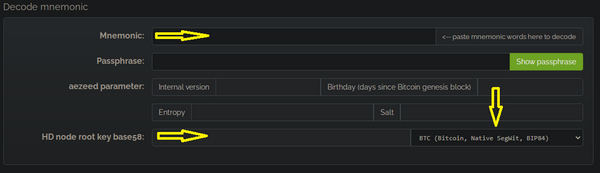
- Select format BIP84 native segwit and wait a bit to be decoded.
- Copy the zprv displayed into the field "HD node root base 58"
### Step 2. Restore the HD Keys in the Sparrow desktop wallet
- Open (already downloaded) Sparrow wallet app and select "New Wallet"
- In the "Keystores" select "New or Imported Software Wallet"
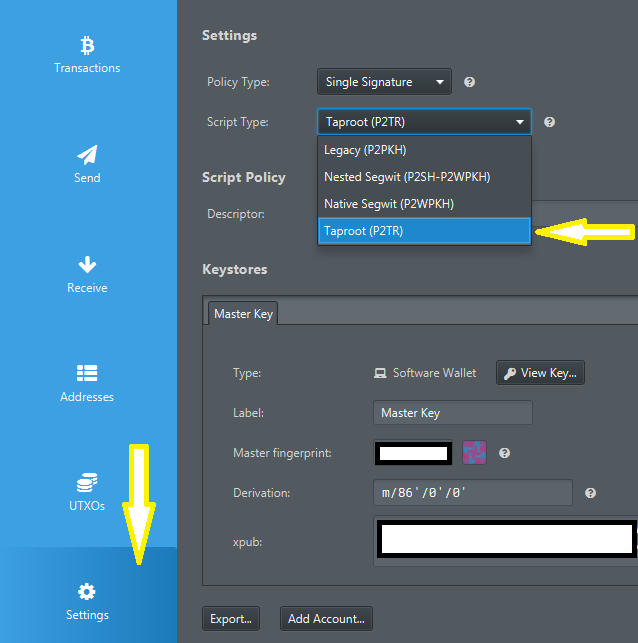
- In the next window that will open, select "Master Private Key BIP32" and paste that "zprv" key you get it from the cryptography tool and click "Import". It will show you that is a m/84'/0'/0 derivation path. That will import only the segwit P2WPKH type of addresses. But if you used Taproot P2TR addresses, then you should change it into "m/86'/0'/0".
- Click on "Import Keystore" and it will go back to main window of the wallet app where you can see all the wallet config. Click on "Apply" and will prompt you to set a password to encrypt your local wallet file.
- If you used both types of addresses in ZEUS, we suggest to import them as two wallets in Sparrow, using the same "xprv" key but each one with a different derivation path. In this way you can avoid confusions.
- You can also change between segwit and taproot an already imported wallet, by going to wallet Settings and switch the "Scrypt Type" (segwit P2WPKH or taproot P2TR) and then re-import the BIP32 xprv keys to make the switch.
- Sparrow app will start scanning all your keys and txs and it will be displayed after a while in the "Transactions" tab. Patience, it will take some time.
- For a faster, secure and private connection is better to connect your Sparrow wallet app to your node (via Electrum server or directly to a Bitcoin Core RPC)
And done, now you can manage your ZEUS LND onchain wallet from Sparrow.
## chantools: sweepremoteclosed
chantools is a CLI tool for recovering funds from Lightning channel when a user has unfortunately lost their channel state data.
In ZEUS v0.10, we've built in the sometimes needed sweepremoteclosed command, which we've found to be invaluable when users have sync issues or have lost their channel backups.
### Steps
- 1. Go to `Menu` > `Settings` > `Embedded Node` > `Advanced` > `chantools` > `sweepremoteclosed`
- 2. In the field called `Sweep address`, input an on-chain address to receive your funds to, then hit `Start Sweep`. It should take about 5-10 minutes to run.
- 3. If successful you'll reach a page labeled TXHex with a QR code. Simply scroll to the bottom and hit `Broadcast TX` to complete the recovery
If you hit error "found 0 sweep targets with total value of 0 satoshis which is below the dust limit of 600", simply try again with `Advanced settings`: `Recovery window` increased. Try 1000, 2500, 5000 if necessary.
If you hit any issues about unexpected characters, you are hitting a rate limit from one of the block explorer settings. Under Advanced settings, set 'Seconds to wait between queries' to 1 and try again. Please be patient as the process will now take a bit longer.
## Ecash
As of ZEUS v13, your selected ecash mints are encrypted and backed up to Nostr. Upon restoring from seed, your mints and ecash balances should be restored automatically.
The backup is encrypted using NIP-44 and the ecash token backup format follows NUT-27. This format is compatible with Cashu.me, so you can also recover your ecash there if needed.
---
# Open a channel to the embedded LND node
Source: https://docs.zeusln.app/for-users/local-wallets/embedded-lnd/open-channel-to-embedded-node
## Overview
This page will walk you through how to open up a channel from another lightning node to the embedded LND node in ZEUS v0.8+.
The embedded node lives on your phone and is usually offline so it doesn't make sense to expose a URI or node address on the lightning network for others to connect to. Instead, you must initiate the peer connection yourself from the embedded node.
## Steps
### 1. From the embedded node, connect to your remote node as a peer
Go to the Open Channel view in ZEUS. You can get there by going to the channels pane in the bottom right corner of the main view. Once you're on the Channels pane, press the plus icon (+) in the top right corner to get to the Open Channel view.
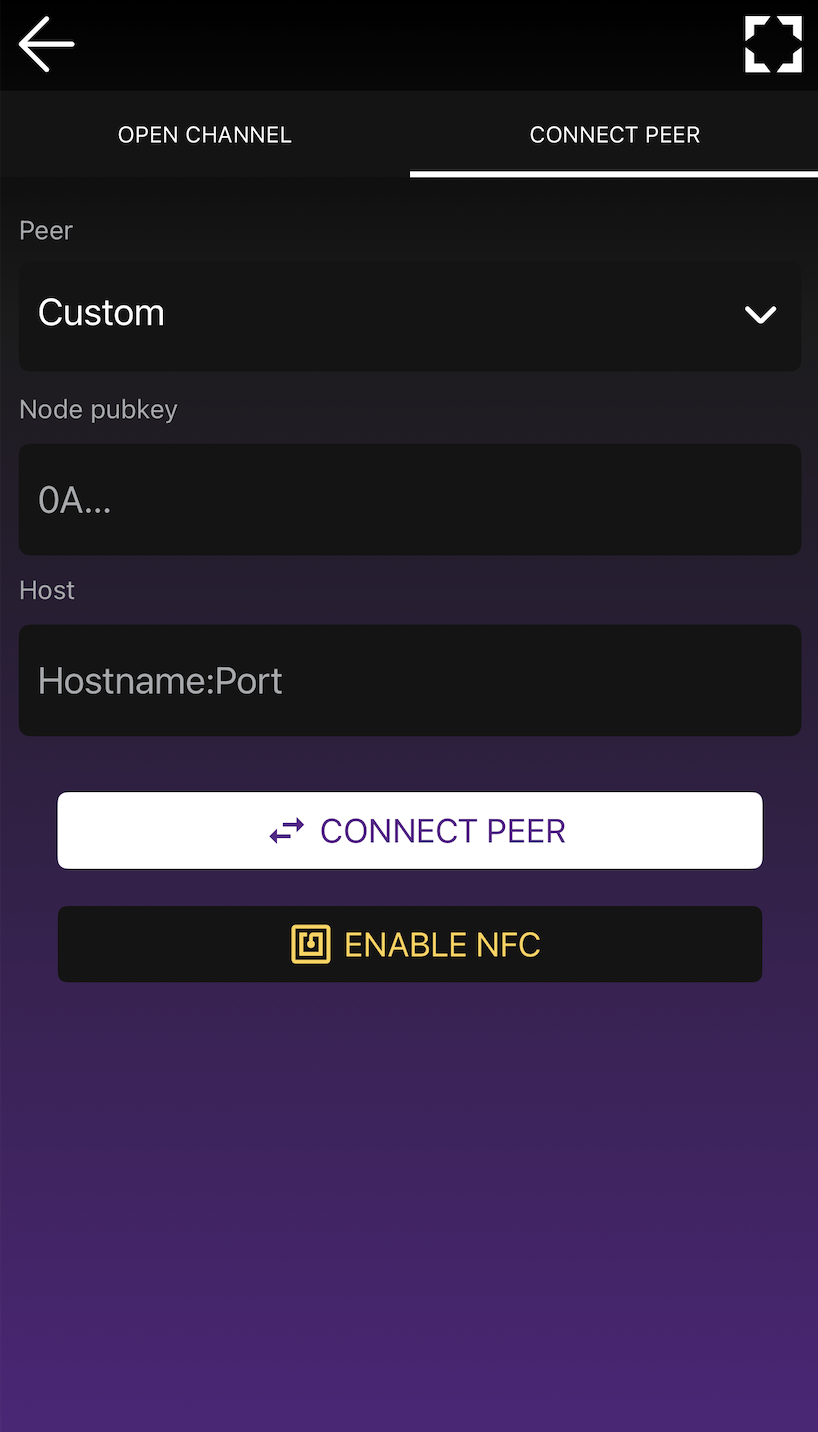
In the Open Channel view, you will now see two tabs in the header: **Open Channel** and **Connect Peer**. You can switch between these tabs to change the view accordingly.
From the Connect Peer tab, you will see a Peer input field with a dropdown. By default, it is set to OLYMPUS BY ZEUS, you need to tap on it and select Custom to manually enter the values. Once set to Custom, enter the remote node's pubkey and host, then press the Connect Peer button. If successful, ZEUS will return a message confirming that you've successfully connected to your peer.
### 2. From the remote node, open up a channel
Now that you've established a peer connection from the embedded node to the remote node, you can now open up a channel from the remote node to the embedded node.
You may also want to consider opening a trusted channel instead so that you don't pay any on-chain fees and reap other benefits.
---
# Open a trusted funding channel to the embedded node
Source: https://docs.zeusln.app/for-users/local-wallets/embedded-lnd/trusted-funding
## Overview
One potential setup you can have with your in-app, embedded node in ZEUS v0.8: connect to your routing node at home (or in the cloud) with a private 0-conf channel.
There are a lot of perks to this set up. You skip on-chain fees, save on routing fees, segregate your main LN funds from your phone, and potentially skip the need to backup your mobile wallet.
**WARNING: this is an ADVANCED procedure. You should be comfortable with compiling LND from source, modifying your LND configuration, and running software with NodeJS. Please read the full document before proceeding.**
## Steps
Before you begin, be sure you have your Zeus running on "Persistent Mode". That will keep alive the LND service, unintrerrupted in case you switch screens or the phone goes on power saving mode. To activate "Persistent Mode", go to **Settings** - **Embedded Node** - **Advanced** - **Persistent Mode**, switch on the button. It will ask you to restart Zeus. After restart proceed with the next steps.
**NOTE: Keep in mind that "Persistent mode" is available ONLY for Android OS users.**
### 1 On the remote node, enable zero-conf channels
In your `lnd.conf` add the following lines:
```
[protocol]
protocol.option-scid-alias=true
protocol.zero-conf=true
```
### 2. From the embedded node, connect to your remote node as a peer
Go to the Open Channel view in ZEUS. You can get there by going to the channels pane in the bottom right corner of the main view. Once you're on the Channels pane, press the plus icon (+) in the top right corner to get to the Open Channel view.
In the Open Channel view, you will now see two tabs in the header: **Open Channel** and **Connect Peer**. You can switch between these tabs to change the view accordingly.
From the Connect Peer tab, you will see a Peer input field with a dropdown. By default, it is set to OLYMPUS BY ZEUS, you need to tap on it and select Custom to manually enter the values. Once set to Custom, enter the remote node's pubkey and host, then press the Connect Peer button. If successful, ZEUS will return a message confirming that you've successfully connected to your peer.

### 3. Add your remote node as a zero conf peer
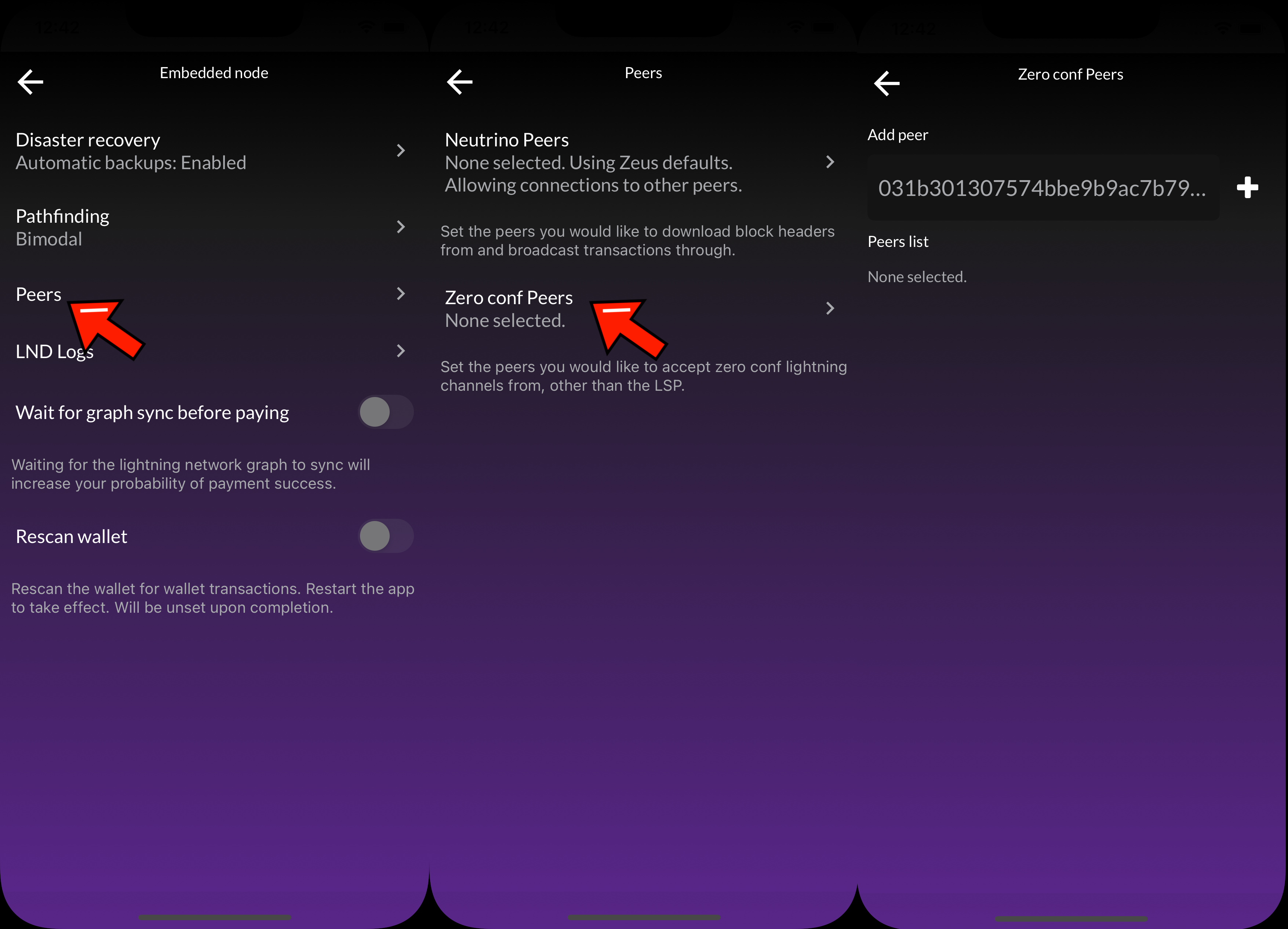
Navigate to `Settings` > `Embedded Node` > `Peers` > `Zero conf Peers`, and add your remote node's public key to the Zero conf peers list.
### 4. From the remote node, open up a trusted funding channel using Balance of Satoshis (BOS)
Now that you've established a peer connection from the embedded node to the remote node, you can now open up a channel from the remote node to the embedded node.
To open up the trusted funding channel, you must be using an LND node with the BOS command line tool
On the remote node run:
`bos open --type private-trusted --avoid-broadcast --amount `
The `--avoid-broadcast` flag will ensure that sure you never broadcast the transaction. This channel will never be reflected on-chain.
### 5. Be prepared to close channels out with abandonchannel
In our experience, we've had some of these trusted channels get out of wack and go into 'borked' states on LND. To close them out we've had to use the `lncli abandonchannel` command which requires building LND with the devrpc flag enabled.
**Note that this is a dangerous command**. You should not use it without understanding the consequences of it. You should ensure that the channel opening and closing were never broadcasted before using it.
---
# FAQ
Source: https://docs.zeusln.app/for-users/local-wallets/embedded-lnd/faq
Frequently asked questions
## I'm having problems making a payment / I can't find a route
By default, ZEUS finds out information about the lightning network graph using P2P. This can take some time. To speed up the graph sync and improve your payment success probability, go to `Menu` > `Settings` > `Embedded Node` > `Express Graph Sync`. Enable it and restart ZEUS to take effect. You can go to `Menu` > `Network Info` at any point to see how much of the lightning network your node knows about.
If you still can't complete a payment after running Express Graph Sync, you may need to bump up your max payment fee. You can see this tucked away under 'Advanced settings' on the payment request view or under `Menu` -> `Settings` -> `Payments`.
## Why can I send less than my Lightning balance?
Your Lightning balance on the Home screen and your **sending capacity (outbound)** represent different things. The balance includes funds on your side of your channels, while sending capacity accounts for channel reserves and whether your channels are active.
A **channel reserve** is an amount you must keep on your side of a channel rather than spend through Lightning. It is still part of your balance, not a fee that has been charged or funds that have disappeared. Funds in offline channels also cannot be sent until those channels are active again.
For example, your Home screen might show **12,291 sats**, but your sending capacity might be **11,243 sats**. A **12,000-sat** payment exceeds that capacity even though it is less than your balance. Check the **Outbound** amount in Channels and the **Local Reserve** in each channel's details. See [Channel Balance](https://docs.zeusln.app/for-users/using-zeus/channels#channel-balance) for an explanation of these amounts.
If your version of ZEUS shows **Available to send** on the Lightning row in **Select payment method**, that amount is your sending capacity, not your full Lightning balance. The Home screen balance is unchanged.
Sending capacity is **before routing fees**, so leave room for the payment amount plus its fees. A payment below your sending capacity can still fail if there is no suitable route, not enough liquidity along the route, or other channel constraints. Increasing your maximum routing fee does not unlock your channel reserve.
## I'm having issues restoring my wallet
Read our documentation on [Backup and Recovery](https://docs.zeusln.app/for-users/local-wallets/embedded-lnd/backup-and-recovery#restoring-a-wallet). Please be patient and leave ZEUS running for at least 10 minutes after going through the restore process.
## Can I move on-chain funds to lightning or vice versa?
Yes, and you have two options.
The easiest is a **swap**, which moves funds between on-chain and lightning without opening or closing a channel. Go to `Menu` > `Swaps`. A **submarine swap** moves on-chain funds to lightning, and a **reverse swap** moves lightning funds on-chain. Swaps are performed without custody or counterparty risk.
The first time you use the service, ZEUS will have you create or import a 12 word **rescue key**. Back it up. It is what lets you recover funds from a swap that doesn't complete if you lose access to your device. Your swap history, along with refunds for swaps that didn't go through, lives under `Menu` > `Swaps`.
Swaps carry a service fee and an on-chain network fee, both shown before you confirm, and the provider sets a minimum and maximum swap amount. See our [Swaps](https://docs.zeusln.app/swaps/intro) documentation for more, including our [swaps web portal](https://swaps.zeuslsp.com).
Alternatively, you can move on-chain funds to lightning by opening up a channel, and move lightning funds on-chain by closing a channel. This makes sense when you want the liquidity to persist as a channel rather than just moving a one-off amount.
## How are backups handled?
On-chain funds: You are presented with a 24 word seed phrase that you can back up at any time.
LN funds: By default we send encrypted (with your seed phrase) backups to our server, you can also do manual backups to our server or to your clipboard under `Menu` > `Settings` > `Embedded Node` > `Disaster recovery`.
Learn more on our [Backups and Recovery](https://docs.zeusln.app/for-users/local-wallets/embedded-lnd/backup-and-recovery) page.
## Where can I read more about Neutrino and the privacy that block filters provide when syncing ZEUS to the blockchain?
Here's a less technical explanation from [Bitcoin Magazine](https://bitcoinmagazine.com/technical/why-bitcoin-wallets-need-block-filters).
Here are more technical resources from [Bitcoin Optech](https://bitcoinops.org/en/topics/compact-block-filters/).
## Does ZEUS Pay work if you use another LSP or if you have your own channels set up?
Yes, but for best results, a 0-conf channel from OLYMPUS will work best because then you'll have a direct routing path from the service to your node.
There's a fixed routing budget and it can be tricky trying to redeem small amounts if OLYMPUS cannot find a cheap enough route to you.
## How do I open up a channel to the embedded node? The hostname isn't shown.
Please read our document on how to [Open a channel to the embedded LND node](https://docs.zeusln.app/for-users/local-wallets/embedded-lnd/open-channel-to-embedded-node).
## Simple Taproot Channels sound great. Is there any reason to not use them?
Simple Taproot Channels offer up better on-chain privacy and lower fees on channel closing. There are only two reasons you wouldn't want to use them:
1. They are new, and there still may be bugs in LND when using them.
2. Your counterparty doesn't support them. Even LND nodes have to explicitly opt into them, for now.
## Why do I have to enter in my Nostr nsec key when setting up a ZEUS Pay account?
You don't **have** to use your own Nostr key, but it does allow you, and people paying you, to reap the benefits of [Zaplocker attestation scheme](https://github.com/supertestnet/zaplocker#four-problems-zaplocker-solves).
The key will be used to sign:
- All of the hashes sent to the ZEUS Pay service
- The list of relays you provide to the service
When the sender attempts to pay you from a Zaplocker compatible wallet, like ZEUS, they will be able to the see if the payment request they are being served up is attached to the associated Nostr profile.
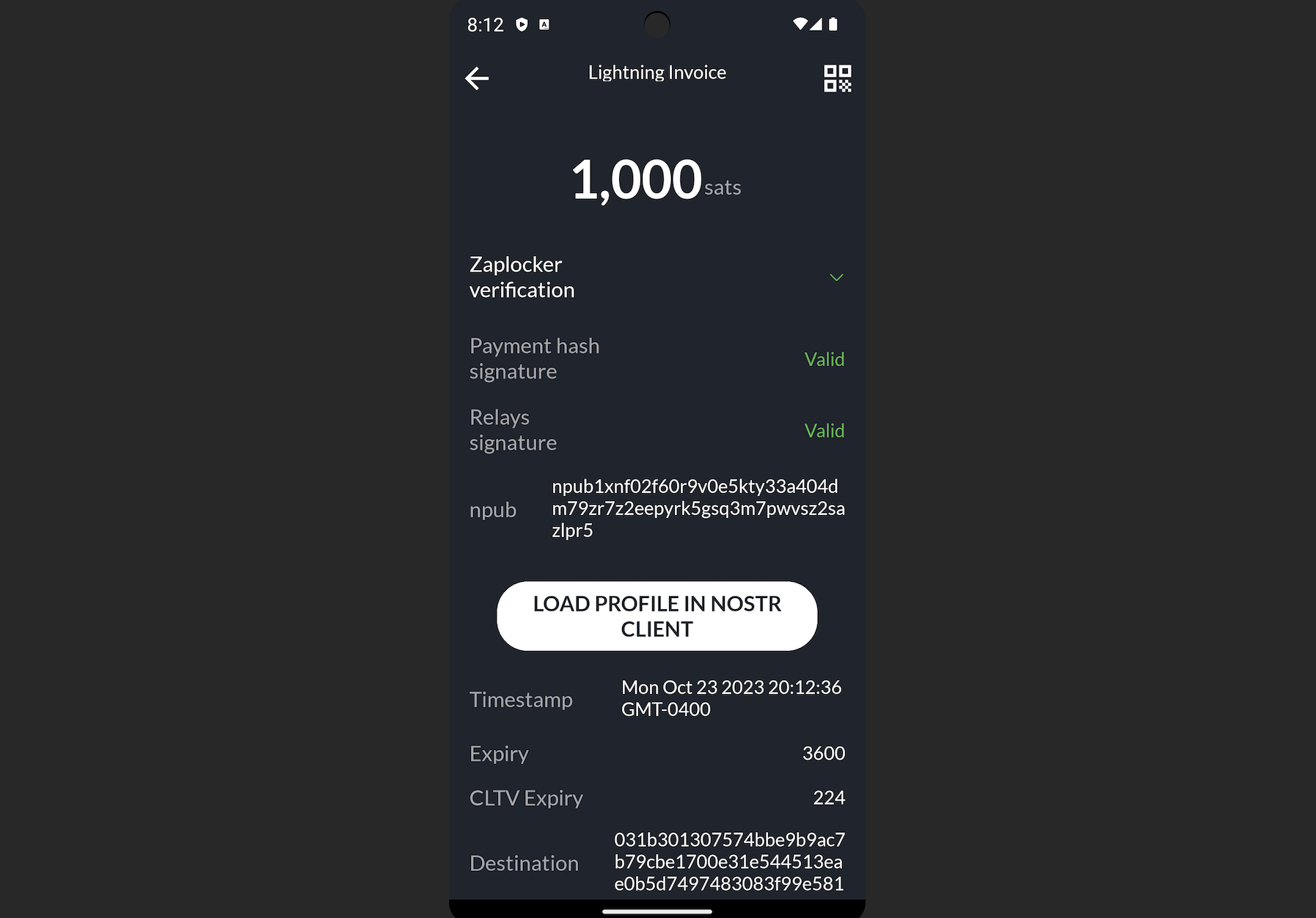
Once paid, the sender will then use the relay list to broadcast the attestation. You'll be able to check it in ZEUS by clicking the Nostrich icon next to your payments.
Lastly, you can also opt to receive your ZEUS Pay notifications via Nostr DM, instead of push notifications. They will be sent to the Nostr account of the nsec you profile.
The nsec will never leave your ZEUS wallet.
## I've previously installed ZEUS, and now I can't install the Android package from your website / GitHub. What's going on?
Many Android systems do not allow you to install app upgrades from sources that aren't where you initially downloaded and installed it from. Unfortunately, you'll have to uninstall and reinstall the new version. Be aware, this will clear out your settings so make sure you have backups of your seeds and/or connection strings.
## Help! My wallet balance has disappeared!
### What's happened?
#### If it's on-chain funds that have gone missing
ZEUS uses Neutrino block filters to fetch on-chain information in private manner. Sometimes your wallet can get out of sync with the default Neutrino peers.
#### If it's lightning funds that have gone missing
It is possible that your lightning channel has been closed. You will receive the funds on-chain once the channel has been closed.
### What should I do?
#### If it's on-chain funds that have gone missing
First let's audit the Neutrino peers ZEUS connects to to get block filter data. To check your Neutrino peers, go to `Menu` > `Settings` > `Embedded Node` > `Peers` > `Neutrino Peers`. You can hit the stopwatch icon next to each peer to check its ping time. Lower is better. Ideally your peers have a ping time under 200ms. Under 1000ms should still also be acceptable. You should have at least two good Neutrino peers.
If you're looking for a Neutrino peer. Here are some we have vetted, in different regions:
```
btcd1.lnolymp.us | btcd2.lnolymp.us - US region
btcd-mainnet.lightning.computer - US region
uswest.blixtwallet.com (Seattle) - US region
node.eldamar.icu - US region
noad.sathoarder.com - US region
bb1.breez.technology | bb2.breez.technology - US region
neutrino.shock.network - US region
europe.blixtwallet.com (Germany) - for EU region
sg.lnolymp.us - Asia region
asia.blixtwallet.com - Asia region
```
More Neutrino nodes can be found on [Bitnodes.io](https://bitnodes.io/nodes/?q=NODE_COMPACT_FILTERS) marked with feature `NODE_COMPACT_FILTERS`.
Another approach is to uncheck `Connect only to the specified peers`, restart the app, and try another rescan. This will allow your ZEUS wallet node to find new peers to connect to automatically.
If you have your own remote node, you may also want manually add it in the Peers list. You can [use this guide to enabled 'Neutrino mode' in Bitcoin Core](https://docs.lightning.engineering/lightning-network-tools/lnd/enable-neutrino-mode-in-bitcoin-core). BTCD has Neutrino on by default.
If changing your Neutrino peers and restarting the app fails to correct the balance, you should try doing a rescan by going to `Menu` > `Settings` > `Embedded Node` > `Advanced` > `Rescan wallet` and restarting the app. Please leave the app running in the foreground for up to 15 minutes to complete the process. During the rescan process you will not be able to full use the app - for example, you will not be able to generate invoices. You can follow the rescan process by following the LND logs at `Menu` > `Settings` > `Embedded Node` > `LND Logs`.
As a last resort, you can always pull your on-chain wallet into the [Sparrow](https://sparrowwallet.com/) desktop wallet, [using these instructions](https://docs.zeusln.app/for-users/local-wallets/embedded-lnd/backup-and-recovery#can-i-recover-my-zeus-onchain-wallet-into-other-wallet-applications).
#### If it's lightning funds that have gone missing
Go to the Channels view by hitting the icon in the bottom right corner of the main view. Use the three tabs at the bottom to switch between Open, Pending, and Closed channels. Mutually closed channels should return to your on-chain balance once they settle on-chain. Force closed channels can take up to two weeks to return to your on-chain wallet. These channels will appear in the Pending channels list until settled.
## I'm having problems sending lightning payments with ZEUS
First, go to `Menu` > `Network Info` and make sure there are no zombie channels. Zombie channels are channels that are most likely dead but are still around, but with the embedded node sometimes we get false positives.
If you have zombie channels (>2000), go to `Menu` > `Settings` > `Embedded Node` > `Express Graph Sync` and enable the second toggle labeled `Reset express graph sync on startup`, then restart. Be sure to go back to `Menu` > `Network Info` and ensure your zombie channel count is significantly reduced.
If you don't have zombie channels and are still having issues sending lightning payments, go to `Menu` > `Settings` > `Embedded Node` > `Advanced` > `Pathfinding` and press the button labeled `Reset payment routing profile`.
## My channels are showing as offline. How can I get them to show as active again?
This typically happens when either the blockchain headers or lightning network graph is out of sync, or the RPC server is having issues starting up. To resolve this, try the following steps one at a time. After each step, check if the issue is resolved before moving on to the next. Please note: None of these steps lead to loss of any data, such as payment history, notes, wallet configurations, or other settings.
1. Pull down on the channels list to refresh it. If channels still show as offline, leave the app running for about 10 minutes. Sometimes the RPC server just needs time to start up.
2. Go to `Menu` > `Settings` > `Embedded Node` > `Advanced` and press the button labeled `Stop LND and delete Neutrino files`, then restart the app. This will resync your blockchain data.
3. Go to `Menu` > `Settings` > `Embedded Node` > `Express Graph Sync` and enable the second toggle labeled `Reset express graph sync on startup`, then restart the app. This will resync your lightning network graph data.
4. If your channels are still not showing as online after performing steps 1-3, your wallet may be rescanning. You can follow progress under `Menu` > `Settings` > `Embedded Node` > `LND Logs`. Look for logs with text 'Rescanning through' and 'Rescanned through'.
## I'm having issues syncing. Sync is either stuck or won't start. What can I do?
For sync issues we recommended going through your Neutrino peer list and removing all the peers with high ping times. <200ms is optimal. <1000ms should still work. To access the Neutrino peers list, go to `Menu` > `Settings` > `Embedded Node` > `Peers` > `Neutrino`.
If issues persist, reset the Neutrino data by pressing `Stop LND and delete Neutrino files` under `Menu` > `Settings` > `Embedded Node` > `Advanced` and restart the sync from scratch.
## I restored my 24 words in ZEUS and my funds are still not showing up. Where are they?
During a restore, all on-chain funds should appear after the restore process has completed. However, funds on lightning have to go through the force close process, which typically takes 3 days after the close transaction confirms on-chain.
You should be able to see your pending close channels by going to the `Channels` view (the second icon from the right in the wallet navigation bar on the bottom of the main view), and tapping on the header to cycle between Open, Pending and Closed channels. If your previously open channels don't appear, go to `Menu` > `Settings` > `Embedded Node` > `Disaster recovery` and trigger a recovery by pressing `Initiate disaster recovery from Olympus` or by going to `Initiate advanced disaster recovery from Olympus` and manually selecting a backup to restore from.
For more details, visit our page on [Backup and Recovery](https://docs.zeusln.app/for-users/local-wallets/embedded-lnd/backup-and-recovery/).
## I'm having issues broadcasting on-chain transactions. They are either disappearing from my wallet or not showing up on a block explorer.
This is indicative of a sync issue.
Firstly, if you see the outgoing on-chain transaction under the `Activity` view you can press the `Raw transaction Hex` label and manually broadcast the TX by hitting `Broadcast to Mempool.space`. This will send the transaction directly to a popular block explorer. If it returns error `{"code":-25,"message":"bad-txns-inputs-missingorspent"}` - this means that you have sync issues.
To remedy this, go through your Neutrino peer list and removing all the peers with high ping times. <200ms is optimal. <1000ms should still work. To access the Neutrino peers list, go to `Menu` > `Settings` > `Embedded Node` > `Peers` > `Neutrino`. Once you have reconfigured your peers, restart the app. To remove errant, invalid, transactions and fix any issues with your displayed balance, go to `Menu` > `Settings` > `Embedded Node` > `Rescan` and restart the app. The process should take 5-10 minutes. You can follow along with the process under `Menu` > `Settings` > `Embedded Node` > `LND Logs`.
---
# Backup and Recovery
Source: https://docs.zeusln.app/for-users/local-wallets/ldk-node/backup-and-recovery
Back up and recover both lightning and on-chain funds in ZEUS using the LDK Node wallet.
There are a few catches, so please read this entire document before trying to restore a wallet or transfer a wallet to a new device.
## BEWARE OF SCAMMERS
### **ZEUS TEAM MEMBERS WILL NEVER ASK YOU FOR YOUR 12 WORD SEED PHRASE**.
The internet is rife with scammers posing as official support. Do not provide it to anyone. Giving your seed phrase to others can result in theft of funds.
## Seed phrase format
The LDK Node wallet in ZEUS uses the standard BIP-39 seed format. This is the same format used by most Bitcoin wallets. Your 12 word seed phrase can be directly imported into other BIP-39 compatible wallets like Sparrow for on-chain fund recovery.
## Backing up your seed phrase
ZEUS will prompt you to back up your funds on the Balance view once you have received your first payment, but you can back up your 12 word seed phrase at any point by going to Menu -> Back up wallet.
Tap each pane, one at a time to reveal each word in the seed phrase. You must back up each word, in order, to be able to recover your funds.
## Lightning state backup (VSS)
Unlike traditional backup systems that take periodic snapshots, the LDK Node wallet uses Versioned Storage Service (VSS) to continuously back up your lightning channel state in real time.
### How VSS works
Every time your channel state changes -- when you send or receive a payment, open or close a channel -- the updated state is immediately written to a remote VSS server. This means your backup is always current, eliminating the risk of restoring from a stale backup and accidentally broadcasting an outdated channel state.
Key properties of VSS:
- **Real-time sync**: Every state change is persisted immediately, not on a schedule
- **Client-side encryption**: Your data is encrypted before it leaves your device using keys derived from your seed phrase. The server cannot read your channel data
- **Primary storage**: VSS acts as the primary store for your channel state, not a secondary backup. This ensures your device and the server are always in sync
You can read more about VSS in the LDK announcement blog post.
## Multiple devices
You **CANNOT** use the LDK Node wallet on multiple devices at the same time.
Running the same wallet on two devices simultaneously puts your channels at risk of force closure. If both devices attempt to update the same channel state independently, the network will see conflicting states, resulting in a force close and potential loss of funds due to penalty transactions.
Always ensure your wallet is only active on one device at a time. If you are transferring your wallet to a new device, make sure to stop using the old device first.
## Restoring a wallet
To restore your wallet, go to the Settings menu in ZEUS. It is accessible from the top left corner on the main view if you have a wallet configured already, or by pressing 'Advanced set-up' on the splash screen of a new install.
From there you can add a new node by pressing the top field (it will either say 'No Wallets', or the name of your active connection), and then hitting the plus (+) icon in the top right corner.
Enter your 12 word seed phrase and follow the prompts to restore. ZEUS will use VSS to retrieve your latest channel state automatically.
## Recovering on-chain funds into other wallets
Since the LDK Node wallet uses the standard BIP-39 seed format, you can import your 12 word seed phrase directly into any BIP-39 compatible wallet to recover your on-chain funds.
Sparrow Wallet (desktop) is a good option for this. Simply create a new wallet in Sparrow, choose "New or Imported Software Wallet", select "Mnemonic Words", and enter your 12 word seed phrase.
Note that the seed phrase alone will only recover on-chain funds. Lightning channel funds require the channel state data stored in VSS.
## Channel tools: Sweep remote closed
LDK should automatically sweep funds from force closed channels into your on-chain wallet, but in some rare cases, you may want to do it manually.
### Steps
- 1) Go to `Menu` > `Settings` > `Embedded Node` > `Channel tools` > `Sweep remote closed`
- 2) In the field called `Sweep address`, input an on-chain address to receive your funds to, then hit `Start Sweep`. It should take about 5-10 minutes to run.
- 3) If successful you'll reach a page labeled TXHex with a QR code. Simply scroll to the bottom and hit `Broadcast TX` to complete the recovery
If you hit error "found 0 sweep targets with total value of 0 satoshis which is below the dust limit of 600", simply try again with `Advanced settings`: `Recovery window` increased. Try 1000, 2500, 5000 if necessary.
If you hit any issues about unexpected characters, you are hitting a rate limit from one of the block explorer settings. Under Advanced settings, set 'Seconds to wait between queries' to 1 and try again. Please be patient as the process will now take a bit longer.
## Ecash
As of ZEUS v13, your selected ecash mints are encrypted and backed up to Nostr. Upon restoring from seed, your mints and ecash balances should be restored automatically.
The backup is encrypted using NIP-44 and the ecash token backup format follows NUT-27. This format is compatible with Cashu.me, so you can also recover your ecash there if needed.
---
# FAQ
Source: https://docs.zeusln.app/for-users/local-wallets/ldk-node/faq
Frequently asked questions
## I'm having problems making a payment / I can't find a route
The LDK Node wallet learns about the lightning network graph using Rapid Gossip Sync (RGS), which downloads a compressed gossip snapshot from a server instead of syncing the graph from peers. This normally finishes within seconds of the app starting. You can go to `Menu` > `Network Info` at any point to see how much of the lightning network your node knows about.
If your node's view of the network looks sparse, or routes aren't being found, go to `Menu` > `Settings` > `Embedded Node` > `Troubleshooting` and press `Reset and resync network graph`. This clears the graph and re-downloads the full snapshot, then reports the channel and node counts it ended up with.
If you still can't complete a payment, you may need to bump up your max payment fee. You can see this tucked away under 'Advanced settings' on the payment request view or under `Menu` > `Settings` > `Payments`.
## Why can I send less than my Lightning balance?
Your Lightning balance on the Home screen and your **sending capacity (outbound)** represent different things. The balance includes funds on your side of your channels, while sending capacity accounts for channel reserves and whether your channels are active.
A **channel reserve** is an amount you must keep on your side of a channel rather than spend through Lightning. It is still part of your balance, not a fee that has been charged or funds that have disappeared. Funds in offline channels also cannot be sent until those channels are active again.
For example, your Home screen might show **12,291 sats**, but your sending capacity might be **11,243 sats**. A **12,000-sat** payment exceeds that capacity even though it is less than your balance. Check the **Outbound** amount in Channels and the **Local Reserve** in each channel's details. See [Channel Balance](https://docs.zeusln.app/for-users/using-zeus/channels#channel-balance) for an explanation of these amounts.
If your version of ZEUS shows **Available to send** on the Lightning row in **Select payment method**, that amount is your sending capacity, not your full Lightning balance. The Home screen balance is unchanged.
Sending capacity is **before routing fees**, so leave room for the payment amount plus its fees. A payment below your sending capacity can still fail if there is no suitable route, not enough liquidity along the route, or other channel constraints. Increasing your maximum routing fee does not unlock your channel reserve.
## I'm having issues restoring my wallet
Read our documentation on [Backup and Recovery](https://docs.zeusln.app/for-users/local-wallets/ldk-node/backup-and-recovery#restoring-a-wallet).
Two things are worth double checking if a restore doesn't produce what you expect. First, select the correct seed phrase length — ZEUS asks whether your backup is 12 or 24 words before you enter it, and the wrong choice will derive a different wallet. Second, restore against the same VSS server the wallet was using, which you can select in the same flow. Your lightning channel state lives on VSS, so pointing at a different server means there is no channel data to recover.
## Can I move on-chain funds to lightning or vice versa?
Yes, and you have two options.
The easiest is a **swap**, which moves funds between on-chain and lightning without opening or closing a channel. Go to `Menu` > `Swaps`. A **submarine swap** moves on-chain funds to lightning, and a **reverse swap** moves lightning funds on-chain. Swaps are performed without custody or counterparty risk.
The first time you use the service, ZEUS will have you create or import a 12 word **rescue key**. Back it up. It is what lets you recover funds from a swap that doesn't complete if you lose access to your device. Note that this is separate from your wallet's seed phrase. Your swap history, along with refunds for swaps that didn't go through, lives under `Menu` > `Swaps`.
Swaps carry a service fee and an on-chain network fee, both shown before you confirm, and the provider sets a minimum and maximum swap amount. See our [Swaps](https://docs.zeusln.app/swaps/intro) documentation for more, including our [swaps web portal](https://swaps.zeuslsp.com).
Alternatively, you can move on-chain funds to lightning by opening up a channel, and move lightning funds on-chain by closing a channel. This makes sense when you want the liquidity to persist as a channel rather than just moving a one-off amount.
## How are backups handled?
On-chain funds: You are presented with a 12 word seed phrase that you can back up at any time under `Menu` > `Back up wallet`.
LN funds: Your channel state is continuously backed up to a Versioned Storage Service (VSS) server. Every state change is written remotely as it happens and is encrypted on your device first, using keys derived from your seed phrase. There is nothing to back up manually and no snapshot files to export — but it also means your seed phrase alone will only recover your on-chain funds. You can point ZEUS at your own VSS server under `Menu` > `Settings` > `Embedded Node` > `VSS Server`.
Because VSS holds your live channel state, you also **cannot** run the same LDK Node wallet on two devices at once. Doing so risks force closures and loss of funds.
Learn more on our [Backup and Recovery](https://docs.zeusln.app/for-users/local-wallets/ldk-node/backup-and-recovery) page.
## How does ZEUS sync on-chain data with the LDK Node wallet?
The LDK Node wallet syncs on-chain data from an Esplora server rather than using Neutrino block filters. This is what makes it sync in seconds rather than minutes, but it means the Esplora server sees the addresses your wallet asks about.
If you'd rather not share that with a third party, you can run your own Esplora instance and point ZEUS at it under `Menu` > `Settings` > `Embedded Node` > `Esplora Server`. If you want the privacy properties of block filters without running your own server, use an Embedded LND wallet instead. See our [Privacy](https://docs.zeusln.app/for-users/local-wallets/privacy) page and the [Embedded LND vs LDK Node comparison](https://docs.zeusln.app/for-users/local-wallets/comparison).
## How do I open up a channel to the LDK Node wallet? The hostname isn't shown.
Your node lives on your phone and is usually offline, so it doesn't make sense to expose a URI or node address on the lightning network for others to connect to. Instead, you must initiate the peer connection yourself from ZEUS.
Go to the Channels view by hitting the icon in the bottom right corner of the main view, then press the plus icon (+) in the top right corner. From the `Connect Peer` tab, set the Peer field to `Custom`, enter the remote node's pubkey and host, and press `Connect Peer`. Once the peer connection is established, you can open the channel from the remote node.
Note that LDK Node wallets support unannounced (private) channels only when opening channels with nodes other than an LSP.
## I've previously installed ZEUS, and now I can't install the Android package from your website / GitHub. What's going on?
Many Android systems do not allow you to install app upgrades from sources that aren't where you initially downloaded and installed it from. Unfortunately, you'll have to uninstall and reinstall the new version. Be aware, this will clear out your settings so make sure you have backups of your seeds and/or connection strings.
## Help! My wallet balance has disappeared!
### What's happened?
#### If it's on-chain funds that have gone missing
Your wallet may be out of sync with the Esplora server it uses for on-chain data, or that server may be unreachable or rate limiting you.
#### If it's lightning funds that have gone missing
It is possible that your lightning channel has been closed. You will receive the funds on-chain once the channel has been closed.
### What should I do?
#### If it's on-chain funds that have gone missing
First, force a resync by going to `Menu` > `Settings` > `Embedded Node` > `Troubleshooting` and pressing `Sync wallets`. This re-checks both your on-chain and lightning wallets against Esplora.
If that doesn't correct the balance, try a different Esplora server under `Menu` > `Settings` > `Embedded Node` > `Esplora Server` and sync again. You can follow along with what your node is doing under `Menu` > `Settings` > `Embedded Node` > `LDK Node Logs`.
As a last resort, you can always pull your on-chain wallet into the [Sparrow](https://sparrowwallet.com/) desktop wallet, [using these instructions](https://docs.zeusln.app/for-users/local-wallets/ldk-node/backup-and-recovery#recovering-on-chain-funds-into-other-wallets).
#### If it's lightning funds that have gone missing
Go to the Channels view by hitting the icon in the bottom right corner of the main view. Use the tabs at the bottom to switch between Open, Pending, and Closed channels. Mutually closed channels should return to your on-chain balance once they settle on-chain. Force closed channels can take up to two weeks to return to your on-chain wallet. These channels will appear in the Pending channels list until settled.
## My channels are showing as offline. How can I get them to show as active again?
Channels show as offline when your node hasn't re-established a connection to the channel peer. This is normal for a wallet that only runs while the app is open, and usually resolves on its own shortly after ZEUS starts. Try the following steps one at a time, checking whether the issue is resolved before moving on to the next.
1. Pull down on the channels list to refresh it, and leave the app open in the foreground for a minute or two so the node has a chance to reconnect.
2. Go to `Menu` > `Settings` > `Embedded Node` > `Troubleshooting` and press `Sync wallets`.
3. Restart the app.
4. On Android, you can keep the node running when the app is closed by enabling `Persistent LDK Node` under `Menu` > `Settings` > `Embedded Node`. Channels are far more likely to be online and payable when you return to the app.
If channels remain offline, check `Menu` > `Settings` > `Embedded Node` > `LDK Node Logs` for connection errors and reach out to us with what you find.
## I'm having issues syncing. Sync is either stuck or won't start. What can I do?
Sync issues with the LDK Node wallet are almost always down to the Esplora server. Go to `Menu` > `Settings` > `Embedded Node` > `Esplora Server` and try a different server, then force a resync under `Menu` > `Settings` > `Embedded Node` > `Troubleshooting` > `Sync wallets`.
If your node is running but pathfinding data looks wrong or incomplete, that is handled separately by Rapid Gossip Sync. Check the server configured under `Menu` > `Settings` > `Embedded Node` > `Rapid Gossip Sync`, and use `Reset and resync network graph` under Troubleshooting.
## I restored my seed phrase and my funds are still not showing up. Where are they?
On-chain funds should appear once the wallet has synced against Esplora after the restore completes. If they don't, follow the sync steps above.
Lightning funds are restored from VSS rather than through the force close process, so your channels should come back open and usable instead of having to be swept on-chain. If your channels don't appear, the most likely cause is that the restore didn't reach your channel state: confirm you restored with the correct seed phrase length and against the same VSS server the wallet was using.
In rare cases where a counterparty has force closed a channel and the funds haven't swept back to you automatically, you can run `Sweep remote closed` manually. See [Channel tools: Sweep remote closed](https://docs.zeusln.app/for-users/local-wallets/ldk-node/backup-and-recovery#channel-tools-sweep-remote-closed).
For more details, visit our page on [Backup and Recovery](https://docs.zeusln.app/for-users/local-wallets/ldk-node/backup-and-recovery).
## I'm having issues broadcasting on-chain transactions. They are either disappearing from my wallet or not showing up on a block explorer.
This is indicative of a sync issue, as the LDK Node wallet broadcasts transactions through its Esplora server.
Firstly, if you see the outgoing on-chain transaction under the `Activity` view you can press the `Raw transaction Hex` label and manually broadcast the TX by hitting `Broadcast to Mempool.space`. This will send the transaction directly to a popular block explorer.
To remedy the underlying issue, try a different Esplora server under `Menu` > `Settings` > `Embedded Node` > `Esplora Server`, then force a resync with `Sync wallets` under `Menu` > `Settings` > `Embedded Node` > `Troubleshooting`. You can follow along with the process under `Menu` > `Settings` > `Embedded Node` > `LDK Node Logs`.
---
# Alby Hub
Source: https://docs.zeusln.app/for-users/remote-connections/alby-hub
Alby Hub has support for CLN and LND implementations, as well as their own implementation built upon LDK. You can connect all three of these implementations to ZEUS using Nostr Wallet Connect.
### Using Nostr Wallet Connect
1. Make sure you have Alby Hub installed on your node.
2. Go to the App Store in the Alby Hub web interface and scroll down until you see ZEUS.
3. Press 'Connect' and follow the on-screen instructions.
---
# Umbrel
Source: https://docs.zeusln.app/for-users/remote-connections/umbrel
Umbrel supports both LND and Core Lightning (CLN) implementations. Since Umbrel v0.5.2 you can connect over clearnet too, not only Tor.
Another type of connection is through LNC (Lightning Node Connect), a kind of private encrypted connection, using the Lightning Terminal. [See more details about LNC here](https://docs.lightning.engineering/lightning-network-tools/lightning-terminal/lightning-node-connect).
### LND: using Tor or clearnet (domain/IP) network
1. Open ZEUS and go to **Settings -> Wallets -> +**.
2. Click on **Wallet interface** and select **LND (REST)**.
3. Scroll down and press **Scan lndconnect config**.
4. Open your Umbrel dashboard and go to **Connect Wallet -> Select your wallet -> Zeus**.
5. Scan the QR Code.
6. Enable **Use Tor** only if your Umbrel is running only on Tor network.
7. Click on **Save Wallet Config**.
8. ZEUS is now connected to your Umbrel and you can use it to manage your node and make payments.
### Core Lightning: using CLNRest
Umbrel's Core Lightning app (v24.05 and newer) runs CLNRest on port 2107, on both clearnet and Tor. ZEUS v0.12.0 and newer can connect to it by scanning a single QR code.
1. Open the **Core Lightning** app on your Umbrel dashboard.
2. Open the **Connect wallet** screen (QR icon in the header).
3. Under **Network**, select **REST** for clearnet, or **REST (Tor)** if you want to connect over Tor.
4. Open ZEUS and go to **Settings -> Wallets -> +**, press the scan icon in the top-right corner, and scan the QR code displayed by the Core Lightning app.
5. ZEUS will pre-fill a new wallet config with your node's host, port, and rune. Review it and click on **Save Wallet Config**.
6. ZEUS is now connected to your Umbrel and you can use it to manage your node and make payments.
:::tip
If the connection fails on clearnet, your phone may not be able to resolve the `umbrel.local` hostname. Edit the wallet config and replace the host with your Umbrel's local IP address (keeping the `https://` prefix), and make sure your phone is on the same network as your Umbrel.
:::
### Using Nostr Wallet Connect
1. Make sure you have Alby Hub installed on your node.
2. Go to the App Store in the Alby Hub web interface and scroll down until you see ZEUS.
3. Press 'Connect' and follow the on-screen instructions.
### Using Lightning Node Connect
1. Make sure you have Lightning Terminal (litd) installed on your node.
2. Go to the Lightning Terminal web interface and go to the Connect page.
3. Generate a new session with Admin permissions, then click the QR icon.
4. Open ZEUS and go to **Settings -> Wallets -> +**.
5. Click on **Wallet interface** and select **LND (Lightning Node Connect)** as your implementation.
6. Press **Scan LNC QR from Lightning Terminal** and scan the QR presented to you after step 3.
7. Click on **Save Wallet Config**.
8. ZEUS is now connected to your Umbrel and you can use it to manage your node and make payments.
### Using Tailscale network
What is Tailscale?
Tailscale is zero config VPN that creates a secure private network between your home Tor node and your other devices.
Even when separated by firewalls or subnets, Tailscale just works. Tailscale will assign to your Umbrel node machine a stable private IP and an auto-assigned domain that stays consistent, no matter what network your Umbrel machine is connected to. It’s like a local network that works everywhere. Tailscale builds on top of WireGuard Noise protocol encryption, a peer-reviewed and trusted standard.
The connection through Tailscale will be much faster and stable than Tor, encrypted and safe.
1. Go to [Tailscale.com](https://tailscale.com) and create an account. No need to use real identity.
2. Install Tailscale app in Umbrel (see App Store) and login with that Tailscale account you just created. In your Tailscale account you would see all your devices connected and each one will have a dedicated private IP.
3. Install Tailscale in your mobile device and login with that same created account. Immediately you will see in the app the IP of your node. Will be a private IP, not a public one. Copy it.
4. Connect ZEUS to your node over clearnet as described above (for LND or Core Lightning).
5. Before you hit save, disable the **Use Tor** option and replace the host with the Tailscale IP of your node (see point 2).
6. Click on **Save Wallet Config** and you will connect in few moments. ZEUS is now connected to your Umbrel and you can use it to manage your node and make payments.
Optional: if you do not want to use Tailscale, the alternative is [ZeroTier.com](https://zerotier.com) (works the same as Tailscale) or [WireGuard](https://wireguard.com) (more advanced).
---
# Citadel
Source: https://docs.zeusln.app/for-users/remote-connections/citadel
Citadel supports LND implementations. Also with the latest version of Citadel you can run it on clearnet too, not only Tor.
Another new type of connection is through LNC (Lightning Node Connect), a kind of private encrypted connection, using the Lightning Terminal. [See more details about LNC here](https://docs.lightning.engineering/lightning-network-tools/lightning-terminal/lightning-node-connect).
### Using Tor or clearnet (domain/IP) network
1. Open ZEUS and go to **Settings -> Connect a node -> +**.
2. Click on **Node interface** and select **LND** or **c-lightning-REST** (depending on which LN implementation you run your node).
3. Scroll down and press **SCAN LN node QR**.
4. Open your Citadel dashboard and go to **Connect Wallet -> Select your wallet -> Zeus**.
5. Scan the QR Code.
6. Enable **Use Tor** only if your Citadel is running only on Tor network.
7. Click on **SAVE NODE CONFIG**.
8. ZEUS is now connected to your Citadel and you can use it manage your node and make payments.
### Using Lightning Node Connect
1. Make sure you have Lightning Terminal (litd) installed on your node.
2. Go to the Lightning Terminal web interface and go to the Connect page.
3. Generate a new session with Admin permissions, then click the QR icon.
4. Open ZEUS and go to **Settings -> Connect a node -> add +**.
5. Click on **Node interface** and select **LNC (Lightning Node Connect)** as your implementation.
6. Press **Scan QR from Lightning Terminal** and scan the QR presented to you after step 3
7. Click on **SAVE NODE CONFIG**.
8. ZEUS is now connected to your Citadel and you can use it manage your node and make payments.
### Using Tailscale network
What is Tailscale?
Tailscale is zero config VPN that creates a secure private network between your home Tor node and your other devices.
Even when separated by firewalls or subnets, Tailscale just works. Tailscale will assign to your Citadel node machine a stable private IP and an auto-assigned domain that stays consistent, no matter what network your Citadel machine is connected to. It’s like a local network that works everywhere. Tailscale builds on top of WireGuard Noise protocol encryption, a peer-reviewed and trusted standard.
The connection through Tailscale will be much faster and stable than Tor, encrypted and safe.
1. Go to [Tailscale.com](https://tailscale.com) and create an account. No need to use real identity.
2. Install Tailscale app in Citadel (see App Store) and login with that Tailscale account you just created. In your Tailscale account you would see all your devices connected and each one will have a dedicated private IP.
3. Install Tailscale in your mobile device and login with that same created account. Immediately you will see in the app the IP of your node. Will be a private IP, not a public one. Copy it.
4. Open ZEUS and go to **Settings -> Connect a node -> +**.
5. Click on **Node interface** and select **LND** or **c-lightning-REST**(depending on which LN implementation you run your node).
6. Scroll down and press **SCAN LN node QR**.
7. Open your Citdael dashboard and go to **Connect Wallet -> Select your wallet -> Zeus**.
8. Scan the QR Code.
9. Before hit save config, remove the **Use Tor** option and replace all the onion address with that Tailscale IP of your node (see point 2).
10. Click on **SAVE NODE CONFIG** and you will connect in few moments. ZEUS is now connected to your Citadel and you can use it manage your node and make payments.
Optional: if you do not want to use Tailscale, the alternative is [ZeroTier.com](https://zerotier.com) (works the same as Tailscale) or [WireGuard](https://wireguard.com) (more advanced).
---
# RaspiBlitz
Source: https://docs.zeusln.app/for-users/remote-connections/raspiblitz
RaspiBlitz supports CLN and LND implementations. You can also activate clearnet access from its interface, after you will have to do some precise steps.
Another new type of connection is through LNC (Lightning Node Connect), a kind of private encrypted connection, using the Lightning Terminal. [See more details about LNC here](https://docs.lightning.engineering/lightning-network-tools/lightning-terminal/lightning-node-connect).
Being quite similar in construction (RaspiBlitz and RaspiBolt), [here are the instructions to connect a RaspiBolt](https://raspibolt.org/guide/lightning/mobile-app.html) platfom node to your ZEUS.
### Using Tor or clearnet (domain/IP) network
1. Open ZEUS and go to **Settings -> Connect a node -> +**.
2. Click on **Node interface** and select **LND** or **c-lightning-REST** (depending on which LN implementation you run your node).
3. Scroll down and press **SCAN LN node QR**.
4. Go to Raspiblitz dashboard, **Connect menu/ Mobile – Connect Mobile wallet / Zeus Android/ Continue/**
5. Scan the QR Code.
6. Enable **Use Tor** only if you Raspiblitz is running only on Tor network.
7. Click on **SAVE NODE CONFIG**.
8. ZEUS is now connected to your Raspiblitz and you can use it manage your node and make payments.
### Using Lightning Node Connect
1. Make sure you have Lightning Terminal (litd) installed on your node.
2. Go to the Lightning Terminal web interface and go to the Connect page.
3. Generate a new session with Admin permissions, then click the QR icon.
4. Open ZEUS and go to **Settings -> Connect a node -> add +**.
5. Click on **Node interface** and select **LNC (Lightning Node Connect)** as your implementation.
6. Press **Scan QR from Lightning Terminal** and scan the QR presented to you after step 3
7. Click on **SAVE NODE CONFIG**.
8. ZEUS is now connected to your RaspiBlitz and you can use it manage your node and make payments.
### Using Tailscale network
What is Tailscale?
Tailscale is zero config VPN that creates a secure private network between your home Tor node and your other devices.
Even when separated by firewalls or subnets, Tailscale just works. Tailscale will assign to your RaspiBlitz node machine a stable private IP and an auto-assigned domain that stays consistent, no matter what network your RaspiBlitz machine is connected to. It’s like a local network that works everywhere. Tailscale builds on top of WireGuard Noise protocol encryption, a peer-reviewed and trusted standard.
The connection through Tailscale will be much faster and stable than Tor, encrypted and safe.
1. Go to [Tailscale.com](https://tailscale.com) and create an account. No need to use real identity.
2. Install Tailscale app in RaspiBlitz and login with that Tailscale account you just created. In your Tailscale account you would see all your devices connected and each one will have a dedicated private IP.
3. Install Tailscale in your mobile device and login with that same created account. Immediately you will see in the app the IP of your node. Will be a private IP, not a public one. Copy it.
4. Open ZEUS and go to **Settings -> Connect a node -> +**.
5. Click on **Node interface** and select **LND** or **c-lightning-REST**(depending on which LN implementation you run your node).
6. Scroll down and press **SCAN LN node QR**.
7. Go to Raspiblitz dashboard, **Connect menu/ Mobile – Connect Mobile wallet / Zeus Android/ Continue/**
8. Scan the QR Code.
9. Before hit save config, remove the **Use Tor** option and replace all the onion address with that Tailscale IP of your node (see point 2).
10. Click on **SAVE NODE CONFIG** and you will connect in few moments. ZEUS is now connected to your RaspiBlitz and you can use it manage your node and make payments.
Optional: if you do not want to use Tailscale, the alternative is [ZeroTier.com](https://zerotier.com) (works the same as Tailscale) or [WireGuard](https://wireguard.com) (more advanced).
---
# myNode
Source: https://docs.zeusln.app/for-users/remote-connections/mynode
myNode supports LND implementations.
Another new type of connection is through LNC (Lightning Node Connect), a kind of private encrypted connection, using the Lightning Terminal. [See more details about LNC here](https://docs.lightning.engineering/lightning-network-tools/lightning-terminal/lightning-node-connect).
### Using Tor or clearnet (domain/IP) network
1. Open ZEUS and go to **Settings -> Connect a node -> +**.
2. Click on **Node interface** and select **LND**.
3. Scroll down and press **SCAN LND node QR**.
4. Open the QR Pairing page on myNode and select **REST Tor** tab.
5. Scan the QR Code.
6. Enable **Use Tor**.
7. Click on **SAVE NODE CONFIG**.
8. ZEUS is now connected to your myNodeBTC.
### Using Lightning Node Connect
1. Make sure you have Lightning Terminal (litd) installed on your node.
2. Go to the Lightning Terminal web interface and go to the Connect page.
3. Generate a new session with Admin permissions, then click the QR icon.
4. Open ZEUS and go to **Settings -> Connect a node -> add +**.
5. Click on **Node interface** and select **LNC (Lightning Node Connect)** as your implementation.
6. Press **Scan QR from Lightning Terminal** and scan the QR presented to you after step 3
7. Click on **SAVE NODE CONFIG**.
8. ZEUS is now connected to your myNode and you can use it manage your node and make payments.
### Using Tailscale network
What is Tailscale?
Tailscale is zero config VPN that creates a secure private network between your home Tor node and your other devices.
Even when separated by firewalls or subnets, Tailscale just works. Tailscale will assign to your myNode node machine a stable private IP and an auto-assigned domain that stays consistent, no matter what network your myNode machine is connected to. It’s like a local network that works everywhere. Tailscale builds on top of WireGuard Noise protocol encryption, a peer-reviewed and trusted standard.
The connection through Tailscale will be much faster and stable than Tor, encrypted and safe.
1. Go to [Tailscale.com](https://tailscale.com) or [ZeroTier.com](https://zerotier.com) and create an account. No need to use real identity.
2. Install Tailscale on your myNodeBTC machine. [Here is a guide how to install ZeroTier on myNodeBTC](https://docs.nodl.it/guides/zerotier.html) (is the same for Tailscale). Then login with that Tailscale/ZeroTier account you just created. In your Tailscale account you would see all your devices connected and each one will have a dedicated private IP.
3. Install Tailscale in your mobile device and login with that same created account. Immediately you will see in the app the IP of your node. Will be a private IP, not a public one. Copy it.
4. Open ZEUS and go to **Settings -> Connect a node -> +**.
5. Click on **Node interface** and select **LND**.
6. Scroll down and press **SCAN LN node QR**.
7. Open the QR Pairing page on myNode and select **REST Tor** tab.
8. Scan the QR Code.
9. Before hit save config, remove the **Use Tor** option and replace all the onion address with that Tailscale/ZeroTier IP of your node (see point 2).
10. Click on **SAVE NODE CONFIG** and you will connect in few moments. ZEUS is now connected to your myNodeBTC and you can use it manage your node and make payments.
Optional: if you do not want to use Tailscale, the alternative is [ZeroTier.com](https://zerotier.com) (works the same as Tailscale) or [WireGuard](https://wireguard.com) (more advanced).
---
# StartOS
Source: https://docs.zeusln.app/for-users/remote-connections/startos
StartOS supports CLN and LND implementations and by default is available only through Tor network.
Another new type of connection is through LNC (Lightning Node Connect), a kind of private encrypted connection, using the Lightning Terminal. [See more details about LNC here](https://docs.lightning.engineering/lightning-network-tools/lightning-terminal/lightning-node-connect).
### Using Tor or clearnet (domain/IP) network
1. Open ZEUS and go to **Settings -> Connect a node -> +**.
2. Click on **Node interface** and select **LND** or **c-lightning-REST**.
3. Scroll down and press **SCAN LND node QR**.
4. Open your StartOS dashboard and go to **Services -> CLN/LND -> Properties - c-lightning-REST/lndconnect REST URL**.
5. Scan the QR Code.
6. Enable **Use Tor**.
7. Click on **SAVE NODE CONFIG**.
8. ZEUS is now connected to your StartOS lightning node.
### Using Lightning Node Connect
1. Make sure you have Lightning Terminal (litd) installed on your node.
2. Go to the Lightning Terminal web interface and go to the Connect page.
3. Generate a new session with Admin permissions, then click the QR icon.
4. Open ZEUS and go to **Settings -> Connect a node -> add +**.
5. Click on **Node interface** and select **LNC (Lightning Node Connect)** as your implementation.
6. Press **Scan QR from Lightning Terminal** and scan the QR presented to you after step 3
7. Click on **SAVE NODE CONFIG**.
8. ZEUS is now connected to your StartOS node and you can use it manage your node and make payments.
---
# nodl
Source: https://docs.zeusln.app/for-users/remote-connections/nodl
nodl supports LND implementations and by default is using only Tor network.
Another new type of connection is through LNC (Lightning Node Connect), a kind of private encrypted connection, using the Lightning Terminal. [See more details about LNC here](https://docs.lightning.engineering/lightning-network-tools/lightning-terminal/lightning-node-connect).
### Using Tor network
1. Open ZEUS and go to **Settings -> Connect a node -> +**.
2. Click on **Node interface** and select **LND**.
3. Scroll down and press **SCAN LND node QR**.
4. Open your nodl dashboard and go to **LND tile -> Select your wallet -> Zeus**.
5. Scan the QR Code.
6. Enable **Use Tor**.
7. Click on **SAVE NODE CONFIG**.
8. ZEUS is now connected to your nodl.
### Using Lightning Node Connect
1. Make sure you have Lightning Terminal (litd) installed on your node.
2. Go to the Lightning Terminal web interface and go to the Connect page.
3. Generate a new session with Admin permissions, then click the QR icon.
4. Open ZEUS and go to **Settings -> Connect a node -> add +**.
5. Click on **Node interface** and select **LNC (Lightning Node Connect)** as your implementation.
6. Press **Scan QR from Lightning Terminal** and scan the QR presented to you after step 3
7. Click on **SAVE NODE CONFIG**.
8. ZEUS is now connected to your nodl and you can use it manage your node and make payments.
### Using Tailscale network
What is Tailscale?
Tailscale is zero config VPN that creates a secure private network between your home Tor node and your other devices.
Even when separated by firewalls or subnets, Tailscale just works. Tailscale will assign to your nodl node machine a stable private IP and an auto-assigned domain that stays consistent, no matter what network your nodl machine is connected to. It’s like a local network that works everywhere. Tailscale builds on top of WireGuard Noise protocol encryption, a peer-reviewed and trusted standard.
The connection through Tailscale will be much faster and stable than Tor, encrypted and safe.
1. Go to [Tailscale.com](https://tailscale.com) and create an account. No need to use real identity.
2. Install Tailscale app in nodl and login with that Tailscale account you just created. In your Tailscale account you would see all your devices connected and each one will have a dedicated private IP.
3. Install Tailscale in your mobile device and login with that same created account. Immediately you will see in the app the IP of your node. Will be a private IP, not a public one. Copy it.
4. Open ZEUS and go to **Settings -> Connect a node -> +**.
5. Click on **Node interface** and select **LND** or **c-lightning-REST**(depending on which LN implementation you run your node).
6. Scroll down and press **SCAN LN node QR**.
7. Open your nodl dashboard and go to **LND tile -> Select your wallet -> Zeus**.
8. Scan the QR Code.
9. Before hit save config, remove the **Use Tor** option and replace all the onion address with that Tailscale IP of your node (see point 2).
10. Click on **SAVE NODE CONFIG** and you will connect in few moments. ZEUS is now connected to your nodl and you can use it manage your node and make payments.
Optional: if you do not want to use Tailscale, the alternative is [ZeroTier.com](https://zerotier.com) (works the same as Tailscale) or [WireGuard](https://wireguard.com) (more advanced).
---
# BTCPayServer
Source: https://docs.zeusln.app/for-users/remote-connections/btcpay
BTCPay Server is a payment processor system and could connect to ZEUS in two modes: as node management (CLN or LND) or as LNDhub with the plugin LNBank activated on BTCPay.
### Using CLN/LND interface
1. In your your BTCPay instance, go to services and select ZEUS. It will show you a QR code to scan.
2. Open the ZEUS app and go to **Settings -> Connect a node -> +**.
3. Click on **Node interface** and select **LND** or **c-lightning-REST**.
4. Scroll down and press **SCAN BTCPAY config QR**. Scan the lnd/cln QR code from your BTCPay Server config.
5. Disable **Certificate Verification**.
6. Enable **Use Tor** if your BTCPay is running behind Tor.
7. Click on **SAVE NODE CONFIG**.
8. You can now use your BTCPay account as a LN wallet with ZEUS.
### Using LNBank plugin
Keep in mind that lndhub interfaces will not provide any on-chain bitcoin address, only Lightning use.
Unfortunately there is [an issue with ZEUS, which prevents import via QR scan](https://github.com/ZeusLN/zeus/issues/1081). Until this is fixed you have to import the wallet by entrering the details manually.
In ZEUS you can use this path to import the wallet:
1. Open the settings by clicking on the node icon in the top left corner.
2. In the settings click the node (first row) to get to the list of nodes.
3. Click the plus icon in the top right corner to add a new node/wallet.
You will land on the following screen and have to …
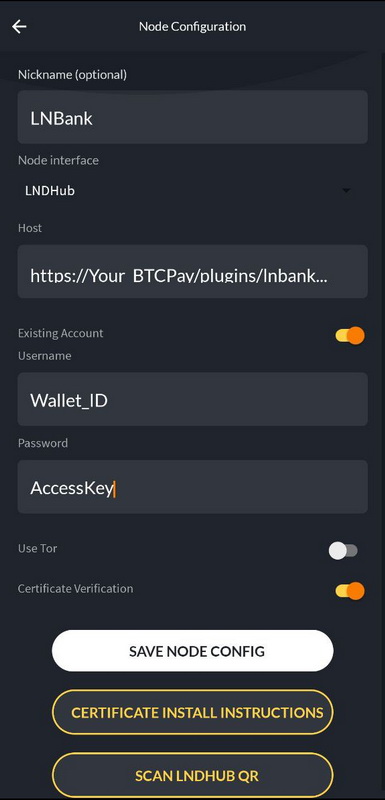
- Choose "LNDHub" as the "Node Interface"
- Enable the "Existing account" toggle
On that screen you then have to fill in the host, username and password fields. The values for these fields are included in the account URL which you can copy on the LNbank wallet settings page.
Copy the account URL and paste it into a note app on your mobile device. It consists of the following parts:
```lndhub:// USERNAME : PASSWORD @ HOST```
You can ignore the ```lndhub:// part```, the username and password are separated by an ```:``` and the host is what comes after the ```@```. Copy those values into the corresponding fields in ZEUS and then click "Save node config".
The parts map like this:
- Username = LNbank Wallet ID
- Password = LNbank Wallet Access Key (Admin)
- Host = ```YOUR_BTCPAY/plugins/lnbank/api/lndhub```
---
# lndhub / Alby / LNbits
Source: https://docs.zeusln.app/for-users/remote-connections/lndhub
A lndhub account is not a real LN wallet, but can be used as a LN wallet with all funcionalities of a LN wallet. Practically is an accounting system on top of a LN node, that means is a credit based account.
**Remember: the operator of the server can take your funds at any time and can surveil your activity. Not your keys, not your coins.**
LNDHub: [GitHub](https://github.com/BlueWallet/LndHub) | [Documentation](https://bluewallet.io/lndhub/)
### Connect an Alby account
Vist the [Alby guides website](https://guides.getalby.com/user-guide/v/alby-account-and-browser-extension/alby-lightning-account/connect-your-alby-lightning-account-to-other-apps/connect-to-mobile-apps/connect-to-zeus) for a full tutorial on how to connect your Alby account to ZEUS.
### Connect a LNbits account
[LNbits](https://lnbits.com) is using LNDhub interface and is an accounting system on top of your LN node. That means, it will use lndhub accounts instead of wallets to manage users balances and payments. But will use your node liquidity, in their limits.
Keep in mind that lndhub interfaces will not provide any on-chain bitcoin address, only Lightning use.
1. In your your LNbits instance, go to LNDhub extension and select the wallet you want to connect in ZEUS (if you have many).
2. You could use two types of accounts: "invoice only" (only receive) or "admin" (send/receive).
3. Open ZEUS app and go to **Settings -> Connect a node -> +**.
4. Click on **Node interface** and select **LNDHUB**.
5. Scroll down and press **SCAN LNDHUB QR**.
6. Scan the lndhub QR code from your LNbits lndhub extension, **admin mode** (if you want full access) or **invoice mode** (if you want restricted access, only to receive).
7. Disable **Certificate Verification**.
8. Enable **Use Tor** if your LNbits is running behind Tor.
9. Click on **SAVE NODE CONFIG**. It will popup an alert about certificate validation, just click "I understand".
10. You can now use your LNbits account as a LN wallet with ZEUS.
---
# Overview
Source: https://docs.zeusln.app/for-users/using-zeus/overview
ZEUS is an advanced app designed to give you an easy access to your Bitcoin Lightning Nodes and lndhub accounts.
You could configure ZEUS with multiple nodes and accounts, switching between them, instantly without restarting the app.
Managing your home/office LN node from your mobile device, with ZEUS, was never so easy. In this way you could have a full control of your self-custody funds from your own node, in a private and secure way, wherever you are traveling, anytime.
Keep in mind that ZEUS is not just a Bitcoin Lightning wallet in itself, but an advanced app that connects to your node wallets and access the channels so you could manage it directly, remotely.
Also another important aspect is that from your ZEUS you will have full access to all your node funds. So keep it protected with a PIN. For more privacy, when you are using it in public places, you could activate the option to hide balances.
Another option is to use a lndhub account, also from your own node, with LNBank (BTCpay plugin), LNBits or LNDhub accounting. In this way, you could use only a small fraction of funds (that you decide), from your own LN node liquidity. In case your device is lost or stolen, will not put in danger all the node funds (in case you don't activate the security PIN).
It's up to each user how to use ZEUS, you have many options, depending on each use case.
---
# Home
Source: https://docs.zeusln.app/for-users/using-zeus/home
The ZEUS home screen is very simple and intuitive, so the user can have a quick access to main functionalities and have a great user experience.
## Home screen sections
- On the top left corner, we have access to the **Menu** section, where you can navigate to the **Wallets** section and manage all app settings.
- On the top right corner, we have quick access to the **Wallets** screen, where you can view all wallets available in the app.
- On the bottom right corner, we have quick access to the **Camera** to scan QR codes.
- In the middle, we have access to **Lightning** and **On-chain balances**. If you slide them to the right, you get access to **Send** and **Receive** actions.
- At the bottom, we have access to:
- **Transactions log** (**^**)
- **LN Channels Management** (🧮)
- **Home Button** (🏛)
- **Scan Icon** (📷)
- **Bitcoin Icon**: Tapping this icon will take you to the Keypad Pane view, where you can enter the amount to request or pay an invoice.
Here are two examples of home screens, one connected to a **remote CLNRest node** and another to an **LNDHub account**.
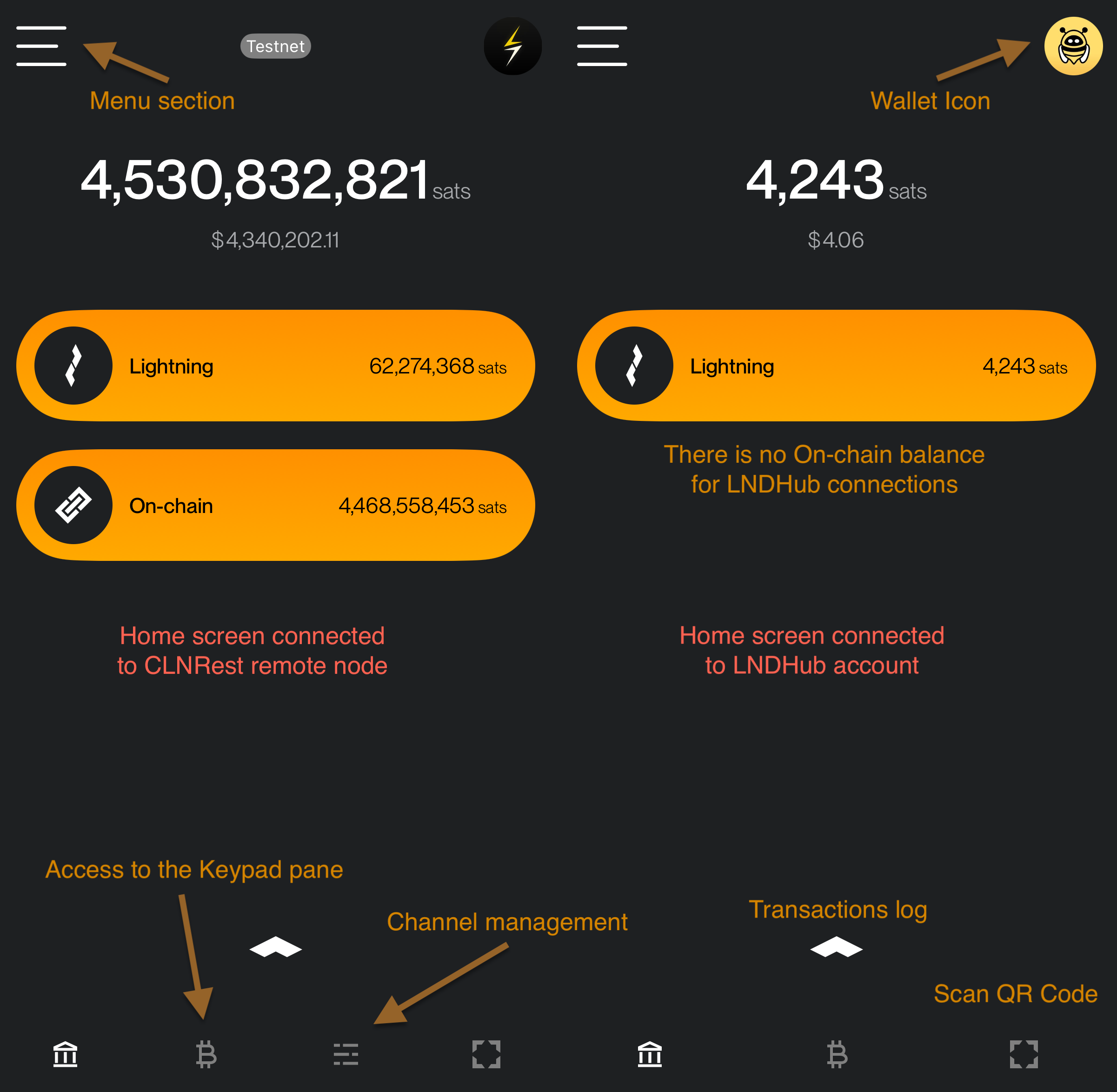
## Operations
### Make a payment
You have two options:
**1. Scan a QR Code**
- Click on the camera button in the **bottom right corner**, scan the QR code for the **Lightning invoice** or **Bitcoin address**, and proceed to the next screen, where you can preview the payment details.
- On the preview screen, tap on **PAY INVOICE** for a **Lightning payment** or **SEND COINS** for a **onchain transaction**, accordingly.
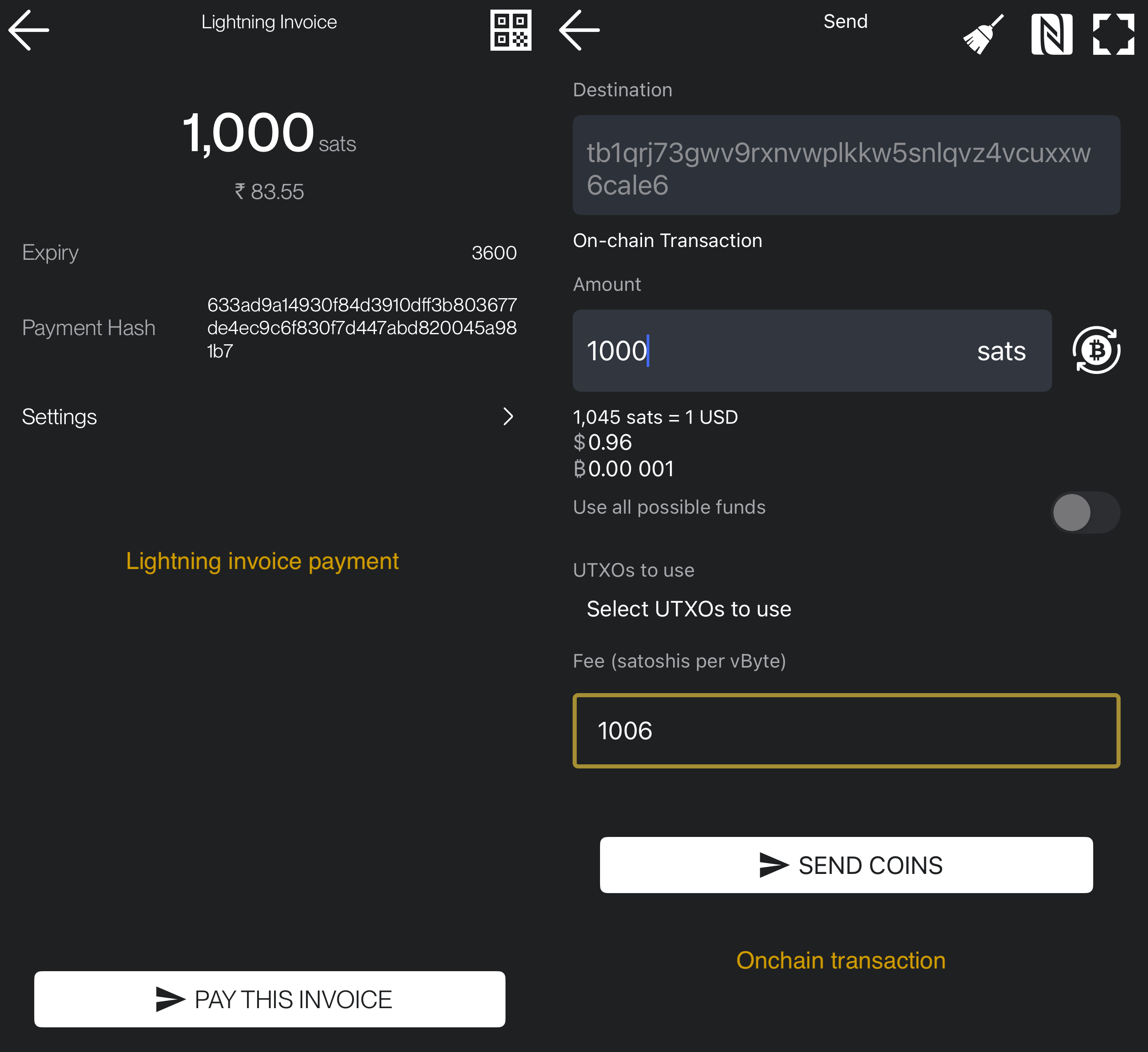
**2. Manual Entry**
- Slide right on the payment method you want to use (Lightning or onchain) and click on **Send** icon button. You will be prompted to paste a LN invoice, bitcoin address, Lightning Address, LNURL, node public key for a keysend.
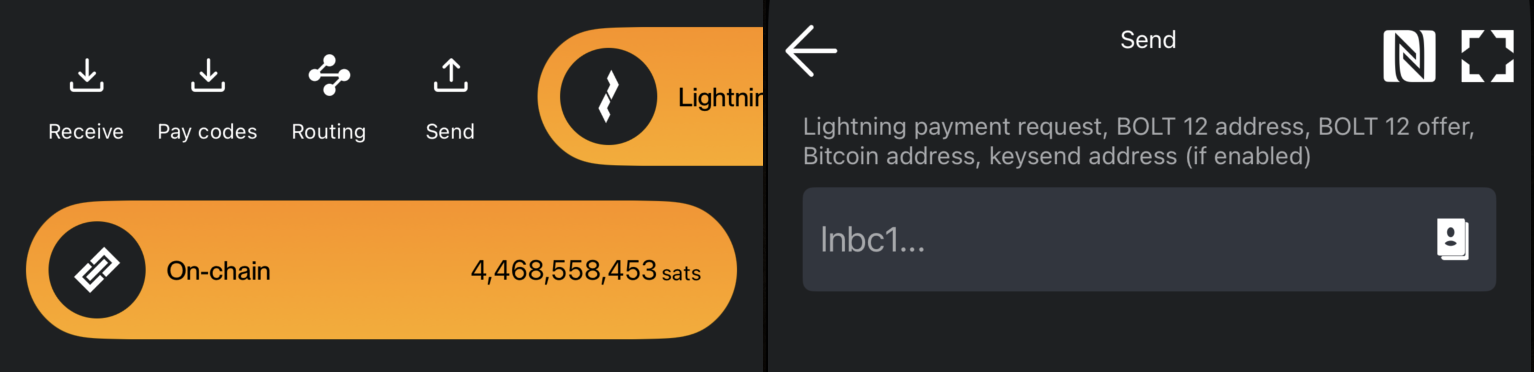
### Receive a payment
- Slide right on any of the methods (Lightning or On-chain) to open the Receive Payment screen.
- On this screen, you need to enter the amount for the invoice and set an expiration time for it. Optionally, you can add a description/memo, which will also be visible to the payer.
- After entering the details, tap on Create Invoice. You will then see a QR code and invoice string that can be shared with the payer.
- At the bottom of the screen, you can select from three tabs to share:
- Lightning Invoice
- On-chain Address
- Unified Invoice
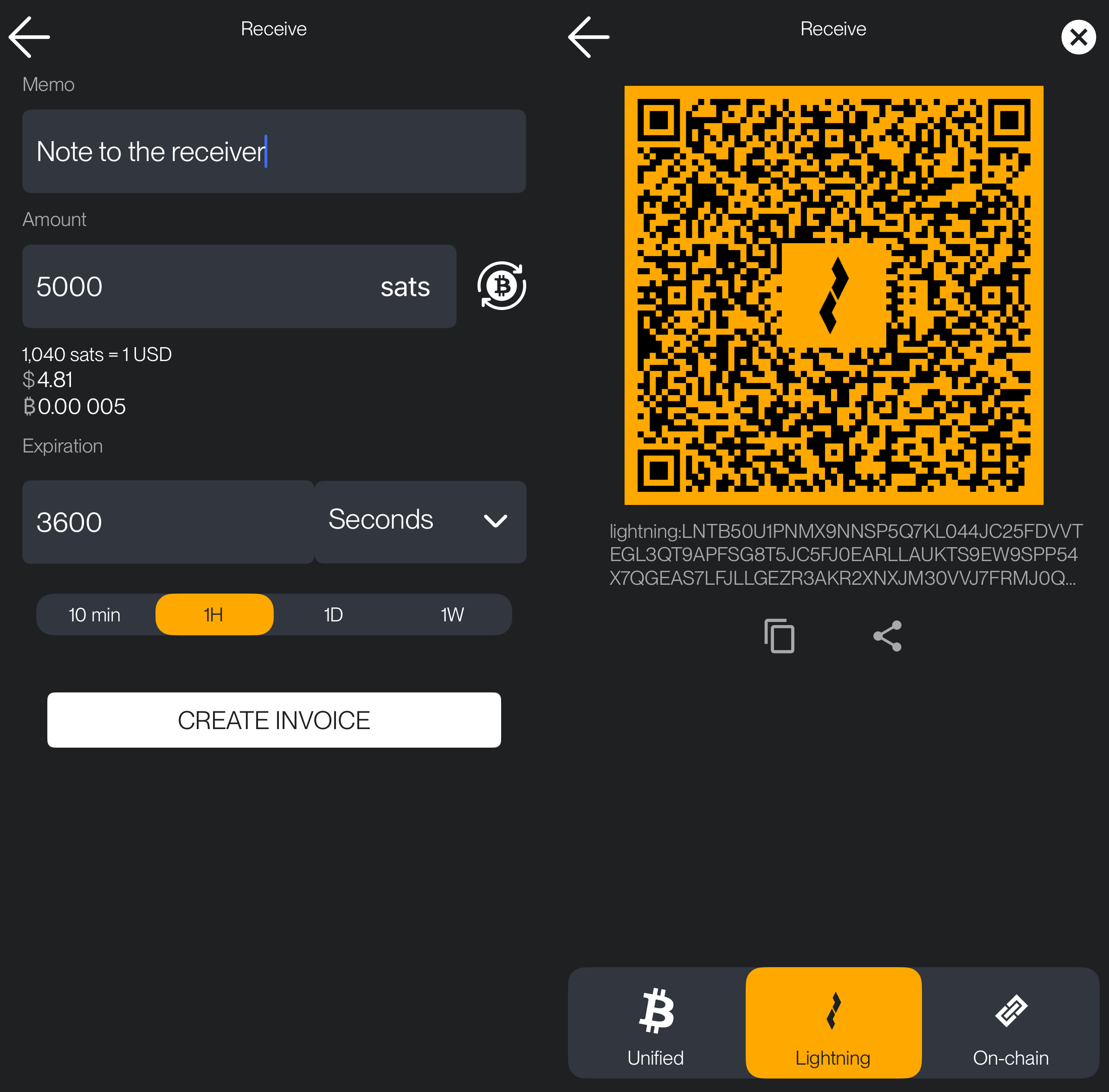
### Transactions log
By sliding up the small arrow **^** at the bottom of the main screen you could access the full log of wallet transactions. Click on any of the listed items and you could see more details about that transaction.
The Transaction log contains a record of:
- **Lightning Payments** – Sent and received Lightning payments.
- **On-chain Transactions** – Bitcoin transactions sent or received on-chain.
- **Invoices** – Created Lightning invoices.
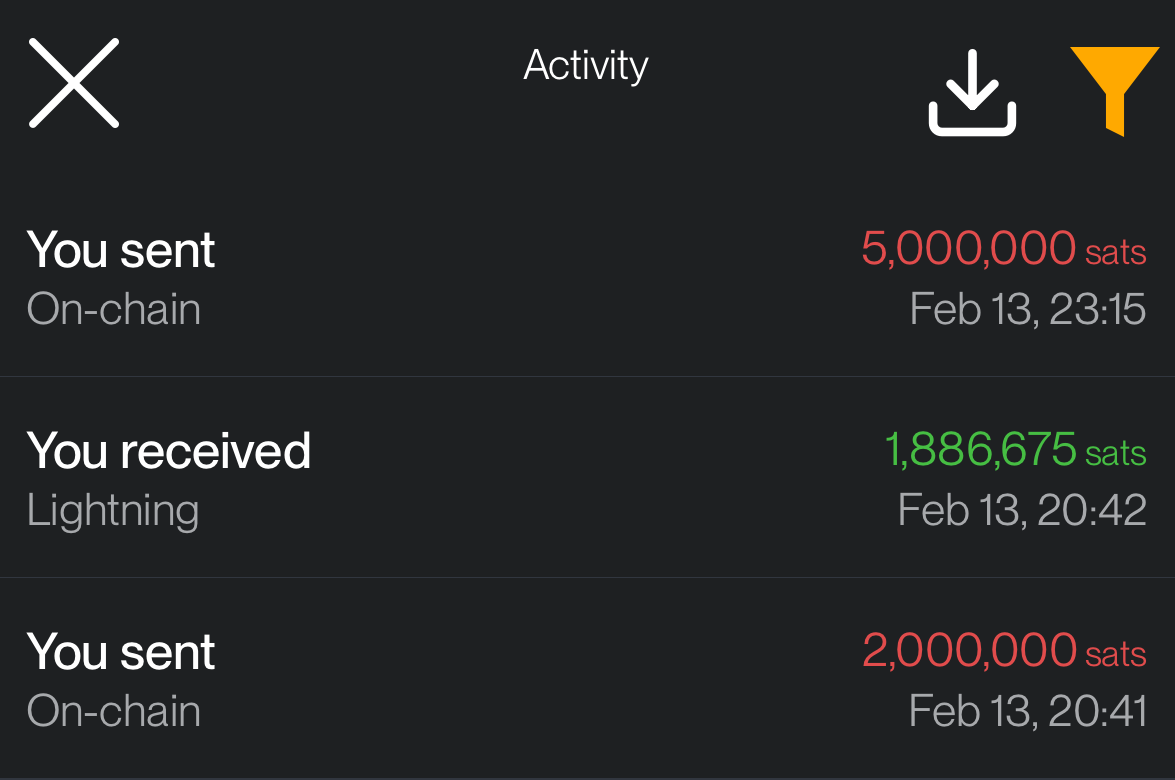
---
# Wallets
Source: https://docs.zeusln.app/for-users/using-zeus/wallets
## Setting Up a Wallet Connection
To connect to a wallet, tap on **+ Add New Wallet**. You will be redirected to a new screen where you can either **manually enter the connection details** or **scan the node’s QR URI** to autofill the required fields.
Assign a nickname to your connection for easy identification. Tap on the circle icon next to the nickname to set a custom wallet picture. Then, choose the appropriate **wallet interface** from the available options:
- **Embedded LND**
- **LND Rest**
- **LND (Lightning Node Connect)**
- **CLNRest**
- **Nostr Wallet Connect**
- **LNDHub**
If your wallet operates on the **Tor network**, ensure that you enable the **Use Tor** option.
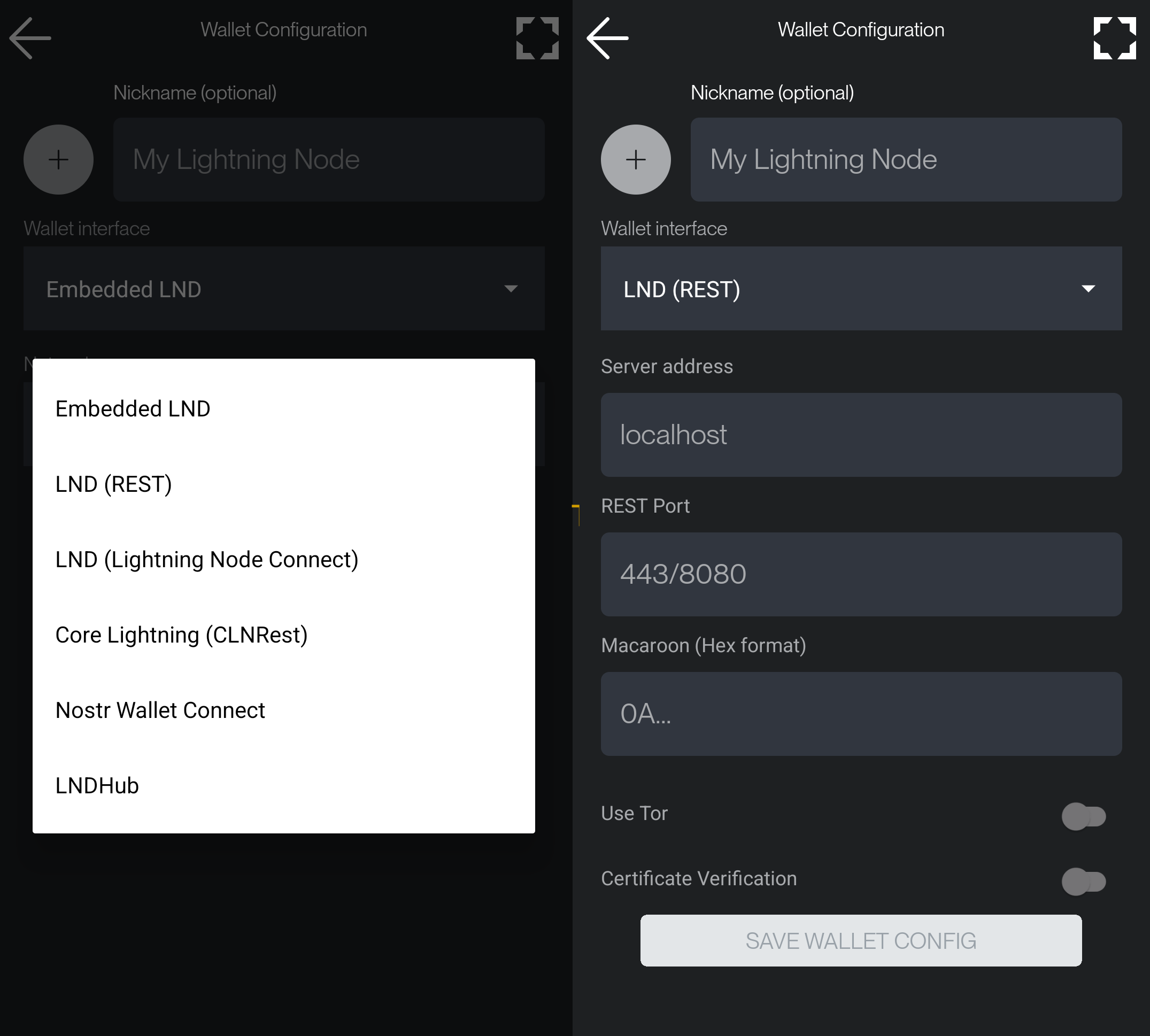
---
## Managing Wallet Connections
Once you've set up multiple **wallet connections**, you can seamlessly switch between them without interference. Each wallet functions independently, whether connected via **Tor, clearnet, Tailscale, or a local IP**. ZEUS will automatically establish the connection without requiring a restart.
However, if switching from a **clearnet** connection to **Tor**, it may take some time for the Tor network to bootstrap your relays—so a little patience may be needed.
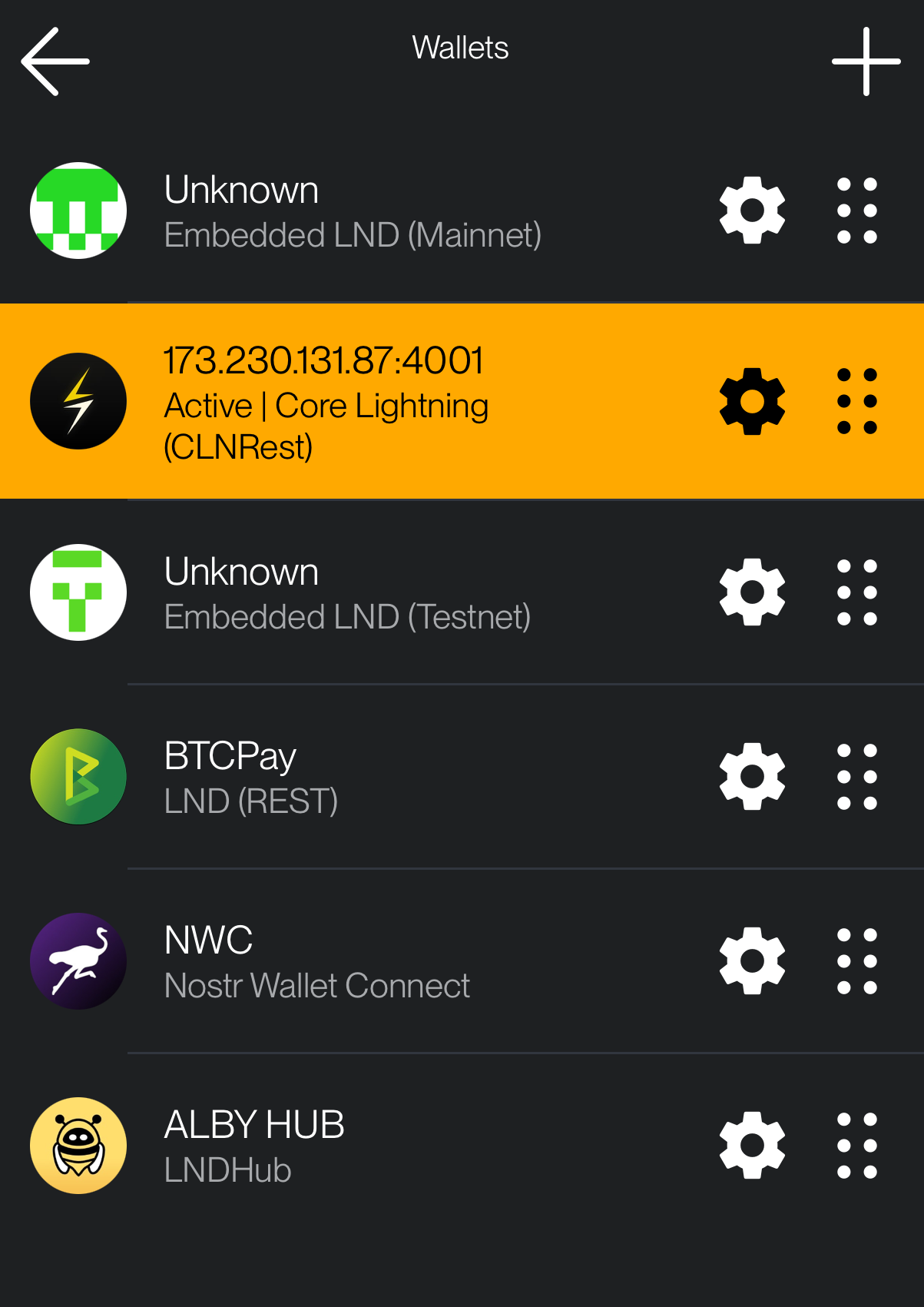
---
## Operations
1. **Select an existing wallet** by tapping on it. You will be redirected to the main screen while ZEUS establishes the connection.
2. **Edit an existing wallet** by tapping the **settings icon (⚙️)** next to it. This will open the wallet’s configuration menu, where you can modify the settings or delete the connection.
3. **Rearrange wallets** by holding and dragging the **drag icon (≡)** next to each wallet. This allows you to change the order of your wallets as per your preference.
4. **Backup and Restore (Coming Soon):** A future update will allow saving wallet configurations to a file for easy migration to a new device.
---
# Menu
Source: https://docs.zeusln.app/for-users/using-zeus/menu
The **Menu** in ZEUS offers centralized access to all essential app features, settings, and utilities.
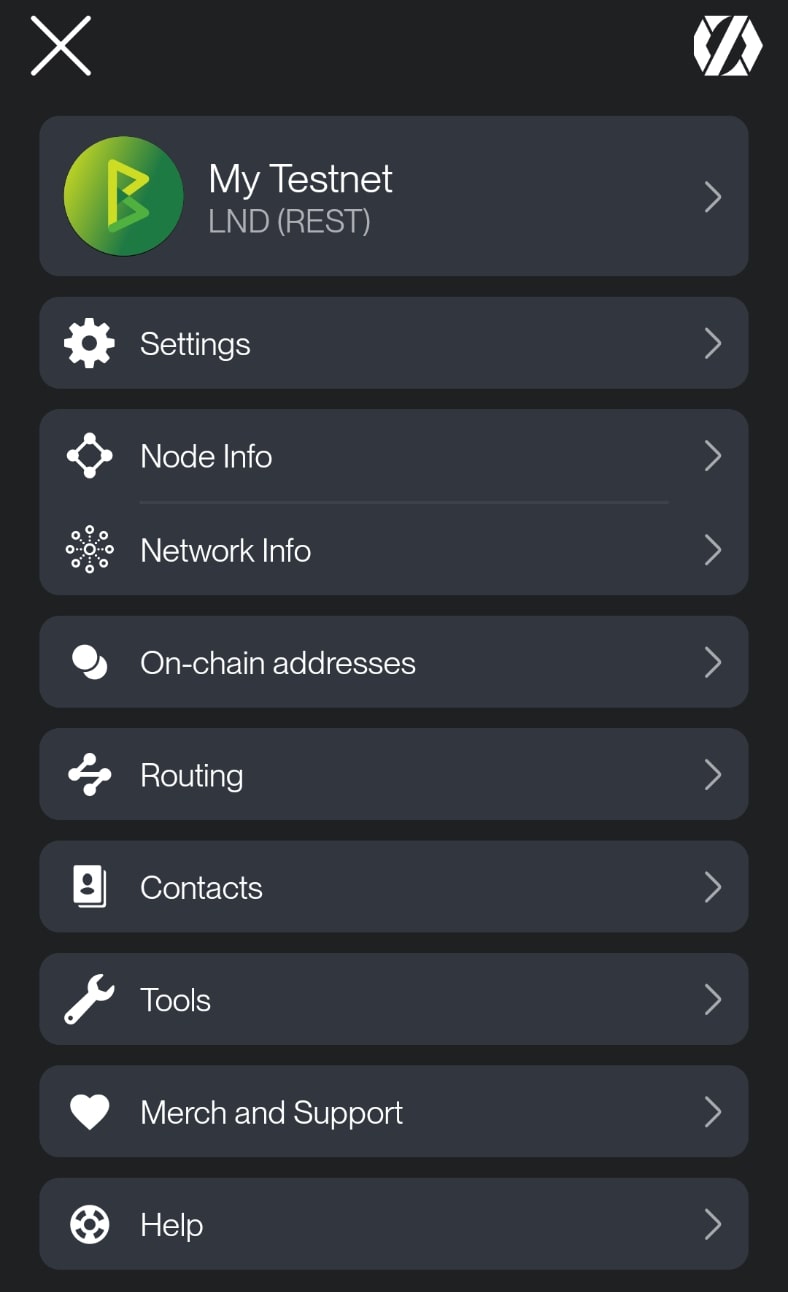
# Settings
Access the full list of ZEUS preferences. From here, you can configure your wallet behavior, visual appearance, language, currency, and security options.
## Wallets
Manage all wallet connections. You can add new ones or switch between existing wallets. Each wallet is independent and configurable. For more, see the [Wallets section](https://docs.zeusln.app/for-users/using-zeus/wallets).
## Node Info
See more details about your LN node, to which you connect ZEUS (Alias, LN version, node URI, QR URI, NFC).
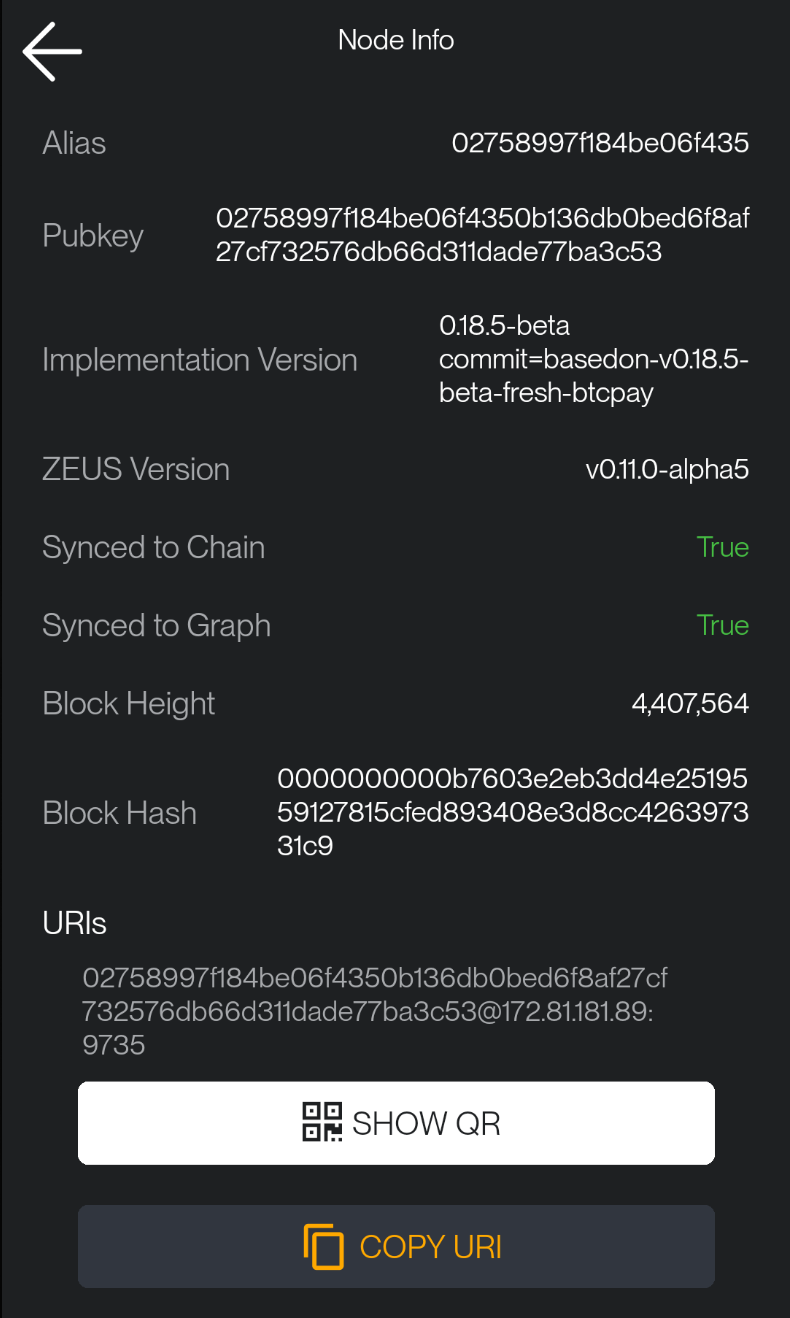
## Network Info
Provides an overview of the Lightning Network, including the total number of channels, number of zombie channels, and number of nodes.
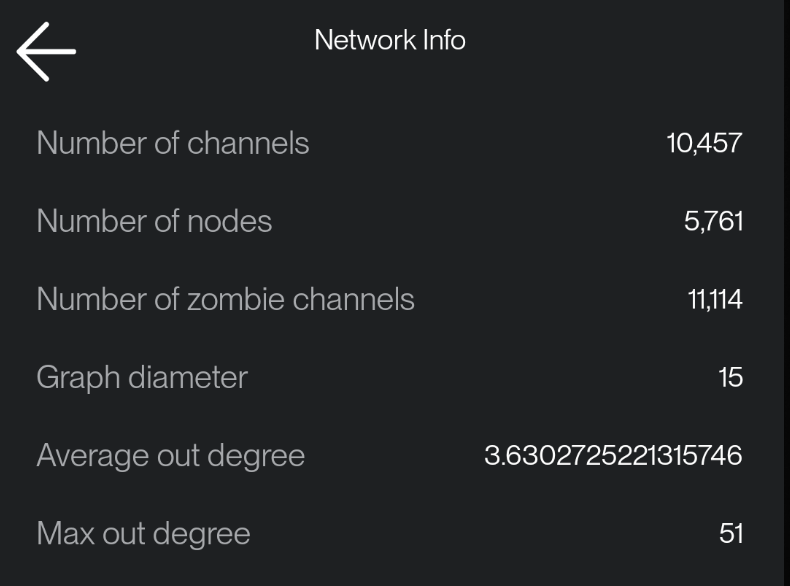
## On-chain Addresses
View and manage all on-chain addresses used by your wallet. You can also generate new receiving addresses for each connected wallet here.
## Routing
Shows your node's current routing policy and fee settings.
## Contacts
Access your contact list. You can create new entries manually or import contacts from Nostr.
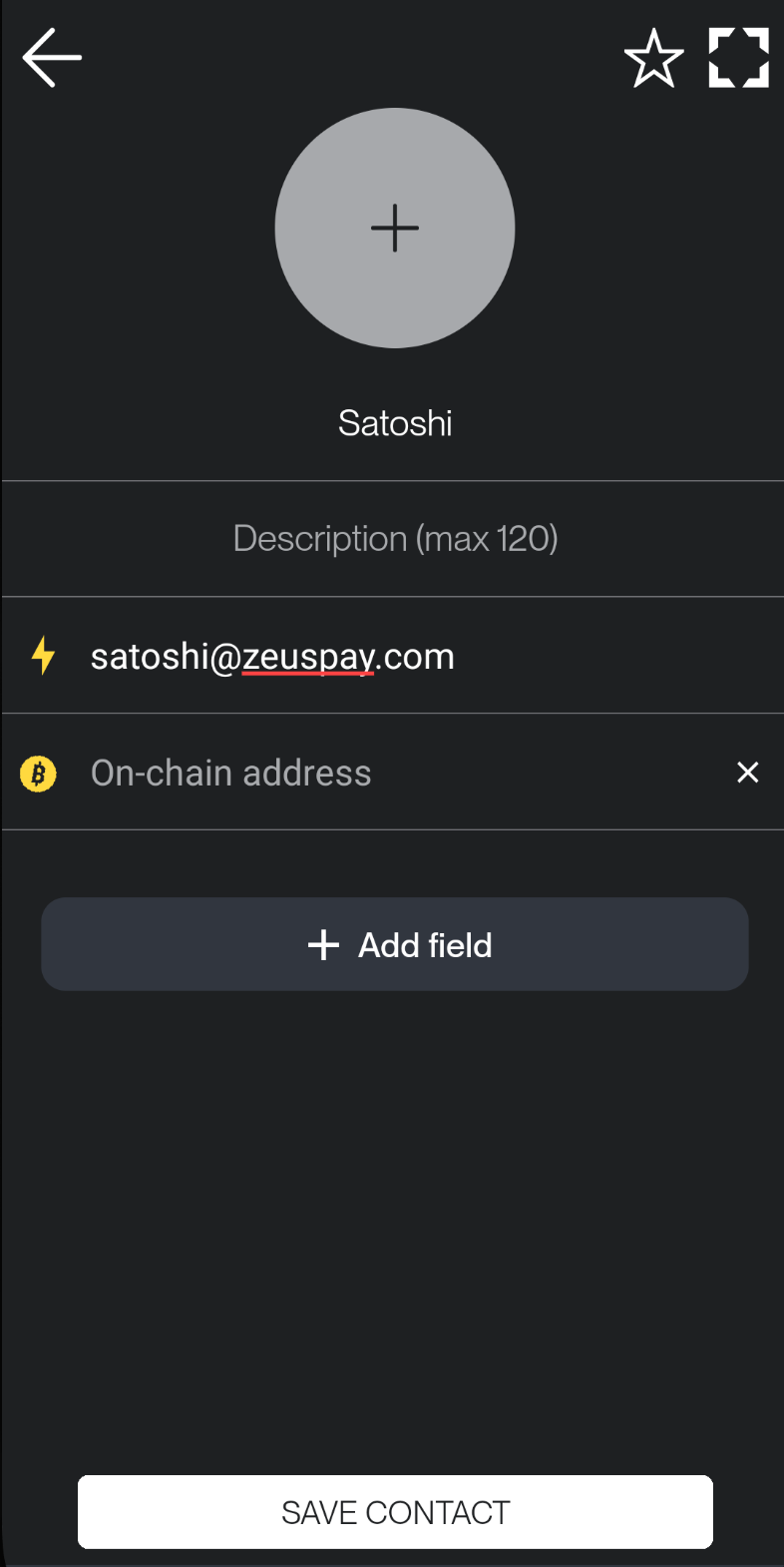
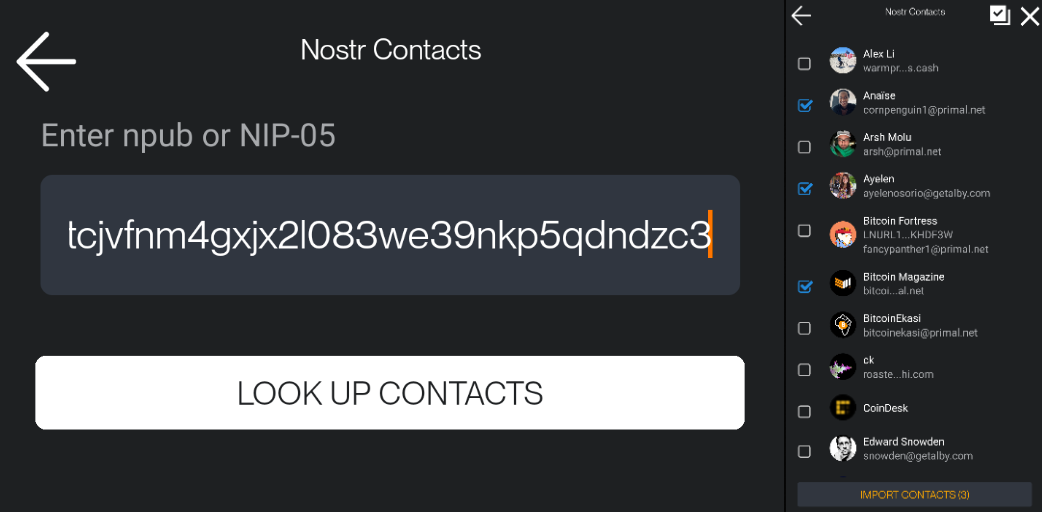
## Tools
This section gives you helpful tools to manage your wallet.
- **Accounts**
Manage multiple wallet accounts.
- **Speed Up Transaction**
Boost the confirmation speed of unconfirmed on-chain transactions by rebroadcasting them with a higher fee.
- **Sign / Verify Message**
Cryptographically sign or verify messages using your wallet keys.
- **Currency Converter**
Convert between BTC/sats and over 94 fiat currencies.
- **Sweep On-chain Wallet**
Sweep on-chain funds to another address.
- **Export Activities**
Import all your wallet activity including on-chain transactions, Lightning payments, and invoices into a CSV file.
- **Developer Mode**
Access API call results and node responses, useful for developers.
## Merch & Support
Support ZEUS by browsing the merch store or donating. Your support helps keep development going strong.
## Help
Access documentation and open GitHub issues directly from the app to report bugs or request features.
---
# Channels
Source: https://docs.zeusln.app/for-users/using-zeus/channels
In this section, you could manage your Lightning node channels. As you can see in this example, the main screen of the channel management is very intuitive and it displays essential information about your node:
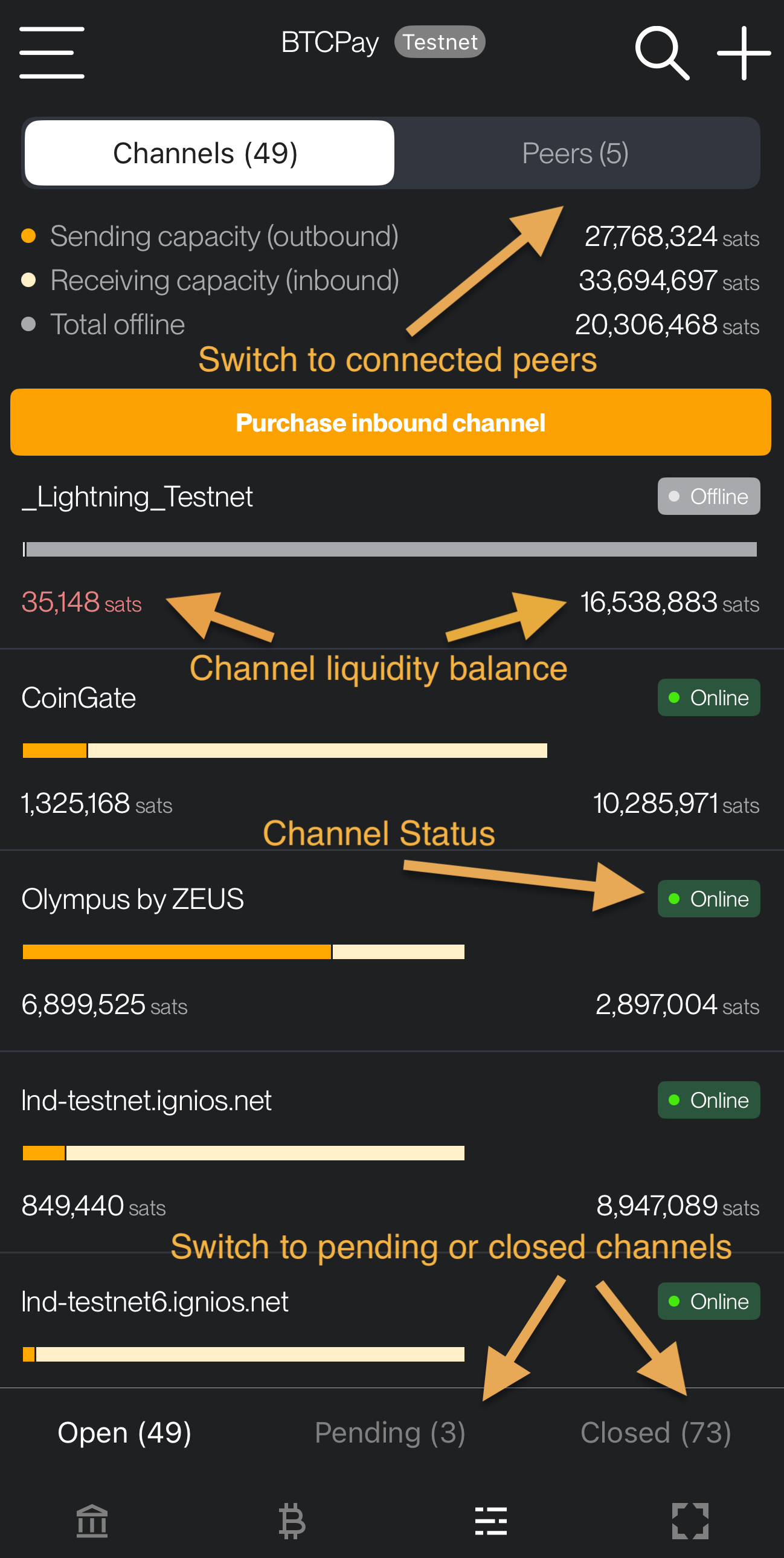
## Main screen channels
The main channel management screen is divided into several sections:
- **Tabs**: At the top of the view, there are two tabs:
- **Channels**: This is the current view, showing all your channels.
- **Peers**: Selecting this tab will show a list of peers connected to your node, with an option to disconnect them.
- **Liquidity Summary**: A summary of your node's total liquidity, broken down into:
- **Outbound:** The maximum amount you can send.
- **Inbound:** The maximum amount you can receive.
- **Offline Balance:** The balance from channels that are currently disconnected.
- **Channel List**: Below this, you'll see a list of all your channels, including their current status and individual inbound/outbound balances.
- **Channel State Tabs (LND Only)**: At the bottom of the channels view, you can switch between **Open**, **Closed**, and **Pending** channel states.
## Operations
- If you click on a channel, you will open a new view to manage that specific channel. Here, You can set specific routing fees and initiate the closure of the channel.
- You can also check the fees your node is charging for forwarding payments through your channels (routing).
As you can see in the following examples, ZEUS displays a lot of information about the channel status, organized in several parts:
### Channel General Information
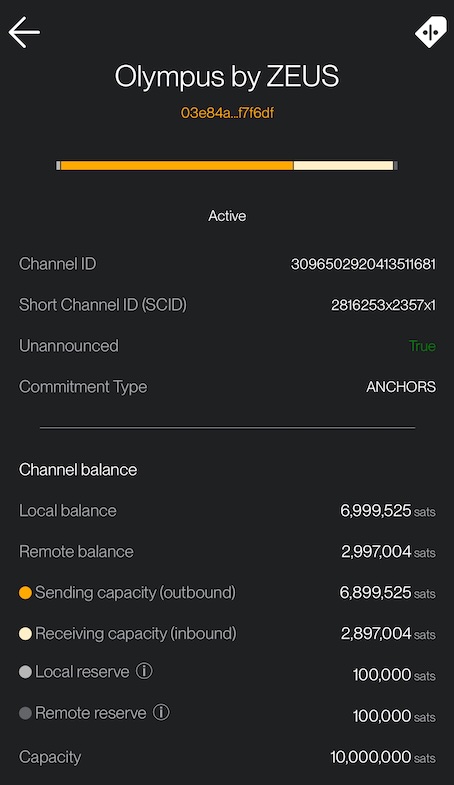
- **Peer**: The alias and node ID of the peer you have a channel with.
- **Channel ID**: The unique identifier for this channel.
- **Short Channel ID**: This is an alias that is used by your node to identify a channel before confirmation of its funding transaction.
- **Announced**: Whether the channel is public (announced) or private.
- **Commitment Type**: The type of commitment transaction used for this channel.
#### Channel Balance
- **Local Balance**: The amount of funds on your side of the channel.
- **Remote Balance**: The amount of funds on your peer's side of the channel.
- **Outbound**: The amount you can currently send through this channel.
- **Inbound**: The amount you can currently receive through this channel.
- **Local Reserve**: The amount of funds you are required to keep on your side of the channel.
- **Remote Reserve**: The amount of funds your peer is required to keep on their side of the channel.
- **Capacity**: The total amount of funds in the channel.
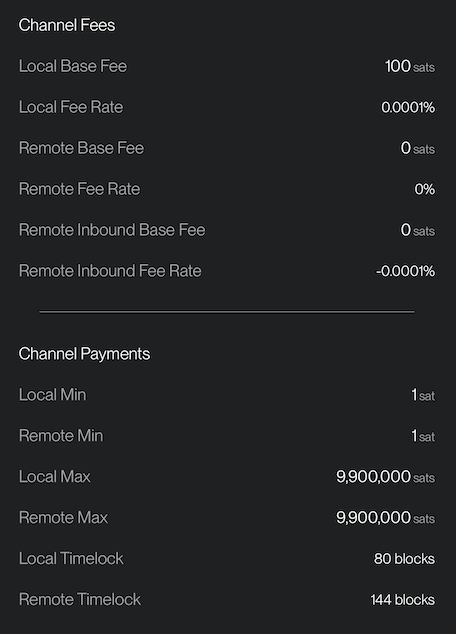
#### Channel Fees
- **Local Base Fee**: The fixed fee you charge for routing payments through this channel.
- **Local Fee Rate**: The proportional fee you charge based on the payment amount.
- **Remote Base Fee**: The fixed fee your peer charges for routing payments through this channel.
- **Remote Fee Rate**: The proportional fee your peer charges based on the payment amount.
- **Remote Inbound Base Fee**: The fixed fee your peer charges for receiving payments.
- **Remote Inbound Fee Rate**: The proportional fee your peer charges for receiving payments.
#### Channel Payments
- **Local Min**: The minimum payment amount you can send.
- **Remote Min**: The minimum payment amount your peer can send.
- **Local Max**: The maximum payment amount you can send.
- **Remote Max**: The maximum payment amount your peer can send.
- **Local Timelock**: The number of blocks you have to claim your funds in case of a force close.
- **Remote Timelock**: The number of blocks your peer has to claim their funds in case of a force close.
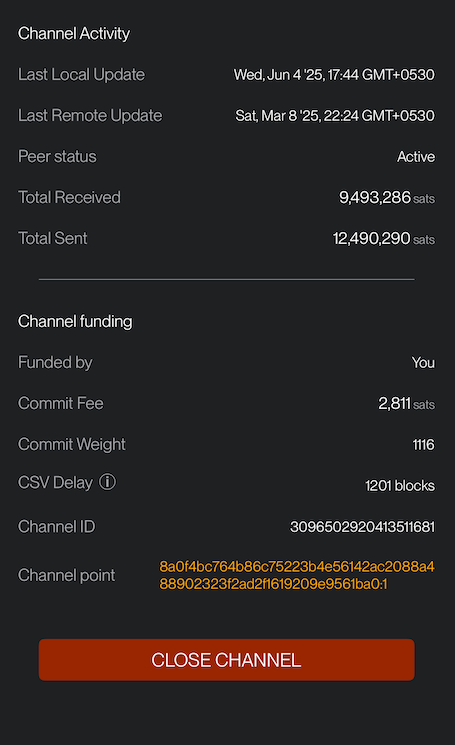
#### Channel Activity
- **Last Local Update**: The timestamp of the last update you made to the channel.
- **Last Remote Update**: The timestamp of the last update your peer made to the channel.
- **Peer Status**: The current status of your peer (e.g., Active).
- **Total Received**: The total amount of funds you have received through this channel.
- **Total Sent**: The total amount of funds you have sent through this channel.
#### Channel Funding
- **Funded by**: Who initiated the channel funding (e.g., You).
- **Commit Fee**: The fee for the commitment transaction. Read more here: [commit fee Q1](https://old.reddit.com/r/lightningnetwork/comments/cjtbjt/question_regarding_commit_fee/) | [commit fee Q2](https://bitcoin.stackexchange.com/questions/89232/why-is-my-spendable-msat-much-lower-than-msatoshi-to-us/89235#89235) | [Lightning fees](https://lightningwiki.net/index.php/Fees)
- **Commit Weight**: The weight of the commitment transaction.
- **CSV Delay**: The number of blocks that must pass before a force-closed channel can be swept.
- **Channel ID**: The unique identifier for this channel.
- **Channel Point**: The transaction output that created this channel.
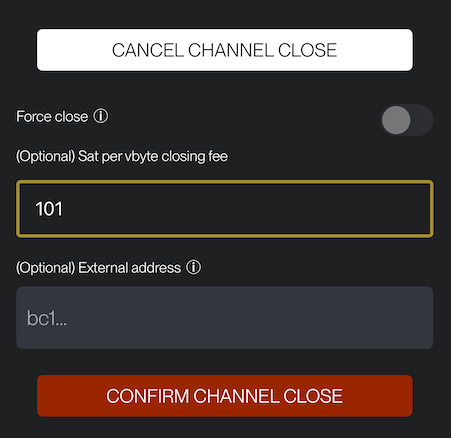
#### Close Channel
When you tap the **Close Channel** button, you can initiate a force close, or you can cooperatively close the channel by setting up a custom fee, or specify an external address for your funds before confirming the closure.
## Migrating channels to a new device (embedded LND)
If you are running the embedded LND node and want to move your wallet to a new device without force-closing your channels, ZEUS can export the full channel database and import it on the new device so your channels stay live. See [Migrating channels to a new device](https://docs.zeusln.app/for-users/local-wallets/embedded-lnd/backup-and-recovery#migrating-channels-to-a-new-device) for the complete flow.
---
# Pending Balances
Source: https://docs.zeusln.app/for-users/using-zeus/pending-balances
When using ZEUS, you may notice balances with a clock icon (⏰) indicating they are pending. This means funds have been initiated but are not yet fully confirmed or settled.
## Finding Pending Balances
Pending balances appear on the home screen with a clock icon (⏰) next to the amount. Tap the clock icon to see details about why the balance is pending.
You can also check pending status in:
- **Channels view**: Check the "Pending" tab to see channels waiting for confirmations (LND only)
- **Transaction log**: View detailed information about pending transactions
## On-Chain Pending Balances
On-chain pending balances occur when:
- A Bitcoin transaction has been broadcast but not yet confirmed in a block
- Funds are in the mempool waiting for confirmation
- A channel is being opened or closed and the funding or closure transaction is pending
When you tap the clock icon, you'll see: **"This balance is pending confirmation and will update once confirmed on-chain."** For channel operations, you may also see: **"Channel operations (ie. opens and closes) may require multiple confirmations"**.
### Confirmation Times
- **First confirmation**: Usually within 10-20 minutes (depends on network traffic and fees)
- **Channel operations**: Require 6-8 confirmations (approximately 1-1.5 hours) before the channel is fully operational or closed
Your on-chain balance updates once the transaction receives its first confirmation. For channel operations, the channel won't be usable (for opens) or funds won't be available (for closes) until the required confirmations are reached.
## Lightning Pending Balances
Lightning pending balances occur when:
- A channel is opening (waiting for on-chain confirmations)
- A channel closure is in progress
- A payment is in transit through the Lightning Network
When you tap the clock icon, you'll see: **"This balance is pending confirmation and will update once settled."**
### Settlement Times
- **Channel opens**: 1-1.5 hours (6-8 confirmations)
- **Mutually closed channels**: Return to on-chain balance once confirmed (usually 10-20 minutes)
- **Force closed channels**: Can take up to 2 weeks depending on the channel's CSV delay settings
- **Lightning payments**: Usually settle instantly once routed
Your Lightning balance becomes available once the channel has received the required confirmations. Funds from channel closes appear in your on-chain balance after the closure transaction confirms.
## Cashu Pending Balances
Cashu pending balances occur when:
- You've sent Cashu tokens that haven't been redeemed by the recipient yet
- Tokens are waiting to be claimed
When you tap the clock icon, you'll see: **"This balance is pending confirmation and will update once redeemed."**
### Redemption Times
- **Token redemption**: Depends on when the recipient claims the tokens
- **No blockchain confirmations required**: Cashu tokens settle instantly once redeemed
Your Cashu balance updates once the recipient redeems the tokens you sent. Until then, tokens remain in a "pending" state.
## Tips
- **Set appropriate fees**: Higher fees result in faster confirmations. Check current fee rates on [Mempool.space](https://mempool.space/)
- **Speed up transactions**: If your transaction is stuck, you can increase the fee using the Speed Up Transaction tool under `Menu` > `Tools`
- **Monitor channel status**: Check the Channels view to see pending channel operations
- **Plan ahead**: Channel opens require waiting for confirmations, so plan operations in advance
---
# Cashu ecash
Source: https://docs.zeusln.app/cashu
## Intro
In ZEUS v0.11, we've introduced experimental support for Cashu ecash. Cashu is a free and open-source Chaumian ecash protocol built for Bitcoin, with good privacy properties. Cashu is **custodial**, meaning there is risk of the underlying custodian (the mint) stealing your funds. We encourage all users to read our page on [the importance of self-custody in Bitcoin](https://docs.zeusln.app/self-custody).
Cashu is part of our new graduated wallet system. New users are able to get set-up quickly, without having to learn out channel capacities or having to purchase a channel lease. They can have their first magical moments with Lightning, and even get a Lightning address. Then as economic self-custody becomes viable, their ZEUS app will prompt them to upgrade with a Lightning channel of their own and provide them with educational material.
Learn more about Cashu [here](https://cashu.space/).
## Activation
At present, Cashu wallets are tied to Embedded LND wallets. You can enable your Cashu wallet under `Settings` > `Ecash`. You can not use Cashu with any other wallet type, but you can still sweep funds from Cashu tokens.
## I get an error saying "outputs have already been signed before" or "Already Spent". What should I do?
This error indicates an inconsistency in the wallets database. Follow the troubleshooting steps below.
## Troubleshooting
1) Bump the wallet counter several times under `Menu` > `Tools` > `Cashu Tools`. This will move the counter along, which is used for deterministically restoring the wallet.
2) If issues persist, remove and re-add your mint. You can access the mints list by tapping or swiping the Ecash balance row in the main balance view in the app (you can get here by hitting the temple icon at the bottom of the main view of the app, it's the first icon on the left).
Press the info circle `(i)` to see the mint details, then press the `Remove mint` button at the bottom the screen. Before doing so, you may want to copy the Mint URL `string on the screen by doing a long press on the value.
Then on the Mints list view, hit the `+` icon in the top right corner and press `Add mint` after populating the `Mint URL` field. On the following screen, be sure to toggle `Check for existing balances` before pressing the `Add mint` button at the bottom of the screen. From here your funds will be deterministically restored (as long as the mint is still fully operational). This process might take a few minutes. Progress should be reflected at the top of this view.
3) As a last resort you can get your Cashu seed from under `Menu` > `Tools` > `Cashu Tools` > `BIP-39` and import it into another Cashu wallet like [Cashu.me](https://wallet.cashu.me/) (`Menu` > `Settings` > `Restore ecash` in their wallet).
4) If you continue to have issues, please [contact ZEUS support](email:support@zeusln.com) or file an issue on [our GitHub page](https://github.com/ZeusLN/zeus/issues). Note that ZEUS cannot attest to the reliability of any mints (we do not run our own or custody any funds), or guarantee the recovery of any funds, as Cashu is custodial.
---
# Nostr Wallet Connect
Source: https://docs.zeusln.app/nostr-wallet-connect/
Nostr Wallet Connect (NWC) is an open protocol that lets apps talk to Bitcoin Lightning wallets over [Nostr](https://nostr.com/) relays. Instead of a direct server connection, wallet requests travel through Nostr encrypted, so apps never need to know your node's IP address.
In ZEUS, NWC works in two completely different directions:
| Mode | What it does |
| --- | --- |
| **NWC service** | ZEUS acts as the wallet. Other apps (Nostr clients, bots, point-of-sale systems) connect to your node through ZEUS. |
| **NWC client** | ZEUS connects *to* a remote wallet somewhere else — like Alby Hub — and uses it as its own Lightning backend. |
You can use either mode on its own. They don't conflict with each other as long as you're running the NWC service on a local wallet (Embedded LND, LDK Node, or a remote LND/CLN connection). If ZEUS itself is configured as an NWC *client*, it can't also run the NWC *service*.
## Guides
- [Managing connections](https://docs.zeusln.app/nostr-wallet-connect/connections) — create connections, set permissions, and share pairing links with apps
- [Background service](https://docs.zeusln.app/nostr-wallet-connect/background) — keep NWC running on iOS and Android when the app is in the background
- [Using NWC as a wallet backend](https://docs.zeusln.app/nostr-wallet-connect/client) — connect ZEUS to Alby Hub, LNbits, and other remote NWC wallets
---
## NWC service — ZEUS as the wallet
This is the feature you'll find under `Menu` > `Tools` > `Nostr Wallet Connect service`.
You create named **connections** and share a QR code or a `nostr+walletconnect://` link with the app you want to connect. Each connection has its own permissions and optional spending limits, so you can give a Nostr client the ability to zap on your behalf without giving it full access to your funds.
**What backends support the NWC service?**
- Embedded LND
- LDK Node
- Remote LND
- Core Lightning (CLN REST)
- Lightning Node Connect (LNC)
- LNDHub
Cashu is also supported as an optional routing layer. You can enable it in NWC settings to route all NWC payments and invoices through your Cashu wallet instead of Lightning channels.
**Next steps:** [Managing connections →](https://docs.zeusln.app/nostr-wallet-connect/connections) · [Keeping it running in the background →](https://docs.zeusln.app/nostr-wallet-connect/background)
---
## NWC client — ZEUS connecting to a remote wallet
If you have a wallet elsewhere that speaks NWC — Alby Hub is the most common example — you can add it to ZEUS as a wallet backend.
Go to `Menu` > `Settings`, tap **Add wallet**, choose **Nostr Wallet Connect**, and paste your `nostr+walletconnect://` connection string. You can also scan a QR code or tap a link to fill it in. After you save, select the wallet and ZEUS will connect to it.
Read more: [Using NWC as your wallet backend →](https://docs.zeusln.app/nostr-wallet-connect/client) · [Setting up wallets in ZEUS →](https://docs.zeusln.app/for-users/using-zeus/wallets)
---
## Useful links
- [NWC protocol spec (NIP-47)](https://nips.nostr.com/47)
- [nwc.dev](https://nwc.dev/) — compatible apps directory
---
## Frequently asked questions
**What is Nostr Wallet Connect?**
A way for apps to talk to a Lightning wallet over Nostr relays — no direct connection to your node's IP address. You pair apps with a QR code or link and control what each one can do.
**What's the difference between NWC service and NWC client?**
| | **Service** | **Client** |
| --- | --- | --- |
| ZEUS role | Acts as the wallet | Connects to a wallet elsewhere |
| Who connects to whom | Other apps connect to ZEUS | ZEUS connects to Alby Hub, LNbits, etc. |
| Where to set it up | `Menu` > `Tools` > `Nostr Wallet Connect service` | `Menu` > `Settings` > **Add wallet** |
**Can I use both at the same time?**
No. If ZEUS is set up as an NWC client, the NWC service is hidden. Use a local or remote node wallet if you want to run the service.
**Which wallet backends support the NWC service?**
Embedded LND, LDK Node, remote LND, CLN REST, LNC, and LNDHub. Cashu can optionally route NWC payments when enabled in NWC settings.
**Which apps can connect to ZEUS?**
Any app that supports [NIP-47](https://nips.nostr.com/47) — Damus, Amethyst, and others listed on [nwc.dev](https://nwc.dev/).
**Is NWC safe?**
Each connection has its own secret, permissions, and optional spending cap. You decide what each app can access. See [Managing connections](https://docs.zeusln.app/nostr-wallet-connect/connections) for permissions and budgets.
---
# Managing connections
Source: https://docs.zeusln.app/nostr-wallet-connect/connections
Each NWC connection is a separate pairing between ZEUS and one external app. You choose what that app can do and how much it can spend.
## Open the NWC service
Go to `Menu` > `Tools` > `Nostr Wallet Connect service`.
If you don't see this option, your wallet backend doesn't support the NWC service. You need Embedded LND, LDK Node, remote LND, CLN REST, LNC, or LNDHub. The service is not available when ZEUS itself is set up as an NWC client.
---
## Create a connection
Tap **+** in the top right corner to open **Add Connection**.
Fill in the form:
1. **Connection name** — a label you'll recognize later, like `Damus` or `Shop terminal`.
2. **Nostr relay** — the relay both sides use to exchange messages. Defaults include `relay.getalby.com`, `relay.snort.social`, and `relay.damus.io`. You can pick another or enter your own.
3. **Wallet permissions** — Full Access, Read Only, or Custom (see below).
4. **Budget** — spending cap in sats (required for Full Access).
5. **Connection expiration** — optional; scroll down to set when the connection should stop working.
Tap **Create Connection** when you're done. ZEUS opens **Connection Secret** — scan the QR code or tap **copy** / **share** and paste the `nostr+walletconnect://` link into the other app.
While ZEUS waits, you'll see **Waiting for app to connect...**. When the other app links up, ZEUS shows **Connected successfully!** and returns to your connections list.
**Already paired in the other app but still waiting?** Tap **Close** and start using the Nostr client. You don't need to stay on this screen — the connection works as soon as the client sends its first request.
---
## Permissions
Pick a preset when you create or edit a connection:
| Preset | What the app can do |
| --- | --- |
| **Full Access** | Pay invoices, create invoices, look up payments, read balance, read node info, sign messages — within the budget you set. |
| **Read Only** | Read balance, node info, invoice status, and transaction history. Cannot send payments. |
| **Custom** | Pick each action individually. |
Individual actions:
| Action | What it does |
| --- | --- |
| Get info | Read your node's alias, public key, and network |
| Get balance | Read your spendable balance |
| Pay invoice | Send Lightning payments |
| Make invoice | Create invoices so others can pay you |
| Lookup invoice | Check whether an invoice has been paid |
| List transactions | Read payment history for this connection |
| Sign message | Sign arbitrary text with your node key |
---
## Budgets
A budget caps how much a connection can spend. Useful if you want an app to zap on your behalf without risking your full balance.
- **Amount** — maximum spend in sats.
- **Renewal** — how often the budget resets: daily, weekly, monthly, yearly, or never.
When the budget is used up, payment requests fail until the budget renews or you raise the limit in the connection settings.
ZEUS warns you on the connections list if your wallet balance drops below a connection's budget.
---
## Expiration
Set a connection to expire after 1 week, 1 month, 12 months, or a custom date. Expired connections stay in your list but are tagged **Expired** and reject new requests from the remote app.
---
## Connection details
Tap a connection on the list to open **Connection Details**. Here you can review:
- **Status** — Active or Expired (connections without payment permissions also show a **Read Only** tag on the list)
- **Budget** — total spent, total received, and what's left
- **Connection ID**, **public key**, and **relay URL**
- **Permissions** granted to the remote app
Use the **edit** button in the header to change the name, permissions, budget, or expiry. **Regenerate Connection** and **Delete Connection** are at the bottom.
Changing the **relay URL** requires regenerating the connection — the other app will need the new QR code or link.
---
## Activity
From Connection Details, tap the **clock icon** in the top right to view activity for that connection.
---
## NWC settings
Tap the gear icon on the connections list.
| Setting | Notes |
| --- | --- |
| **Switch to Cashu wallet** | Routes pay and make-invoice through Cashu instead of Lightning. Only shown if Cashu is enabled. |
| **Include Lightning Address** | Adds your ZEUS Pay address to new connection URLs. Some Nostr clients use this for your profile. |
| **Persistent Mode** | Android only — keeps NWC running in the background. See [background](https://docs.zeusln.app/nostr-wallet-connect/background). |
| **Background Audio** | iOS only — ambient track for background relay connections. See [background](https://docs.zeusln.app/nostr-wallet-connect/background). |
| **Learn more** | Opens the full NWC guide at docs.zeusln.app. |
---
## Frequently asked questions
**Why don't I see "Nostr Wallet Connect service" under Tools?**
Your wallet backend may not support it (you need Embedded LND, LDK Node, remote LND, CLN REST, LNC, or LNDHub), or ZEUS is currently set up as an NWC client. Switch to a supported wallet first.
**Do ZEUS and the other app need the same relay?**
Yes. The relay you pick when creating a connection is the one both sides must use. If pairing fails, check the relay URL matches on both apps.
**The other app never connected after I created a connection. What should I do?**
Scan the QR code or paste the link into the other app from **Connection Secret**. The first request can take a few seconds. If you've already linked the app but ZEUS is still on **Waiting for app to connect...**, tap **Close** and use the Nostr client — it will connect on its first request. Make sure you're using the latest QR code, not an old one.
**Can I connect more than one app?**
Yes. Tap **+** for each app. Every connection gets its own name, permissions, budget, and pairing secret.
**A payment failed because of the budget. Now what?**
The connection hit its spending limit. Edit the connection to raise the budget, wait for the renewal period (daily, weekly, etc.), or lower how much the app is trying to spend.
**What does the budget warning on the connections list mean?**
Your main wallet balance is lower than that connection's budget. The app may not be able to spend up to the full limit until you add funds or reduce the budget.
**What happens when I regenerate a connection?**
ZEUS creates a new pairing secret. The old QR code and link stop working. Any app using the old secret must be paired again. You also need to regenerate if you change the relay URL.
---
# Background service
Source: https://docs.zeusln.app/nostr-wallet-connect/background
NWC works by subscribing to a Nostr relay and waiting for encrypted requests to arrive. That subscription has to stay alive even when you're not actively using ZEUS — otherwise the connected app can't reach your wallet.
iOS and Android handle this very differently.
## iOS
Apple doesn't allow apps to run arbitrary background processes, so ZEUS uses a different technique: **background audio**. By playing an ambient sound loop, iOS keeps ZEUS alive long enough to hold the relay connection open.
This is the same mechanism music apps use. It works reliably for normal use, but it's not foolproof — iOS can still suspend or kill the app under extreme memory pressure. And if you force-quit ZEUS from the app switcher, the connection drops immediately.
### How it works, step by step
1. You open ZEUS and it loads your NWC connections. At this point everything runs normally in the foreground.
2. When you switch to another app or lock your screen, ZEUS detects the transition and starts an audio session.
3. iOS sees the active audio session and keeps ZEUS running.
4. If you return to ZEUS, the audio stops and the relay subscription refreshes.
The audio plays at normal volume by default, but you can mute it — the audio session stays active either way, which is what matters for keeping iOS happy.
### Choosing a background audio track
Go to `Menu` > `Tools` > `Nostr Wallet Connect service` > gear icon > **Background Audio**.
Three ambient loops are available:
- **Fireplace** — low crackling, very quiet
- **White Noise** — steady broadband hiss
- **Gentle Rain** — soft rain sounds
Tap the play button next to any track to preview it before committing. Your selection is saved and used the next time ZEUS backgrounds itself.
If you want the audio but don't want to hear it, you can mute it from the Live Activity on your Lock Screen or from the Dynamic Island. The relay connection stays open either way.
---
### Live Activity and Dynamic Island
On iOS 16.1 and later, an **Active: NWC** Live Activity appears on your Lock Screen and in the Dynamic Island while ZEUS is in the background.
Enable Live Activities for ZEUS under **Settings** > **ZEUS** if it does not appear.
---
### What the stale state means
If ZEUS stops updating the Live Activity for more than 30 seconds, the widget switches to a dimmed "Session ended — Tap to dismiss" state. This usually means:
- The audio session was interrupted by a phone call and didn't resume
- iOS suspended ZEUS due to memory pressure
- You pressed End Session from the widget
Tapping the stale widget or opening ZEUS will clear it.
---
### Limitations on iOS
- **Force quitting ZEUS** (swipe up in the app switcher) kills the audio session and drops all relay connections. There is no way to recover without reopening the app.
- **Low Power Mode** makes iOS more aggressive about suspending background apps. The audio keep-alive still works in most cases, but don't rely on it for hours of uninterrupted connectivity in Low Power Mode.
- **Incoming phone calls** temporarily interrupt the audio. ZEUS will try to resume the relay subscription once the call ends, but there may be a brief gap.
- There is no battery-free way to keep NWC reliably alive on iOS. The ambient audio uses very little power, but it's not zero. How much it matters depends on your device and how long the session runs.
---
### Tips for best results on iOS
- Leave at least one active NWC connection so ZEUS knows to start the background session.
- Enable Live Activities for ZEUS in iOS Settings so you can see and control the session from your Lock Screen.
- Don't force-quit the app. Swipe it away only when you intentionally want to stop NWC.
- If you notice ZEUS isn't responding to NWC requests, open the app and let it reconnect.
## Android
Android allows apps to run **foreground services** — a long-lived process that stays active as long as the device is on. ZEUS uses this to keep the NWC relay subscription alive.
When Persistent Mode is enabled, Android shows a persistent notification in the system tray: **"Nostr Wallet Connect is running in the background"**. This is required by Android to prevent the service from being killed.
### Enabling Persistent Mode
1. Go to `Menu` > `Tools` > `Nostr Wallet Connect service` > gear icon.
2. Toggle **Persistent Mode** on.
3. Restart ZEUS. The setting takes effect after a restart.
Once enabled, NWC keeps running even after you close the app, as long as the device is on and the battery isn't critically low.
### Disabling Persistent Mode
Toggle Persistent Mode off and restart ZEUS. The foreground service stops after the restart. The notification will go away.
### What happens without Persistent Mode
Without Persistent Mode, NWC only runs while ZEUS is open. The relay subscription is dropped when you switch away from the app or lock your screen.
### Battery usage
The foreground service itself uses very little power. ZEUS stays subscribed to your Nostr relays but does no significant work until a remote app sends a request. Payments and invoice creation happen on demand, not continuously.
---
## Frequently asked questions
**Do I need to keep ZEUS open for NWC to work?**
Yes, in the background. Remote apps reach your wallet through a live relay connection. ZEUS keeps that connection alive differently on each platform — see the iOS and Android tabs above.
**Does NWC work without internet?**
No. Both your phone and the remote app need internet to reach the Nostr relay. Requests fail while offline and pick back up when you're connected again.
### iOS
**Why does ZEUS play audio in the background?**
iOS doesn't let apps run freely in the background. A quiet ambient loop keeps ZEUS alive so the relay connection stays open — the same idea music apps use.
**I swiped ZEUS away in the app switcher. Did that break NWC?**
Yes. Force-quitting stops the audio session and drops all relay connections. Open ZEUS again to restart NWC.
**A remote app says my wallet is unavailable. What should I check on iOS?**
1. Open ZEUS and confirm your wallet is connected.
2. Look for **Active: NWC** on your Lock Screen — if it's missing, open ZEUS to restart the session.
3. Make sure you didn't force-quit ZEUS.
4. Confirm the remote app is paired with your current connection (not an old one after regenerate).
### Android
**What is Persistent Mode?**
A setting that keeps NWC running as a foreground service after you leave ZEUS. Android shows a notification: **"Nostr Wallet Connect is running in the background."** Turn it on in NWC settings (gear icon), then **restart ZEUS**.
**What if Persistent Mode is off?**
NWC only runs while ZEUS is on screen. Switching apps or locking your phone drops the relay connection.
**A remote app says my wallet is unavailable. What should I check on Android?**
1. Open ZEUS and confirm your wallet is connected.
2. Make sure **Persistent Mode** is on and the NWC notification is visible.
3. Restart ZEUS if you just changed the setting.
4. Confirm the remote app is paired with your current connection.
### Both platforms
**Can I use NWC over Tor?**
Only if your Nostr relay works over Tor. Default relays like `relay.getalby.com` are clearnet-only.
**What happens if I switch wallets in ZEUS?**
Each wallet has its own connections. The NWC service restarts for the wallet you switch to. On iOS, background the app again to restart the audio session.
---
# Using NWC as a wallet backend
Source: https://docs.zeusln.app/nostr-wallet-connect/client
If you already have a Lightning wallet somewhere else that exposes an NWC connection string, you can plug it directly into ZEUS. ZEUS will use it as its Lightning backend — you send and receive through that wallet, and ZEUS handles the UI.
Common setups where this makes sense:
- **Alby Hub** running on a home server or cloud
- **LNbits** with the NWC extension enabled
- Any other NWC-compatible wallet you control
---
## What you need
A `nostr+walletconnect://` connection string from your wallet. It looks like this:
```
nostr+walletconnect://?relay=wss://...&secret=...
```
Your wallet software will generate this for you, usually as a QR code or a copyable link.
---
## Setting it up in ZEUS
Not familiar with adding wallets in ZEUS? See the [wallet setup guide](https://docs.zeusln.app/for-users/using-zeus/wallets) first.
1. Go to `Menu` > `Settings` and tap **Add wallet** (or edit an existing wallet).
2. Set **Implementation** to **Nostr Wallet Connect**.
3. Paste your `nostr+walletconnect://` connection string, or scan the QR code from your wallet app.
4. Tap **Save**, then select the wallet to connect.
ZEUS saves your connection string right away. It connects to the remote wallet when you open it — not on the settings screen. If something goes wrong, you'll see an error on the main wallet screen. Your URL is still saved, so check that the remote wallet is running and the relay is reachable, then try again.
---
## After connecting
ZEUS behaves like it would with any other wallet backend. You can send and receive Lightning payments, check your balance, and view your transaction history — all going through the remote NWC wallet.
A few things to know:
- **You're trusting the remote wallet.** ZEUS sends payment requests to it over Nostr. If the remote wallet is compromised or goes down, you lose access to those funds. This is not self-custody in the same way an embedded node is.
- **Latency is higher** than a local wallet. Every payment goes through a Nostr relay, which adds a round trip.
- **The NWC service is not available** when ZEUS is configured as an NWC client. You can't run the NWC service on top of an NWC client connection.
---
## Switching away from NWC
To switch to a different wallet backend, go to `Settings`, tap the wallet, and change the Implementation. Your ZEUS Pay setup and other settings are preserved.
---
## Connecting to Alby Hub
Alby Hub has a built-in ZEUS integration.
1. Open Alby Hub in a browser.
2. Go to the App Store section and find ZEUS.
3. Press **Connect** and follow the instructions.
Alby Hub generates the connection string and can even scan it directly into ZEUS if you're on the same device.
For other NWC-compatible wallets, check their documentation for how to generate an NWC connection string.
---
## Frequently asked questions
**When does ZEUS connect to the remote wallet?**
After you tap **Save**, select the wallet from your list. ZEUS connects on the main wallet screen — not while you're still in the settings form.
**I saved the connection string but ZEUS shows an error. What now?**
Your URL is still saved. Check that the remote wallet is online, its NWC service is running, and the relay in the string is reachable from your phone. Then open the wallet in ZEUS and try again.
**Can I run the NWC service while using ZEUS as an NWC client?**
No. The NWC service under Tools is not available when your wallet implementation is Nostr Wallet Connect.
**Is this the same as self-custody with an embedded node?**
Not quite. ZEUS sends payment requests to the remote wallet over Nostr. You trust that wallet to hold and move your funds. Latency is also higher than a local node because every request goes through a relay.
**How do I switch back to a normal node wallet?**
Go to `Menu` > `Settings`, tap the wallet, and change **Implementation** to your preferred backend. Your other ZEUS settings are kept.
---
# self-custody
Source: https://docs.zeusln.app/self-custody
th worlds: faster transactions, lower fees, and “you still hold your keys.” Examples include:
- **Sidechains** (e.g., Liquid)
- **Federated systems**
- **Chaumian ecash mints**
- **Wrapped BTC on other chains**
At first glance, these seem self-custodial—you control your private keys to access and transfer assets. But there's a catch.
> Holding keys to an *IOU* is not the same as holding Bitcoin.
### Comparison Table
| System | You hold keys? | Are you trusting someone? | Can they block or lose your funds? |
|--------|----------------|----------------------------|-----------------------------------|
| Sidechains (e.g., Liquid) | Yes (to sidechain assets) | Yes – a federation of signers | Yes – if the federation breaks or colludes |
| Ecash (e.g., Fedimint, Cashu) | Yes (blind signatures) | Yes – the mint operator(s) | Yes – funds can be frozen or lost |
| Centralized exchanges | No | Yes – entirely | Yes |
In all of these, **Bitcoin is no longer under your control**. You're trusting another system or group to eventually redeem your assets for real BTC. This creates systemic risk, removes censorship-resistance, and erodes Bitcoin’s core values.
---
## The Real Cost of Going On-Chain
Self-custody and on-chain use **aren’t free**, but they’re worth it.
| Cost | Description |
|------|-------------|
| **Transaction fees** | Vary with demand, but crucial for network security |
| **Time** | Transactions take longer, but with higher assurance |
| **Learning curve** | You'll need to understand how wallets and backups work |
| **Responsibility** | No one can bail you out if you lose your keys |
But in return, you gain:
- **Sovereignty** – no one can take your money or freeze your account
- **Privacy** – no KYC, no permission needed
- **Resilience** – you're immune to third-party risk and institutional failure
---
## Custodial ecash in ZEUS
As of ZEUS v0.11, users of the local Embedded LND wallet (AKA the node in the phone) have the option of using ecash using the Cashu protocol.
Cashu keys are derived from the Embedded LND wallet keys, so if the user backs those up, they can restore the funds after adding the mints they used, back into the app - providing the mint is still operating and hasn't exited with user funds.
We've choosen to add Cashu to ZEUS for the following reasons:
1. New users can start off with amounts that are uneconomical to take on-chain, or too low to purchase a Lightning channel with. They can get a Cashu-powered Lightning address from ZEUS Pay and start participating in the Bitcoin economy immediately.
2. While starting amounts to self-custody may seem low to people in developed countries, they can be significant to people in developing countries. We want the Bitcoin economy to take hold worldwide.
3. The users targeted here are likely to use custodial wallets to begin with anyway, but ZEUS has the opportunity and incentives to educate and guide users to self-custody. Most custodial wallets don't have the right incentives to encourage users to graduate to self-custody.
4. Users who are already using Bitcoin self-custodial can benefit with the newly added ability to sweep Cashu tokens directly to their self-custodial Lightning wallets.
As ecash users build up their balances to the point where it is economically feasible to self-custody, we will prompt users to upgrade - and do so more aggressively as the balance grows.
---
## The Bottom Line
> **If you don’t hold your keys, you don’t hold your Bitcoin.**
Systems like sidechains and ecash can be useful tools, but they **aren’t a substitute for self-custody**. For long-term economic security, freedom, and integrity, **learn to use Bitcoin the way it was meant to be used: self-custodially, with your own keys.**
---
# What's an LSP?
Source: https://docs.zeusln.app/lsp/intro
An LSP, or lightning service provider, helps connect users to the Lightning network by opening up payment channels to their nodes. Read more about them [here](https://medium.com/breez-technology/envisioning-lsps-in-the-lightning-economy-832b45871992).
ZEUS has its own LSP integrated into its mobile wallet. It is now also used by many third-party wallets like [Alby Hub](https://albyhub.com/). You can integrate the ZEUS LSP into your own wallet using our [open APIs](https://docs.zeusln.app/category/services).
The ZEUS LSP now has [three different services](https://docs.zeusln.app/category/services).

---
# Just-in-time channels
Source: https://docs.zeusln.app/lsp/services/flow
Get 0-conf channels, just in time, without having to wait for on-chain confirmation
## How does it work?
The just-in-time channel service uses wrapped invoices and 0-conf channels to instantly connect users to the Lightning network. All you have to do is have the sender pay the invoice ZEUS shows you, but here's what happens under the hood:
- The receiver generates an invoices on their lightning node and then sends it to the LSP
- The LSP creates a wrapped invoice and returns it to the receiver
- The receiver gives the wrapped invoices to sender for them to pay
- The sender pays the invoice, which goes through the LSP
- The LSP detects the payment and opens up a 0-conf, just in time, channel to the receiver
- The LSP then forwards the payment to the receiver using that new channel and the payment is completed
## Wrapped invoices
Wrapped invoices are invoices with extra layers around them. In this instance, the LSP will wrap an invoice generated from your node. The wrapped invoice will appear as if it is generated by the LSP.
This has two benefits:
1) The end user doesn't have to expose their node's public key to senders. The LSP knows the receiver but no one else does.
2) Senders can use routes to the LSP to make a payment instead of having to find a direct path to the end user.
Wrapped invoices uses the same preimage hash as the original invoice. This means that the LSP can't settle the payment without the final receiver completing the payment, so the LSP can't run away with the user's funds.
Be sure to keep ZEUS open when receiving payment as the LSP cannot settle payments on your behalf when you're offline.
## Requirements
To use the service, your Lightning node must have SCID aliases and the 0-conf protocol enabled.
You can [read about how to enable these settings on an LND node here](https://github.com/lightningnetwork/lnd/blob/master/docs/zero_conf_channels.md). If building on LDK, the [Mutiny Wallet node source code](https://github.com/MutinyWallet/mutiny-node) may be a good point of reference.
## API
### Interfaces
The just-in-time channels advance service only has one interface: a REST interface, specified below.
### Base URLs
Mainnet: https://flow.zeuslsp.com
Mutinynet endpoint access is available for integrators upon request.
### Calls
#### `GET /api/v1/info`
*Response*
```
{
"connection_methods": [
{
"address": "45.79.192.236",
"port": 9735,
"type": "ipv4"
},
{
"address": "r46dwvxcdri754hf6n3rwexmc53h5x4natg5g6hidnxfzejm5xrqn2id.onion",
"port": 9735,
"type": "torv3"
}
],
"pubkey": "031b301307574bbe9b9ac7b79cbe1700e31e544513eae0b5d7497483083f99e581"
}
```
Client ***SHOULD*** connect as a peer via any of the connection methods provided from the `info` endpoint, otherwise the LSP will be unable to open a channel to them.
#### `POST /api/v1/fee`
*Request*
```
{
"amount_msat": 100000000,
"pubkey": "027e6e...274e"
}
```
*Response*
```
{
"amount_msat": 2500000, #Fee amount in msats, charged in the wrapped invoice
"id": "9b1deb4d-...-2b0d7b3dcb6d" #Fee rate id, to be passed into the /proposal endpoint
}
```
#### `POST /api/v1/proposal`
*Request*
```
{
"bolt11": "lntb1...", #Original Lightning invoice from the client.
"fee_id": "9b1deb4d-...-2b0d7b3dcb6d", #Fee ID returned from the /fee endpoint
"simpleTaproot": true #Optional flag to request a Simple Taproot Channel. If not specified, a standard anchor channel will be opened.
}
```
*Response*
```
{
"jit_bolt11": "lntb5..." #Wrapped Bolt11 invoice which can be sent to the sender for payment
}
```
---
# Purchase channels in advance
Source: https://docs.zeusln.app/lsp/services/lsps1
Get channels ahead of time, using the LSPS1 spec
## How can I use the purchase channels in advance service?
ZEUS users can purchase a channel in advance by going to the channels list view and pressing the button labeled `Purchase inbound channel`.
You can also purchase a channel for your Lightning node through our [web portal](https://channels.zeuslsp.com/).
## Redeeming a discount code
If you have a discount code, you can apply it when purchasing a channel — both on the ZEUS app and through the [web portal](https://channels.zeuslsp.com/). Enter your code in the `Discount code` field when creating an order.
## API
### Spec
The purchase channels in advance service currently follows the [LSPS1](https://github.com/lightning/blips/blob/master/blip-0051.md) specification (bLIP-51). Unlike the [just-in-time channel service](https://docs.zeusln.app/lsp/services/flow), this service has the user await for confirmation before the channel opens.
### Interfaces
The purchase channels in advance service has two interfaces:
1) A Lightning network peer-to-peer interface, using custom messages, as specified in the [LSPS0](https://github.com/lightning/blips/blob/master/blip-0050.md) specification (bLIP-50).
2) A REST interface, with some slight modifications to the Lightning network peer-to-peer interface, specified below.
## Lightning network custom message hosts
Mainnet: `031b301307574bbe9b9ac7b79cbe1700e31e544513eae0b5d7497483083f99e581@45.79.192.236:9735`
### Lightning network custom message service calls
The calls for the Lightning network peer-to-peer interface can be found in the [LSPS1](https://github.com/BitcoinAndLightningLayerSpecs/lsp/blob/main/LSPS1/README.md) specification.
### REST interface base URLs
Mainnet: https://lsps1.zeuslsp.com
Mutinynet endpoint access is available for integrators upon request.
### REST interface calls
#### `GET /api/v1/get_info`
*Response*
- `options` (object, same exact parameters returned from LN message endpoint, see [here](https://github.com/BitcoinAndLightningLayerSpecs/lsp/blob/main/LSPS1/README.md#1-lsps1get_info))
- `uris` (array, list of node URIs the user can connect to, to ensure the LSP can open a channel to them
*Response example*
```
{
"max_channel_balance_sat": "10000000",
"max_channel_expiry_blocks": 13000,
"max_initial_client_balance_sat": "0",
"max_initial_lsp_balance_sat": "10000000",
"min_channel_balance_sat": "100000",
"min_funding_confirms_within_blocks": 6,
"min_initial_client_balance_sat": "0",
"min_initial_lsp_balance_sat": "100000",
"min_onchain_payment_confirmations": null,
"min_onchain_payment_size_sat": null,
"min_required_channel_confirmations": 6,
"supports_zero_channel_reserve": false
"uris": [
"031b301307574bbe9b9ac7b79cbe1700e31e544513eae0b5d7497483083f99e581@45.79.192.236:9735",
"031b301307574bbe9b9ac7b79cbe1700e31e544513eae0b5d7497483083f99e581@r46dwvxcdri754hf6n3rwexmc53h5x4natg5g6hidnxfzejm5xrqn2id.onion:9735"
]
}
```
#### `POST /api/v1/create_order`
*Request*
params (body):
- all of the same params as the [LN peer-to peer endpoint](https://github.com/BitcoinAndLightningLayerSpecs/lsp/blob/main/LSPS1/README.md#2-lsps1create_order)
*plus*
- `public_key`, string, of the node your want the LSP to open a channel to
*Request example*
```
{
"lsp_balance_sat": "10000000",
"client_balance_sat": "0",
"required_channel_confirmations": 8,
"funding_confirms_within_blocks": 6,
"channel_expiry_blocks": 13000,
"token": "",
"refund_onchain_address": "",
"announce_channel": false,
"public_key": "025b7a68b4cd85668e65db6a343a4c607a462cdd010daa793f82be561a3316c5b1"
}
```
*Response*
- all of the same fields as the [LN peer-to-peer endpoint](https://github.com/BitcoinAndLightningLayerSpecs/lsp/blob/main/LSPS1/README.md#2-lsps1create_order)
*Response example*
```
{
"announce_channel": false,
"channel": null,
"channel_expiry_blocks": 13000,
"client_balance_sat": "0",
"funding_confirms_within_blocks": 6,
"created_at": "2024-06-10T03:43:11.542Z",
"lsp_balance_sat": "10000000",
"order_id": "030fbe24220d35b9789a152bf3ada51b",
"order_state": "CREATED",
"payment": {
"bolt11": {
"order_total_sat": "81961",
"fee_total_sat": "81961",
"invoice":
"lntbs819610n1pnxvajwpp580gpd5r9v49sju3h3cz9kp773d3af6dheudrawzp4xdt3j5lkewqdyzgd5xzmnwv4kzqvpwxycrqvpsxqcrqgr5dusryvpjxsknqwfdxqu9gvfs8gerxw33xqhrsvfktgszsvpnxpnxyefjxseryvryxv6kywfh8qukzvf4xf3xvvmpv3sn2vtz9ycqzzsxqrrsssp53j80yq9srjgatu6rdghulwlup7yt2yq024erjrkdc6jcm9xckwmq9qyyssqlxdrprrqkggrpt6m0cnyl0kdpszpjt5ywdu4wzh4rak8j5x2v3xqrh5yr2pqsykmun5l7yqn6gp5vvckn77sxqm52sdlj2s534gps2gpt547pu",
"state": "EXPECT_PAYMENT",
"expires_at": "2024-06-10T04:43:11.542Z"
}
},
"token": ""
}
```
#### `GET /api/v1/get_order`
*Request*
params (url):
- `order_id`: string
*Request example*
GET `/api/v1/get_order?order_id=030fbe24220d35b9789a152bf3ada51b`
*Response*
- all of the same fields as the [LN peer-to-peer endpoint](https://github.com/BitcoinAndLightningLayerSpecs/lsp/blob/main/LSPS1/README.md#21-lsps1get_order)
*Response example*
```
{
"announce_channel": false,
"channel": null,
"channel_expiry_blocks": 13000,
"client_balance_sat": "0",
"funding_confirms_within_blocks": 6,
"created_at": "2024-06-10T03:43:12.059Z",
"lsp_balance_sat": "10000000",
"order_id": "030fbe24220d35b9789a152bf3ada51b",
"order_state": "CREATED",
"payment": {
"bolt11": {
"order_total_sat": "81961",
"fee_total_sat": "81961",
"invoice":
"lntbs819610n1pnxvajwpp580gpd5r9v49sju3h3cz9kp773d3af6dheudrawzp4xdt3j5lkewqdyzgd5xzmnwv4kzqvpwxycrqvpsxqcrqgr5dusryvpjxsknqwfdxqu9gvfs8gerxw33xqhrsvfktgszsvpnxpnxyefjxseryvryxv6kywfh8qukzvf4xf3xvvmpv3sn2vtz9ycqzzsxqrrsssp53j80yq9srjgatu6rdghulwlup7yt2yq024erjrkdc6jcm9xckwmq9qyyssqlxdrprrqkggrpt6m0cnyl0kdpszpjt5ywdu4wzh4rak8j5x2v3xqrh5yr2pqsykmun5l7yqn6gp5vvckn77sxqm52sdlj2s534gps2gpt547pu",
"state": "EXPECT_PAYMENT",
"expires_at": "2024-06-10T04:43:11.542Z"
}
},
"token": ""
}
```
---
# Channel renewals / lease extensions
Source: https://docs.zeusln.app/lsp/services/lsps7
Extend the duration of a channel lease, using the LSPS7 spec
## Channels you can renew
Using this service, you can extend channels leases you've purchased through both the [just-in-time channel service](https://docs.zeusln.app/lsp/services/flow) and the [purchase channels in advance service](https://docs.zeusln.app/lsp/services/lsps1).
You can also upgrade channels you've opened to the LSP node with on-chain funds, to guarantee the lifetime of the channel and benefit from lower routing fees.
## Redeeming a discount code
If you have a discount code, you can apply it when renewing a channel on the ZEUS app. Enter your code in the `Discount code` field when creating an order.
## API
### Spec
The channel renewal / lease extension service follows the [LSPS7](https://github.com/lightning/blips/blob/719c320bb8a07875ae6732da08f487bb8fe19ed6/blip-0057.md) specification (bLIP-57).
## Interface
The channel renewal / lease extension service only has one interface: a Lightning network peer-to-peer interface, using custom messages, as specified in the [LSPS0](https://github.com/lightning/blips/blob/master/blip-0050.md) specification (bLIP-50).
It does not have a REST interface like the purchase channels in advance or 0-conf channel services.
### Lightning network custom message hosts
Mainnet: `031b301307574bbe9b9ac7b79cbe1700e31e544513eae0b5d7497483083f99e581@45.79.192.236:9735`
Mutinynet endpoint access is available for integrators upon request.
### Lightning network custom message service calls
The calls for the Lightning network peer-to-peer interface can be found in the [LSPS7](https://github.com/lightning/blips/blob/719c320bb8a07875ae6732da08f487bb8fe19ed6/blip-0057.md) specification (bLIP-57).
---
# Fees
Source: https://docs.zeusln.app/lsp/fees
## Just-in-time channels service
Our 0-conf channel service currently charges the following fees, in low fee environments:
| Event | Fee |
| ----------------------------------------- | ------------- |
| New Channel Open (up to 1m sats) | 10,000 sats |
| New Channel Open (1m - 5m sats) | 1% |
| Wrapped invoices without channel opens | 2 sats |
In high fee environments, channel open fees will vary based on block space demand. You can visit [Mempool.space](https://mempool.space/) to observe the current fee environment on the blockchain.
Also note that zero fee forwarding is only applied to purchased 0-conf channels.
Learn more about channel fees [here](https://docs.lightning.engineering/lightning-network-tools/lnd/channel-fees).
## Purchase in advance channels service
The formula for our pricing of purchase in advance channels service (LSPS1), is a bit more complex, but is competitively priced with our just-in-time channels.
To get a quote, visit our [web portal](https://channels.zeuslsp.com/).
## ZEUS Pay
ZEUS Pay fees are now at zero.
---
# Channel differences and limits
Source: https://docs.zeusln.app/lsp/channel-differences
Depending on how you get your channel with Olympus, you'll face different policies in terms or channel lifetime and routing fees.
### Channels open with on-chain funds
These are channels that users open to Olympus using on-chain funds that they've deposited in their wallet.
__Channel size__: 150,000 - 1,500,000 sats
__Channel lifetime__: Variable. We reserve the right to close your channel at any point. Channels with large balances pushed to our side, are more likely to be closed.
__Routing fees__:
Fee rate: 5000 ppm
Base fee: 1 sat
*NOTE*: routing fees are only applicable for the first hop out of the Olympus channel, through our node. Subsequent hops have their own routing fees.
### LSP: Just-in-time channels
These are channels that are opened to users instantly, when they create an invoice and don't have enough inbound capacity to accept the payment.
__Channel size__: 100,000 - 5,000,000 sats
__Channel lifetime__: 3 months minimum. We may choose to leave your channel open for a longer duration.
__Routing fees__: Reduced.
### LSP: Purchase in advance channels
These are channels that user can purchase by pressing the `Purchase inbound channel` button in the ZEUS app or through our [LSP web portal](https://channels.zeuslsp.com/).
__Channel size__: 100,000 - 10,000,000 sats
__Channel lifetime__: Selected by the user at time of purchase: as little as 2 weeks up to 12 months. We may choose to leave your channel open for a longer duration.
__Routing fees__: Reduced.
# Total capacity
At present, users can only have a max total capacity of 10,000,000 sats across all their channels with the Olympus by ZEUS LSP node.
# I'd like to extend the lifetime of my channel. How do I do that?
As of ZEUS v0.10.0, you can extend the lifetime of a channel by going to the single channel view and pressing the `Extend channel lease` button. Learn [more about the service here](https://docs.zeusln.app/lsp/services/lsps7).
---
# Swaps
Source: https://docs.zeusln.app/swaps/intro
ZEUS's swap service allows users to swap on-chain funds for Lightning funds, and vice versa, without having to open or close channels. The service leverages submarine swaps that can be performed without custody or counterparty risk.
The service can be accessed directly in the ZEUS wallet app or via our [swaps web portal](https://swaps.zeuslsp.com).
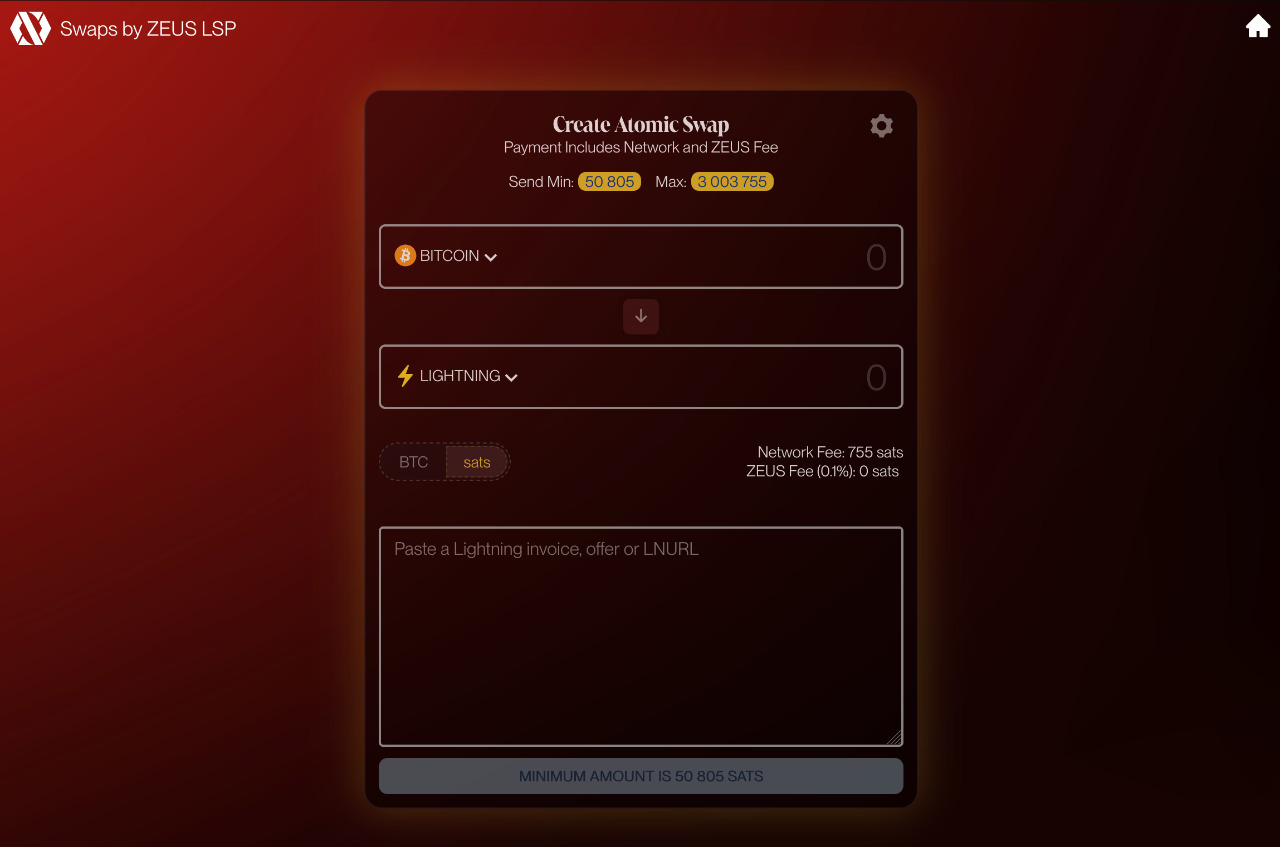
---
# REST API
Source: https://docs.zeusln.app/swaps/api
Our swaps service is powered by a [Boltz backend](https://github.com/BoltzExchange/boltz-backend), however endpoints and functionality may vary. Please refer to this document for the most up to date information on our endpoints.
## REST Endpoints
The Swagger specifications of the latest ZEUS Swaps REST API can be found [here](https://swaps.zeuslsp.com/api/swagger).
## WebSocket
The endpoints are available at:
* Mainnet: `wss://swaps.zeuslsp.com/api/v2/ws`
* Testnet: `wss://testnet-swaps.zeuslsp.com/api/v2/ws`
### Swap Updates
Instead of polling for swap status updates, clients can subscribe to updates with a WebSocket.
To subscribe to swap status updates, send a message like below. `args` is a list of swap ids to subscribe to.
```json
{
"op": "subscribe",
"channel": "swap.update",
"args": ["swap id 1", "swap id 2"]
}
```
ZEUS Swaps API will respond with a message like below, to confirm that the subscription was created successfully.
```json
{
"event": "subscribe",
"channel": "swap.update",
"args": ["swap id 1", "swap id 2"]
}
```
After the initial subscription confirmation message and whenever a swap status is updated, ZEUS Swaps API will send a message containing details about the status update.
`args` is a list of objects. These objects correspond to responses of `GET /swap/{id}`, but additionally contain the id of the swap.
```json
{
"event": "update",
"channel": "swap.update",
"args": [
{
"id": "swap id 1",
"status": "invoice.set"
}
]
}
```
To unsubscribe from the updates of one or more swaps, send an `unsubscribe` message.
```json
{
"op": "unsubscribe",
"channel": "swap.update",
"args": ["swap id 1"]
}
```
The backend will respond with a message that contains all swap ids the WebSocket is still subscribed to.
```json
{
"op": "unsubscribe",
"channel": "swap.update",
"args": ["swap id 2"]
}
```
### Application Level Pings
To ensure the connection is alive, besides the native WebSocket pings, ZEUS Swaps API will also respond to application-level pings, which is useful when the WebSocket client cannot control the low-level WebSocket connection (like on browsers). To send a ping, send a message like below.
```json
{
"op": "ping"
}
```
The backend will respond with a `pong` message.
```json
{
"event": "pong"
}
```
## Examples
Below are some examples covering the flow of a given swap type from beginning to end, using API v2 and its WebSocket.
### Submarine Swap (Chain -> Lightning)
```typescript
// Endpoint of the Boltz instance to be used
const endpoint = 'http://127.0.0.1:9001';
const webSocketEndpoint = 'ws://127.0.0.1:9004';
// The invoice you want to have paid
const invoice = '';
const submarineSwap = async () => {
const keys = ECPairFactory(ecc).makeRandom();
// Create a Submarine Swap
const createdResponse = (
await axios.post(`${endpoint}/v2/swap/submarine`, {
invoice,
to: 'BTC',
from: 'BTC',
refundPublicKey: keys.publicKey.toString('hex'),
})
).data;
console.log('Created swap');
console.log(createdResponse);
console.log();
// Create a WebSocket and subscribe to updates for the created swap
const webSocket = new ws(`${webSocketEndpoint}/v2/ws`);
webSocket.on('open', () => {
webSocket.send(
JSON.stringify({
op: 'subscribe',
channel: 'swap.update',
args: [createdResponse.id],
}),
);
});
webSocket.on('message', async (rawMsg) => {
const msg = JSON.parse(rawMsg.toString('utf-8'));
if (msg.event !== 'update') {
return;
}
console.log('Got WebSocket update');
console.log(msg);
console.log();
switch (msg.args[0].status) {
// "invoice.set" means Boltz is waiting for an onchain transaction to be sent
case 'invoice.set': {
console.log('Waiting for onchain transaction');
break;
}
// Create a partial signature to allow Boltz to do a key path spend to claim the mainchain coins
case 'transaction.claim.pending': {
console.log('Creating cooperative claim transaction');
// Get the information request to create a partial signature
const claimTxDetails = (
await axios.get(
`${endpoint}/v2/swap/submarine/${createdResponse.id}/claim`,
)
).data;
// Verify that Boltz actually paid the invoice by comparing the preimage hash
// of the invoice to the SHA256 hash of the preimage from the response
const invoicePreimageHash = Buffer.from(
bolt11
.decode(invoice)
.tags.find((tag) => tag.tagName === 'payment_hash')!.data as string,
'hex',
);
if (
!crypto
.sha256(Buffer.from(claimTxDetails.preimage, 'hex'))
.equals(invoicePreimageHash)
) {
console.error('Boltz provided invalid preimage');
return;
}
const boltzPublicKey = Buffer.from(
createdResponse.claimPublicKey,
'hex',
);
// Create a musig signing instance
const musig = new Musig(await zkpInit(), keys, randomBytes(32), [
boltzPublicKey,
keys.publicKey,
]);
// Tweak that musig with the Taptree of the swap scripts
TaprootUtils.tweakMusig(
musig,
SwapTreeSerializer.deserializeSwapTree(createdResponse.swapTree).tree,
);
// Aggregate the nonces
musig.aggregateNonces([
[boltzPublicKey, Buffer.from(claimTxDetails.pubNonce, 'hex')],
]);
// Initialize the session to sign the transaction hash from the response
musig.initializeSession(
Buffer.from(claimTxDetails.transactionHash, 'hex'),
);
// Give our public nonce and the partial signature to Boltz
await axios.post(
`${endpoint}/v2/swap/submarine/${createdResponse.id}/claim`,
{
pubNonce: Buffer.from(musig.getPublicNonce()).toString('hex'),
partialSignature: Buffer.from(musig.signPartial()).toString('hex'),
},
);
break;
}
case 'transaction.claimed':
console.log('Swap successful');
webSocket.close();
break;
}
});
};
(async () => {
await submarineSwap();
})();
```
```go
package main
"bytes"
"crypto/sha256"
"encoding/json"
"fmt"
"github.com/btcsuite/btcd/btcec/v2"
"os"
"github.com/BoltzExchange/boltz-client/v2/pkg/boltz"
"github.com/lightningnetwork/lnd/zpay32"
)
const endpoint = ""
const invoice = "
### Reverse Swap (Lightning -> Chain)
```typescript
Transaction,
address,
crypto,
initEccLib,
networks,
} from 'bitcoinjs-lib';
Musig,
OutputType,
SwapTreeSerializer,
TaprootUtils,
constructClaimTransaction,
detectSwap,
targetFee,
} from 'boltz-core';
// Endpoint of the Boltz instance to be used
const endpoint = 'http://127.0.0.1:9001';
const webSocketEndpoint = 'ws://127.0.0.1:9004';
// Amount you want to swap
const invoiceAmount = 100_000;
// Address to which the swap should be claimed
const destinationAddress = '';
const network = networks.regtest;
const reverseSwap = async () => {
initEccLib(ecc);
// Create a random preimage for the swap; has to have a length of 32 bytes
const preimage = randomBytes(32);
const keys = ECPairFactory(ecc).makeRandom();
// Create a Reverse Swap
const createdResponse = (
await axios.post(`${endpoint}/v2/swap/reverse`, {
invoiceAmount,
to: 'BTC',
from: 'BTC',
claimPublicKey: keys.publicKey.toString('hex'),
preimageHash: crypto.sha256(preimage).toString('hex'),
})
).data;
console.log('Created swap');
console.log(createdResponse);
console.log();
// Create a WebSocket and subscribe to updates for the created swap
const webSocket = new ws(`${webSocketEndpoint}/v2/ws`);
webSocket.on('open', () => {
webSocket.send(
JSON.stringify({
op: 'subscribe',
channel: 'swap.update',
args: [createdResponse.id],
}),
);
});
webSocket.on('message', async (rawMsg) => {
const msg = JSON.parse(rawMsg.toString('utf-8'));
if (msg.event !== 'update') {
return;
}
console.log('Got WebSocket update');
console.log(msg);
console.log();
switch (msg.args[0].status) {
// "swap.created" means Boltz is waiting for the invoice to be paid
case 'swap.created': {
console.log('Waiting invoice to be paid');
break;
}
// "transaction.mempool" means that Boltz sent an onchain transaction
case 'transaction.mempool': {
console.log('Creating claim transaction');
const boltzPublicKey = Buffer.from(
createdResponse.refundPublicKey,
'hex',
);
// Create a musig signing session and tweak it with the Taptree of the swap scripts
const musig = new Musig(await zkpInit(), keys, randomBytes(32), [
boltzPublicKey,
keys.publicKey,
]);
const tweakedKey = TaprootUtils.tweakMusig(
musig,
SwapTreeSerializer.deserializeSwapTree(createdResponse.swapTree).tree,
);
// Parse the lockup transaction and find the output relevant for the swap
const lockupTx = Transaction.fromHex(msg.args[0].transaction.hex);
const swapOutput = detectSwap(tweakedKey, lockupTx);
if (swapOutput === undefined) {
console.error('No swap output found in lockup transaction');
return;
}
// Create a claim transaction to be signed cooperatively via a key path spend
const claimTx = targetFee(2, (fee) =>
constructClaimTransaction(
[
{
...swapOutput,
keys,
preimage,
cooperative: true,
type: OutputType.Taproot,
txHash: lockupTx.getHash(),
},
],
address.toOutputScript(destinationAddress, network),
fee,
),
);
// Get the partial signature from Boltz
const boltzSig = (
await axios.post(
`${endpoint}/v2/swap/reverse/${createdResponse.id}/claim`,
{
index: 0,
transaction: claimTx.toHex(),
preimage: preimage.toString('hex'),
pubNonce: Buffer.from(musig.getPublicNonce()).toString('hex'),
},
)
).data;
// Aggregate the nonces
musig.aggregateNonces([
[boltzPublicKey, Buffer.from(boltzSig.pubNonce, 'hex')],
]);
// Initialize the session to sign the claim transaction
musig.initializeSession(
claimTx.hashForWitnessV1(
0,
[swapOutput.script],
[swapOutput.value],
Transaction.SIGHASH_DEFAULT,
),
);
// Add the partial signature from Boltz
musig.addPartial(
boltzPublicKey,
Buffer.from(boltzSig.partialSignature, 'hex'),
);
// Create our partial signature
musig.signPartial();
// Witness of the input to the aggregated signature
claimTx.ins[0].witness = [musig.aggregatePartials()];
// Broadcast the finalized transaction
await axios.post(`${endpoint}/v2/chain/BTC/transaction`, {
hex: claimTx.toHex(),
});
break;
}
case 'invoice.settled':
console.log('Swap successful');
webSocket.close();
break;
}
});
};
(async () => {
await reverseSwap();
})();
```
```go
package main
"crypto/rand"
"crypto/sha256"
"encoding/json"
"fmt"
"os"
"github.com/BoltzExchange/boltz-client/v2/pkg/boltz"
"github.com/btcsuite/btcd/btcec/v2"
)
const endpoint = ""
const invoiceAmount = 100000
const destinationAddress = ""
// Swap from Lightning to BTC mainchain
var toCurrency = boltz.CurrencyBtc
var network = boltz.Regtest
func printJson(v interface{}) {
b, err := json.MarshalIndent(v, "", " ")
if err != nil {
fmt.Println(err)
os.Exit(1)
}
fmt.Println(string(b))
}
func reverseSwap() error {
ourKeys, err := btcec.NewPrivateKey()
if err != nil {
return err
}
preimage := make([]byte, 32)
_, err = rand.Read(preimage)
if err != nil {
return err
}
preimageHash := sha256.Sum256(preimage)
boltzApi := &boltz.Api{URL: endpoint}
swap, err := boltzApi.CreateReverseSwap(boltz.CreateReverseSwapRequest{
From: boltz.CurrencyBtc,
To: toCurrency,
ClaimPublicKey: ourKeys.PubKey().SerializeCompressed(),
PreimageHash: preimageHash[:],
InvoiceAmount: invoiceAmount,
})
if err != nil {
return fmt.Errorf("Could not create swap: %s", err)
}
boltzPubKey, err := btcec.ParsePubKey(swap.RefundPublicKey)
if err != nil {
return err
}
tree := swap.SwapTree.Deserialize()
if err := tree.Init(toCurrency, false, ourKeys, boltzPubKey); err != nil {
return err
}
if err := tree.Check(boltz.ReverseSwap, swap.TimeoutBlockHeight, preimageHash[:]); err != nil {
return err
}
fmt.Println("Swap created")
printJson(swap)
boltzWs := boltzApi.NewWebsocket()
if err := boltzWs.Connect(); err != nil {
return fmt.Errorf("Could not connect to Boltz websocket: %w", err)
}
if err := boltzWs.Subscribe([]string{swap.Id}); err != nil {
return err
}
for update := range boltzWs.Updates {
parsedStatus := boltz.ParseEvent(update.Status)
printJson(update)
switch parsedStatus {
case boltz.SwapCreated:
fmt.Println("Waiting for invoice to be paid")
break
case boltz.TransactionMempool:
lockupTransaction, err := boltz.NewTxFromHex(toCurrency, update.Transaction.Hex, nil)
if err != nil {
return err
}
vout, _, err := lockupTransaction.FindVout(network, swap.LockupAddress)
if err != nil {
return err
}
satPerVbyte := float64(2)
claimTransaction, _, err := boltz.ConstructTransaction(
network,
boltz.CurrencyBtc,
[]boltz.OutputDetails{
{
SwapId: swap.Id,
SwapType: boltz.ReverseSwap,
Address: destinationAddress,
LockupTransaction: lockupTransaction,
Vout: vout,
Preimage: preimage,
PrivateKey: ourKeys,
SwapTree: tree,
Cooperative: true,
},
},
satPerVbyte,
boltzApi,
)
if err != nil {
return fmt.Errorf("could not create claim transaction: %w", err)
}
txHex, err := claimTransaction.Serialize()
if err != nil {
return fmt.Errorf("could not serialize claim transaction: %w", err)
}
txId, err := boltzApi.BroadcastTransaction(toCurrency, txHex)
if err != nil {
return fmt.Errorf("could not broadcast transaction: %w", err)
}
fmt.Printf("Broadcast claim transaction: %s\n", txId)
break
case boltz.InvoiceSettled:
fmt.Println("Swap succeeded", swap.Id)
if err := boltzWs.Close(); err != nil {
return err
}
break
}
}
return nil
}
func main() {
if err := reverseSwap(); err != nil {
fmt.Println(err)
os.Exit(1)
}
}
```
---
# Intro
Source: https://docs.zeusln.app/lightning-address/intro

As of ZEUS v0.11, ZEUS Pay has three different address types:
- [Cashu addresses](https://docs.zeusln.app/lightning-address/cashu) for newcomers. Pick your mint and start receiving zaps right away.
- [Zaplocker addresses](https://docs.zeusln.app/lightning-address/zaplocker). The first ever self-custodial Lightning addresses for mobile. We debuted these back in ZEUS v0.8.0.
- [Nostr Wallet Connect (NWC)](https://docs.zeusln.app/lightning-address/nwc) addresses for remote node runners. Generate invoices directly from your node. No need to redeem.
Now users have options for every step of their Bitcoin journey. You can switch between these three address types under your Lightning address setting all while maintaining the same ZEUS handle.
To create a new ZEUS Pay address, navigate to `Menu` > `Lightning address` in the ZEUS mobile wallet. New ZEUS Pay users will be prompted to choose a Lightning address type based on their active wallet interface.
To switch address types, go to `Menu` > `Lightning address` > `Settings` > `Switch to...`.
---
# Zaplocker self-custodial lightning addresses
Source: https://docs.zeusln.app/lightning-address/zaplocker
As of ZEUS v0.8.0 we are offering up a self-custodial lightning address that we're calling ZEUS Pay. This is the first ever offering of a self-custodial lightning address in a mobile app.
Zaplocker leverages user-generated preimage hashes, hodl invoices, and the Nostr attestation scheme to allow users who may not be online 24/7 to receive payments to a static lightning address. Users just need to log in to their ZEUS wallets within 24 hours to claim the payments, otherwise they will be returned to the sender.
Zaplocker addresses are available, not only just to embedded node users, but also remote LND users.
Learn about [how Zaplocker payments work](https://github.com/supertestnet/zaplocker#how-it-works).
# Fees and requirements
ZEUS Pay Zaplocker fees are now at zero.
You just need a channel with our LSP to redeem payments using a Zaplocker address.
---
# Cashu lightning addresses
Source: https://docs.zeusln.app/lightning-address/cashu
Cashu lightning addresses are available to any user that has a [Cashu wallet](https://docs.zeusln.app/cashu) enabled. These lightning addresses are great for new users as they have no associated fees and can be used on Nostr to accept zaps as small as one satoshi.
# Comparison to Zaplocker lightning addresses
Cashu is [**custodial**](https://docs.zeusln.app/self-custody), but has a clear UX benefit for payers over Zaplocker addresses, in that the payments are settled instantly, instead of when the receiver settles them in their ZEUS wallet.
Cashu lightning addresses must also be redeemed in the user's ZEUS wallet, but unlike the Zaplocker addresses, there is not time window in which they must be redeemed.
By default, Cashu lightning address payments are auto-redeemed when the user opens their ZEUS wallet.
# Best practice
The Cashu lightning address is best used in conjunction with a self-custodial ZEUS wallet. You can set an automatic sweep threshold under `Menu` > `Settings` > `Ecash` > `Automatically sweep to self-custody`.
This allows you to enjoy the great UX of the Cashu wallet, while minimizing your third party rehypothecation risk.
# Fees and requirements
There are no fees associated with the Cashu lightning address.
A channel with the ZEUS LSP is not required to use the Cashu lightning address.
The Cashu lightning address currently only works with Embedded LND wallets in ZEUS.
---
# Nostr Wallet Connect remote lightning addresses
Source: https://docs.zeusln.app/lightning-address/nwc
Nostr Wallet Connect lightning addresses allow remote node users to receive payments directly to their nodes, using the [Nostr Wallet Connect protocol](https://nwc.dev/).
# Comparison to Zaplocker and Cashu lightning addresses
In contrast to the Zaplocker and Cashu lightning addresses, the NWC lightning address does not require you to redeem payments within the ZEUS mobile wallet. Funds are settled directly on your node at time of payment.
# Software
NWC is available in [Alby Hub](https://albyhub.com/), which can be run on top of a self-hosted node or run as a service in the cloud.
Self-hosted node runners may want to also look at more lightweight options. Proceed at your own risk when using any of these third party solutions.
- [nostr-wallet-connect-lnd](https://github.com/benthecarman/nostr-wallet-connect-lnd) (LND)
- [cln_nwc](https://github.com/gudnuf/cln_nwc) (Core Lightning)
- [lnbits](https://github.com/SamSamskies/lnbits-nwc-service) (lnbits)
# Best practice
ZEUS Pay's NWC lightning addresses should be used with **invoice-only** NWC connection string to ensure that the service can only generate invoices on your behalf. You do not want the service to be able to access funds.
# Fees and requirements
There are no fees associated with the NWC lightning address.
A channel with the ZEUS LSP is not required to use the NWC lightning address.
---
# ZEUS Pay+
Source: https://docs.zeusln.app/lightning-address/plus
ZEUS Pay+, is our premium Lightning address service. For 80,000 sats/year, you get access to the following features:
- 20% off of all LSP channel lease services
- Custom Lightning address handles
- Early access to new features
- Access to [exclusive merch](https://store.zeusln.com/product-category/zeus-pay-exclusives/)
We're looking forward to offering up more features as we iterate on the service and rewarding our subscribers in fun and unique ways.
To subscribe to ZEUS Pay+, in the ZEUS mobile wallet, set up a Lightning address, then press `Subscribe to ZEUS Pay+` on the Lightning address view. You can navigate there by going to `Menu` > `Lightning address`.
---
# Overview
Source: https://docs.zeusln.app/pos/overview
ZEUS has a point of sales function that is built into the main application. Retails can use it to tap into their Square terminals and have their customers pay with bitcoin. It's currently being used in production at multiple locations including New York City's Pubkey.
Check it out in action below.
---
# Setting up ZEUS point of sale (Square)
Source: https://docs.zeusln.app/pos/setup
Currently the ZEUS point of sale only supports merchants who process their payments with Square.
## Accessing the Point of Sale Settings
The Point of Sale section can be found in the Settings view. Navigate to Settings, and you will see the Point of Sale section.
Note to proceed to POS settings, you must have a fiat currency set. This currency must match the currency used on your Square Terminal or you will have reconciliation problems.
## Point of Sale settings overview
Two fields are required to connect to your Square terminal: Square Access token and Square Location ID.
To get your Access token follow the instructions in the section here labeled [Get a personal access token](https://developer.squareup.com/docs/build-basics/access-tokens#get-a-personal-access-token)
To get your Location ID, visit the Square developer dashboard, and retrieve your location ID from the tab labeled `Locations`. It's a 13 character alphanumeric all-caps string.
**Merchant name**: This optional, but adds your merchant to the memo on your Lightning invoice memos.
**Confirmation preferences**: As a merchant you have the option to select '0-conf' or '1-conf' for on-chain payment confirmation, or disable them entirely by selecting 'LN only'.
**Disable tips**: ZEUS can prompt the user to leave a tip (it can even be denominated in the currency of the user's choosing) but you may want to disable tips. Tips marked in ZEUS _cannot_ be reconciled back to the Square terminal. Merchants that don't want the extra reconciliation work can disable tips in ZEUS and adds tip or auto-gratuity as a line item on the Square terminal.
**Developer mode**: Toggle this is you are testing against Square's sandbox.
---
# Checking out with ZEUS POS
Source: https://docs.zeusln.app/pos/checkout
*In order to accept bitcoin payments, we will ring up orders on Square just like a typical transaction, but we will use Square’s Other Payments functionality to send bitcoin related payments to ZEUS.*
# On the Square Terminal
Step 1: Create and complete tab. Create a tab as you usually would (“New Sale” > add all items). Proceed to the following steps when the tab is complete and the patron is ready to pay.
[*Note: this tutorial assumes you want to reconcile all your tips on the Square Terminal. To do so you must add the tip as a line item on the Square Terminal (like Auto Gratuity) and have the tips disabled in the ZEUS POS. To allow customers to set their tips in ZEUS and and are OK with reconciling tips afterwards, leave tips enabled in the ZEUS POS settings.*]
Step 2: Request gratuity. When the patron says they would like to pay in Bitcoin, ask them what they would like to tip
Step 3: Add gratuity using “Auto Gratuity.” Add the requested tip amount using the “Auto Gratuity” feature on the “New Sale” page. Type in the amount, hit the “+” on the right side of the number pad; this will add the tip amount to the column on the right hand side of the screen. Then hit “Add to check” in the bottom right corner of the screen.
Step 4: Close tab in Square by exporting payment to ZEUS. Once Auto Gratuity is added, hit “Pay” on the bottom right of the screen (directly above the blue “Send” button). On the next page, scroll down and hit “More” at the bottom of the menu of options. On the next page, hit “Other Payment Types,” and then type “Zeus” , “BTC” , or “Bitcoin” (case does not matter). This will send the transaction over to ZEUS, so your work on the square terminal is done.
# In the ZEUS app
Step 5: Open up ZEUS App. It is the only app on the leftmost home screen.
Step 6: Navigate to “Orders” page. The app should default open up to this page, but if it does not, navigate to the home page. Then, hit the calculator icon on the top right of the home page.
Step 7: Select order. Click the appropriate order. Confirm details. Hit “Pay”
Step 8: Display QR code. Show patron the QR code. If there are issues, it is likely on there end, so some patience might be required while they iterate. If issues persist, scroll to the bottom of the screen, and ask the patron whether they want to pay with “Lightning” or “On-chain.” Depending on their answer, select one of the options at the very bottom of the screen and a new QR code will appear.
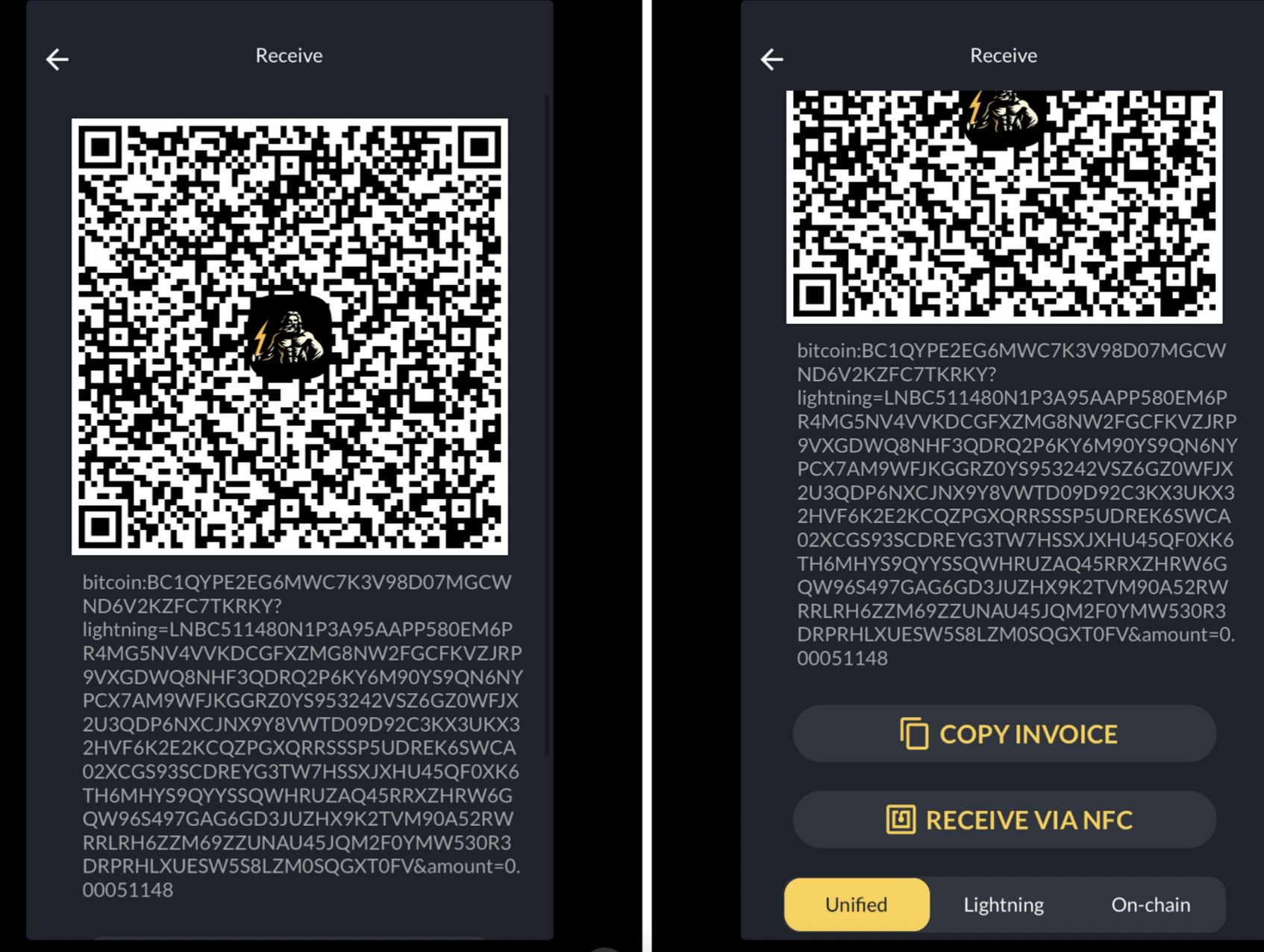
Step 9: Confirmation. Once the patron says the payment went through, that’s it! You’re done! The order should appear under the “Paid” tab shortly!
---
# Contribute to ZEUS
Source: https://docs.zeusln.app/contribute/how-you-can-contribute
ZEUS is free and open-source software (FOSS) with volunteer contributors from all around the world.
We welcome, appreciate, and encourage new contributions from anyone. No matter what your talent may be, we always have work that needs to be done to improve ZEUS.
Below are some common ways contributors help out with the project. Contributions are not limited to this list and if you have a skill to offer outside that you think would be valuable to ZEUS, feel free to message us on our [Nostr](https://iris.to/npub1xnf02f60r9v0e5kty33a404dm79zr7z2eepyrk5gsq3m7pwvsz2sazlpr5), [Telegram](https://t.me/ZeusLN), or shoot us an [email](emailto:zeusln@tutanota.com).
- [Code](https://docs.zeusln.app/contribute/code)
- [Design](https://docs.zeusln.app/contribute/design)
- [Write](https://docs.zeusln.app/contribute/write)
- [Translate](https://docs.zeusln.app/contribute/translate)
- [Donate](https://docs.zeusln.app/contribute/donate)
- [Other](https://docs.zeusln.app/contribute/other)
---
# Code
Source: https://docs.zeusln.app/contribute/code
- [ZEUS GitHub](https://github.com/ZeusLN/zeus/)
- [Starting development](https://github.com/ZeusLN/zeus#starting-development)
- [Contributing](https://github.com/ZeusLN/zeus/#contributing)
- [Reproducible builds](https://github.com/ZeusLN/zeus#reproducible-builds)
---
# Design
Source: https://docs.zeusln.app/contribute/design
- [Figma designs](https://www.figma.com/file/TqAM4LvuqvY7FBzFoaezJC/Zeus?node-id=134%3A661)
---
# Write
Source: https://docs.zeusln.app/contribute/write
Have a knack for writing? There are several ways in which you can contribute your writing skills to ZEUS.
## Documentation
The first way you can contribute your writing skills is directly to this documentation website.
## Articles
[The Bullish Bitcoiner: How to Create Your First Embedded LND Node with ZEUS Pay](https://thebullishbitcoiner.com/2023/10/20/how-to-create-your-first-embedded-lnd-node-with-zeus-pay/)
---
# Translate
Source: https://docs.zeusln.app/contribute/translate
Translations are done through [our Transifex Portal](https://explore.transifex.com/ZeusLN/zeus/). Please do not submit any locale updates to the ZEUS GitHub.
Please reach out or put a request in through Transifex if you'd like to support an unlisted language.
---
# Donate
Source: https://docs.zeusln.app/contribute/donate
If you would like to support ZEUS financially and help us with general operation costs of running the project, you can contribute bitcoin directly to the team.
Some costs we have to regularly pay include:
- iOS developer account
- Google play developer account
- Hosting for various sites we maintain
- Bounties for new features
## Donation options
We have several ways you can donate bitcoin to the ZEUS project. All our options have no middle-man so you can be sure 100% of your donation is going to ZEUS.
- Our self hosted [BTCPay page](https://pay.zeusln.app/)
- PayNym ([+holymorning7d1](http://my.paynym.is/+holymorning7d1))
- Lightning address (tips@pay.zeusln.app)
## Sponsor ZEUS
If you would like a more formal way to contribute to ZEUS you can sponsor the project which will get you some sponsorship perks depending on your level of sponsorship.
- [Sponsor Portal](https://zeusln.app/sponsor)
- [ZEUS About Page](https://zeusln.app/about)
---
# Other
Source: https://docs.zeusln.app/contribute/other
## Videos & graphics
- [Bitcoin TV](https://bitcointv.com/c/zeus/videos)
## Discussions
- [Telegram](https://t.me/ZeusLN)
- [Slack](https://zeusln.slack.com/join/shared_invite/zt-qw205nqa-o4VJJC0zPI7HiSfToZGoVw#/)
- [Twitter](https://twitter.com/ZeusLN)
## Report bugs
- [GitHub Issues](https://github.com/ZeusLN/zeus/issues)
## Spread the word
---
# Support
Source: https://docs.zeusln.app/for-users/support-and-community/support
---
# Troubleshooting
Source: https://docs.zeusln.app/for-users/support-and-community/troubleshooting
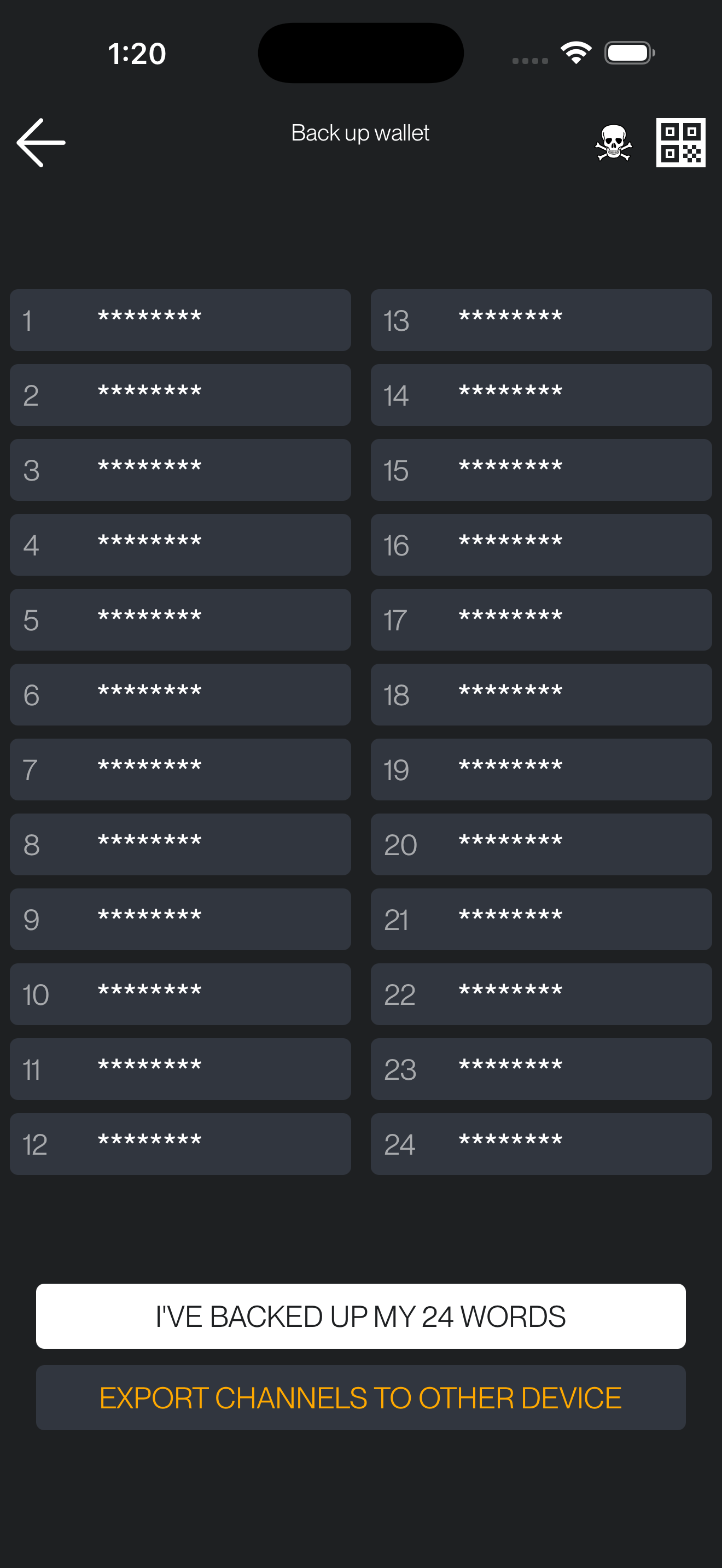
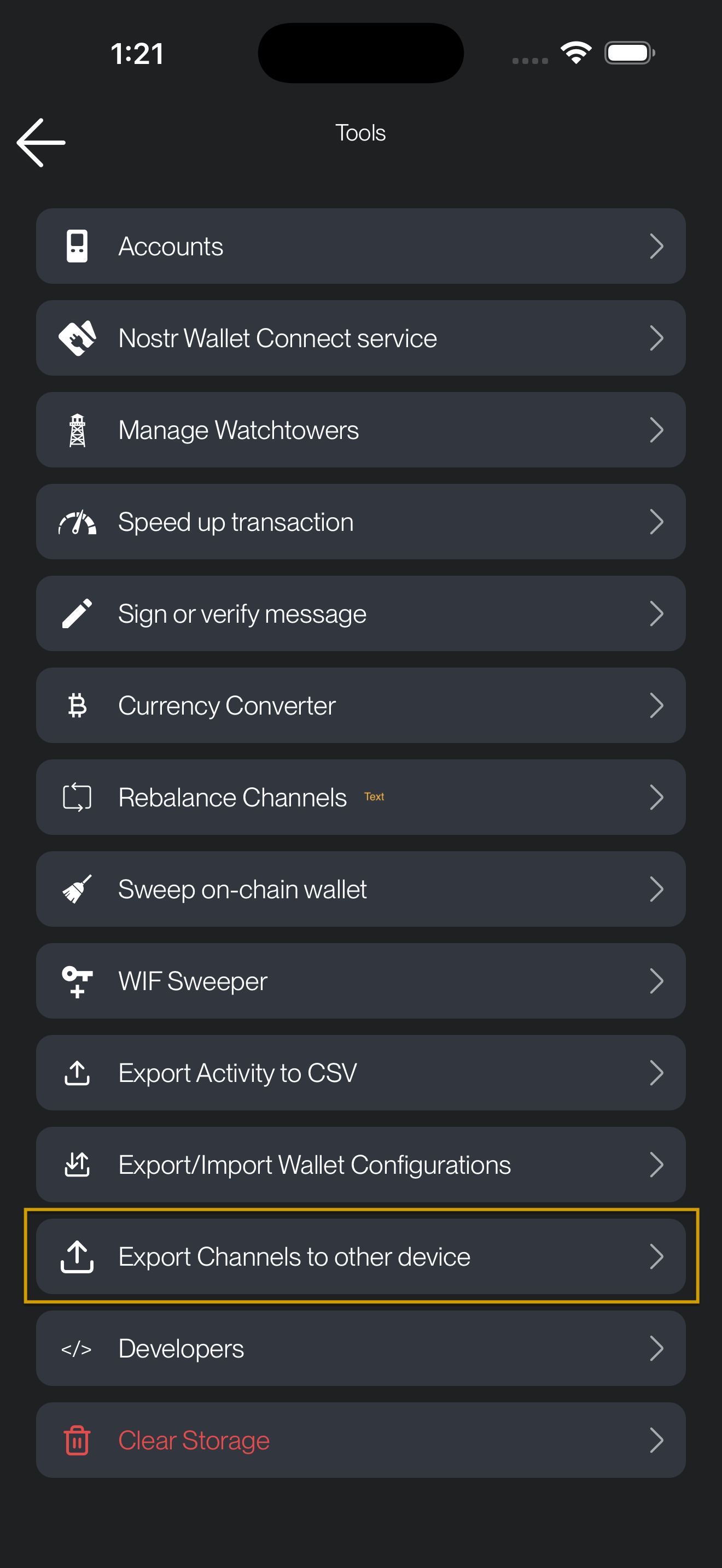
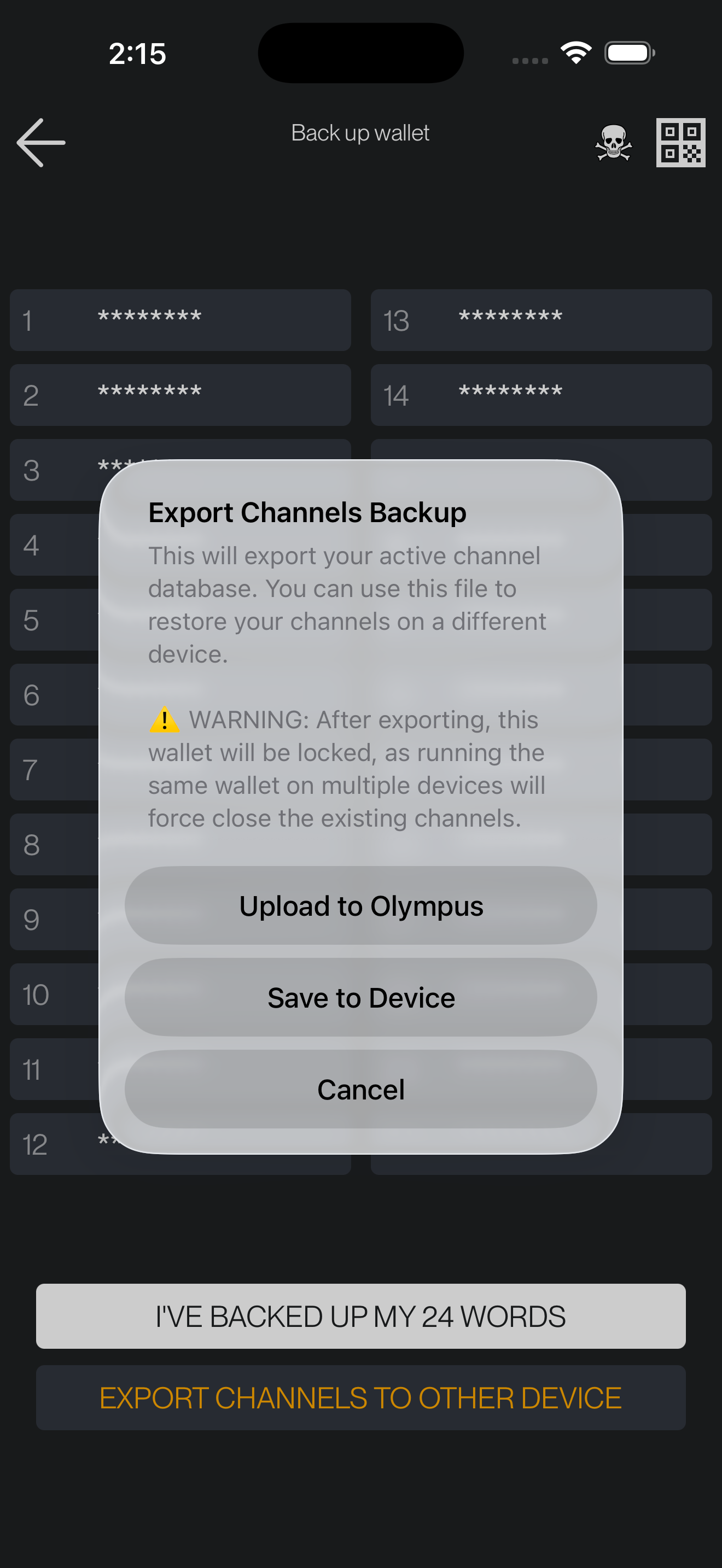
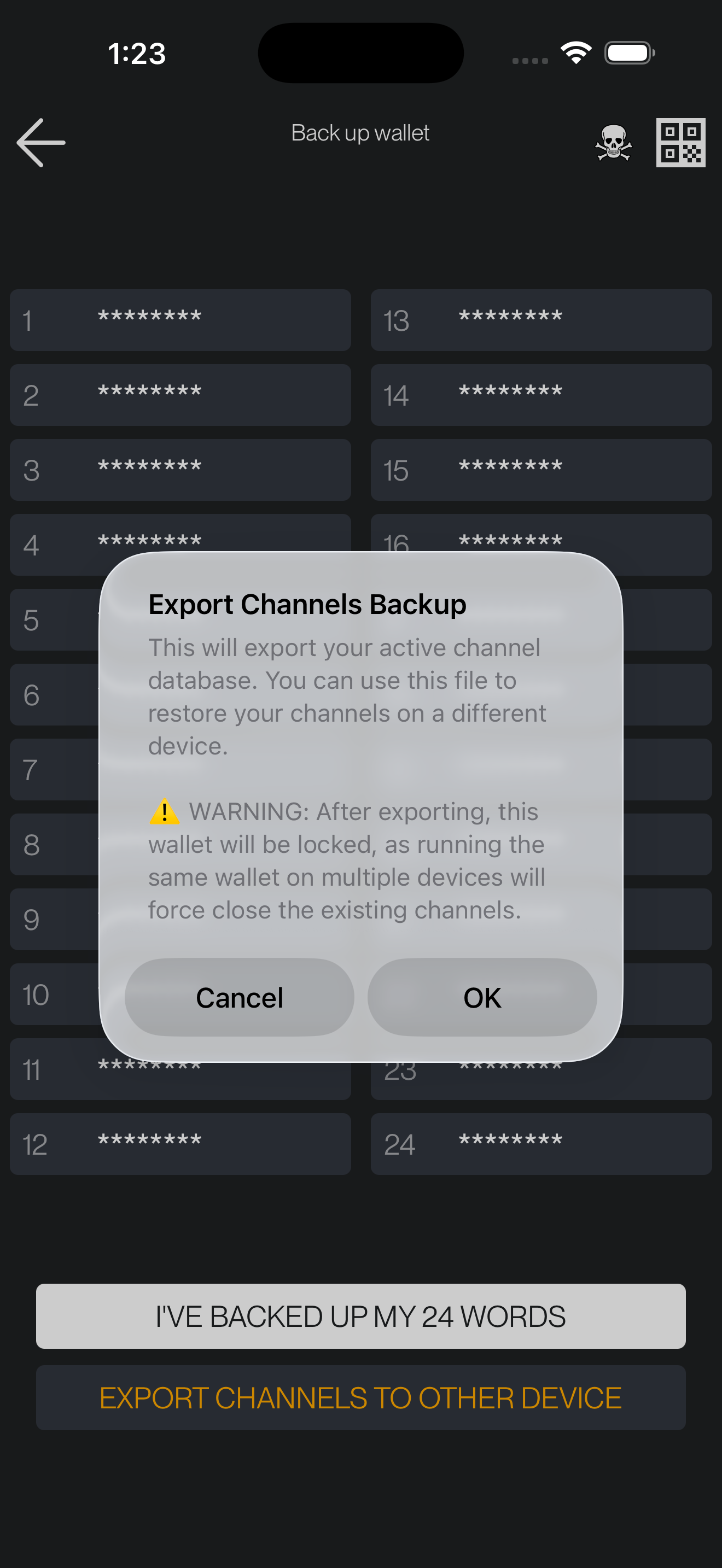
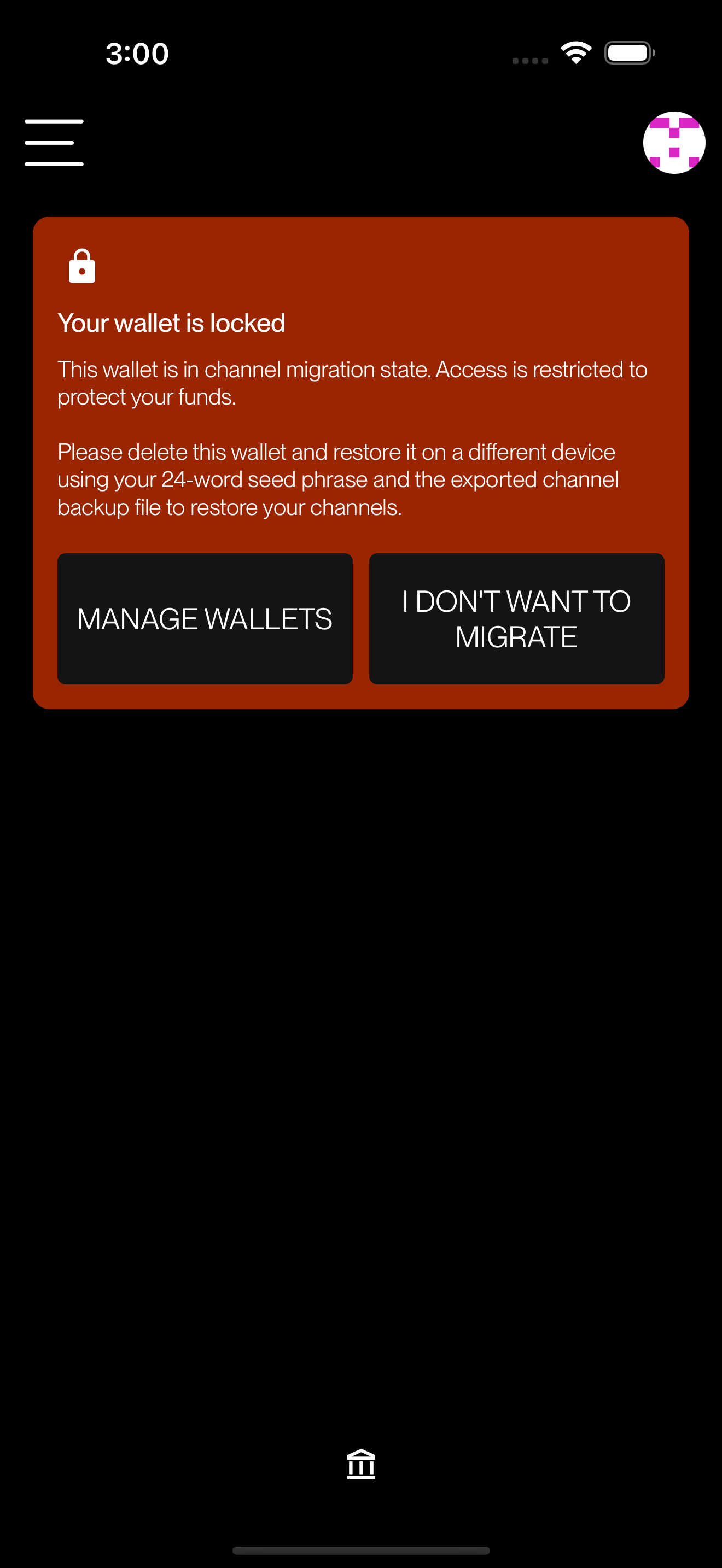 ### Importing on the new device
On the new device, go through the normal [Restore wallet](#restoring-a-wallet) flow described below. When you enter your seed phrase ZEUS will ask how you want to restore channel state and give you three options:
### Importing on the new device
On the new device, go through the normal [Restore wallet](#restoring-a-wallet) flow described below. When you enter your seed phrase ZEUS will ask how you want to restore channel state and give you three options:
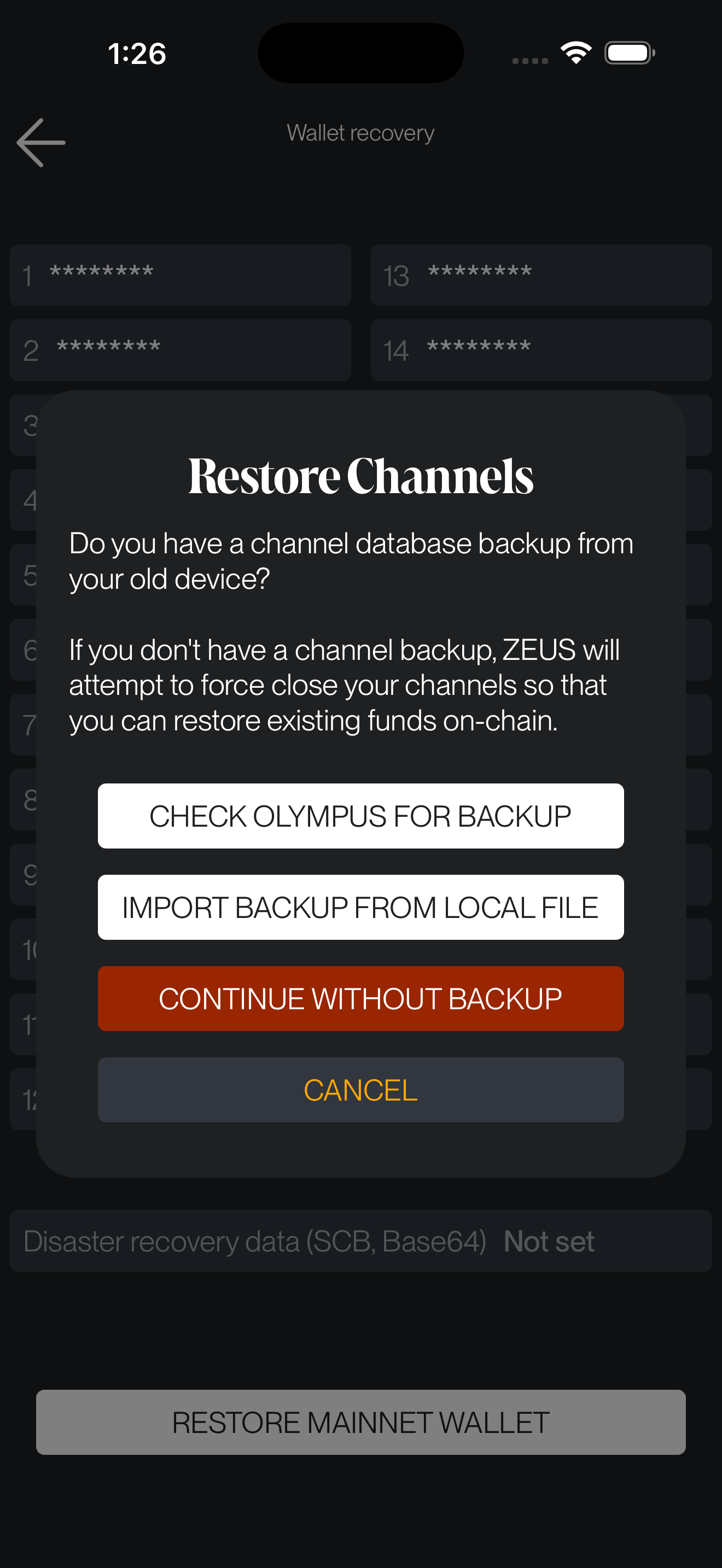 - **Check OLYMPUS**: fetches the latest uploaded backup for your seed phrase. If none is found, ZEUS will let you know and you can proceed with the 'Continue without backup' option.
- **Import file**: opens the file picker so you can select the backup file you exported earlier.
- **Continue without backup**: skips the channel migration and falls back to a plain seed restore. This will force-close any channels, so only pick this if you have lost the backup.
Leave the app in the foreground until the restore finishes.
## Preparing to restore a wallet
There are two different ways to recover an embedded LND wallet, and the outcome depends on which one applies to you:
- **Channel migration backup** (recommended if you planned the move ahead of time): if you exported a channel backup from the old device, the new device will pick up where the old one left off and your channels stay **live**. See [Migrating channels to a new device](#migrating-channels-to-a-new-device) above.
- **Disaster recovery (SCB) only**: if all you have is the seed phrase and the automatic disaster recovery data, restoring will trigger a **force close** of every existing channel to recover the on-chain funds. Force closes are more expensive than mutual closes and you will have to wait out the timelock (up to two weeks) before you can sweep. If possible, close your channels on the old device first, or export a channel migration backup instead.
## Restoring a wallet
Once you're ready to recover, go to the Settings menu in ZEUS. It is accessible from the top left corner on the main view (typically an icon of Zeus) if you have a wallet configured already, or by pressing 'Advanced set-up' on the splash screen of a new install.
From there you can add a new node by pressing the top field (it will either say 'No Wallets', or the name of your active connection), and then hitting the plus (+) icon in the top right corner.
From there, enter your 24 word seed phrase in the field labeled 'Recovery Cipher Seed (aezeed)'. You can optionally provide a static backup string in the field labeled 'Disaster recovery data (SCB, Base64)'. If you plan to use the OLYMPUS or Import file option in the next step, you can leave this field blank.
Then press 'Restore mainnet wallet' if you're dealing with real funds or 'Restore testnet wallet' if you're using Bitcoin's test network.
Before the wallet is created, ZEUS will ask you how to restore your channels and show the three options described in [Importing on the new device](#importing-on-the-new-device). Pick the one that matches how you saved the backup on the old device, or choose _Continue without backup_ to fall back to an SCB-only restore.
Please leave ZEUS running the first time you restore the seed. It has to go through the recovery process to restore your balance. It is not uncommon for this to take over 10 minutes, especially if you have a heavily used wallet. You may want to temporarily turn off any screen timeouts and energy saving options in your phone's settings, so that ZEUS doesn't go into the background and pause LND during the process.
## Having issues recovering a wallet?
You must leave ZEUS running the first time you restore the seed. It has to go through the recovery process to restore your balance. It is not uncommon for this to take 10 minutes, especially if you have a heavily used wallet. It is advised to reinstall ZEUS and reinitialize the wallet with your seed if you closed it or restarted it before seeing your full balance.
Alternatively, if you want a more manual approach, you may be able to spam the create on-chain address function to get all your addresses indexed in LND's DB and restore your balances. You will likely have to generate both Taproot and SegWit addresses for this approach to work. Since new addreses are generated every time you create an invoice, you may have to generate several hundred addresses of each type.
Then, after your addresess have been generated and indexed, use the 'Rescan' functionality under the Embedded Node settings.
## Have bigger issues?
It is worth reading Lightning Labs' documentation on recovering funds from LND in case of a catastrophic failure.
In complicated scenarios, chantools can prove to be a valuable tool.
Remember, funds are recoverable in **most** cases. It's best to proceed calmly, and not try things blindly as some actions can make the situation worse.
## Can I recover my ZEUS onchain wallet into other wallet applications?
The aezeed key format **should** be compatible with the following wallets: Blixt, Blue Wallet and Breez. Note that the seed alone will be insufficient to recover all your balances if you have open or pending closing channels. But only for restoring the onchain wallet funds is enough.
Another option is to use [Sparrow Wallet](https://sparrowwallet.com/) (desktop), but are necessary some preparation steps. This method is also useful in case you want to extract the XPUB for your ZEUS LND node and you want to use it as watch only (deposit-only) in another app. Sparrow will display it in the wallet details.
### Step 1. Get the HD Keys from your ZEUS wallet
To import the ZEUS on-chain ypriv / zpriv keys into Sparrow Wallet you have 2 options:
PLEASE DO NOT SHARE THESE KEYS, THESE ARE FULL ACCESS TO YOUR NODE WALLET, KEEP THEM SAFE.
**OPTION A** - directly from the ZEUS UI, go to Backup wallet - and click on the QR on top right corner. It will take few moments to extract the ypriv/zpriv and will display it in full text format and QR code. Now you can import it into Sparrow and have full access to your onchain wallet. In Sparrow keep in mind to switch between segwit P2WPKH "bc1q" (BIP84) and taproot addresses P2TR "bc1p" (BIP86), depending which format you used previously in ZEUS.
**OPTION B** - Using Cryptography Toolkit by Guggero (LND dev):
- Go to Cryptography Toolkit and download the HTML file onto your computer.
- Open that HTML file in "offline mode" (no internet) and select "aezeed Cipher Seed Scheme" from Tools. Then go to the 2nd tab "Decode Mnemonic".
- Paste your 24 words into the "Mnemonic" field.

- Select format BIP84 native segwit and wait a bit to be decoded.
- Copy the zprv displayed into the field "HD node root base 58"
### Step 2. Restore the HD Keys in the Sparrow desktop wallet
- Open (already downloaded) Sparrow wallet app and select "New Wallet"
- In the "Keystores" select "New or Imported Software Wallet"
- In the next window that will open, select "Master Private Key BIP32" and paste that "zprv" key you get it from the cryptography tool and click "Import". It will show you that is a m/84'/0'/0 derivation path. That will import only the segwit P2WPKH type of addresses. But if you used Taproot P2TR addresses, then you should change it into "m/86'/0'/0".
- Click on "Import Keystore" and it will go back to main window of the wallet app where you can see all the wallet config. Click on "Apply" and will prompt you to set a password to encrypt your local wallet file.
- If you used both types of addresses in ZEUS, we suggest to import them as two wallets in Sparrow, using the same "xprv" key but each one with a different derivation path. In this way you can avoid confusions.
- You can also change between segwit and taproot an already imported wallet, by going to wallet Settings and switch the "Scrypt Type" (segwit P2WPKH or taproot P2TR) and then re-import the BIP32 xprv keys to make the switch.

- Sparrow app will start scanning all your keys and txs and it will be displayed after a while in the "Transactions" tab. Patience, it will take some time.
- For a faster, secure and private connection is better to connect your Sparrow wallet app to your node (via Electrum server or directly to a Bitcoin Core RPC)
And done, now you can manage your ZEUS LND onchain wallet from Sparrow.
## chantools: sweepremoteclosed
chantools is a CLI tool for recovering funds from Lightning channel when a user has unfortunately lost their channel state data.
In ZEUS v0.10, we've built in the sometimes needed sweepremoteclosed command, which we've found to be invaluable when users have sync issues or have lost their channel backups.
### Steps
- 1. Go to `Menu` > `Settings` > `Embedded Node` > `Advanced` > `chantools` > `sweepremoteclosed`
- 2. In the field called `Sweep address`, input an on-chain address to receive your funds to, then hit `Start Sweep`. It should take about 5-10 minutes to run.
- 3. If successful you'll reach a page labeled TXHex with a QR code. Simply scroll to the bottom and hit `Broadcast TX` to complete the recovery
If you hit error "found 0 sweep targets with total value of 0 satoshis which is below the dust limit of 600", simply try again with `Advanced settings`: `Recovery window` increased. Try 1000, 2500, 5000 if necessary.
If you hit any issues about unexpected characters, you are hitting a rate limit from one of the block explorer settings. Under Advanced settings, set 'Seconds to wait between queries' to 1 and try again. Please be patient as the process will now take a bit longer.
## Ecash
As of ZEUS v13, your selected ecash mints are encrypted and backed up to Nostr. Upon restoring from seed, your mints and ecash balances should be restored automatically.
The backup is encrypted using NIP-44 and the ecash token backup format follows NUT-27. This format is compatible with Cashu.me, so you can also recover your ecash there if needed.
---
# Open a channel to the embedded LND node
Source: https://docs.zeusln.app/for-users/local-wallets/embedded-lnd/open-channel-to-embedded-node
## Overview
This page will walk you through how to open up a channel from another lightning node to the embedded LND node in ZEUS v0.8+.
The embedded node lives on your phone and is usually offline so it doesn't make sense to expose a URI or node address on the lightning network for others to connect to. Instead, you must initiate the peer connection yourself from the embedded node.
## Steps
### 1. From the embedded node, connect to your remote node as a peer
Go to the Open Channel view in ZEUS. You can get there by going to the channels pane in the bottom right corner of the main view. Once you're on the Channels pane, press the plus icon (+) in the top right corner to get to the Open Channel view.
In the Open Channel view, you will now see two tabs in the header: **Open Channel** and **Connect Peer**. You can switch between these tabs to change the view accordingly.
From the Connect Peer tab, you will see a Peer input field with a dropdown. By default, it is set to OLYMPUS BY ZEUS, you need to tap on it and select Custom to manually enter the values. Once set to Custom, enter the remote node's pubkey and host, then press the Connect Peer button. If successful, ZEUS will return a message confirming that you've successfully connected to your peer.

### 2. From the remote node, open up a channel
Now that you've established a peer connection from the embedded node to the remote node, you can now open up a channel from the remote node to the embedded node.
You may also want to consider opening a trusted channel instead so that you don't pay any on-chain fees and reap other benefits.
---
# Open a trusted funding channel to the embedded node
Source: https://docs.zeusln.app/for-users/local-wallets/embedded-lnd/trusted-funding
## Overview
One potential setup you can have with your in-app, embedded node in ZEUS v0.8: connect to your routing node at home (or in the cloud) with a private 0-conf channel.
There are a lot of perks to this set up. You skip on-chain fees, save on routing fees, segregate your main LN funds from your phone, and potentially skip the need to backup your mobile wallet.
**WARNING: this is an ADVANCED procedure. You should be comfortable with compiling LND from source, modifying your LND configuration, and running software with NodeJS. Please read the full document before proceeding.**
## Steps
Before you begin, be sure you have your Zeus running on "Persistent Mode". That will keep alive the LND service, unintrerrupted in case you switch screens or the phone goes on power saving mode. To activate "Persistent Mode", go to **Settings** - **Embedded Node** - **Advanced** - **Persistent Mode**, switch on the button. It will ask you to restart Zeus. After restart proceed with the next steps.
**NOTE: Keep in mind that "Persistent mode" is available ONLY for Android OS users.**
### 1 On the remote node, enable zero-conf channels
In your `lnd.conf` add the following lines:
```
[protocol]
protocol.option-scid-alias=true
protocol.zero-conf=true
```
### 2. From the embedded node, connect to your remote node as a peer
Go to the Open Channel view in ZEUS. You can get there by going to the channels pane in the bottom right corner of the main view. Once you're on the Channels pane, press the plus icon (+) in the top right corner to get to the Open Channel view.
In the Open Channel view, you will now see two tabs in the header: **Open Channel** and **Connect Peer**. You can switch between these tabs to change the view accordingly.
From the Connect Peer tab, you will see a Peer input field with a dropdown. By default, it is set to OLYMPUS BY ZEUS, you need to tap on it and select Custom to manually enter the values. Once set to Custom, enter the remote node's pubkey and host, then press the Connect Peer button. If successful, ZEUS will return a message confirming that you've successfully connected to your peer.

### 3. Add your remote node as a zero conf peer
Navigate to `Settings` > `Embedded Node` > `Peers` > `Zero conf Peers`, and add your remote node's public key to the Zero conf peers list.

### 4. From the remote node, open up a trusted funding channel using Balance of Satoshis (BOS)
Now that you've established a peer connection from the embedded node to the remote node, you can now open up a channel from the remote node to the embedded node.
To open up the trusted funding channel, you must be using an LND node with the BOS command line tool
On the remote node run:
`bos open
- **Check OLYMPUS**: fetches the latest uploaded backup for your seed phrase. If none is found, ZEUS will let you know and you can proceed with the 'Continue without backup' option.
- **Import file**: opens the file picker so you can select the backup file you exported earlier.
- **Continue without backup**: skips the channel migration and falls back to a plain seed restore. This will force-close any channels, so only pick this if you have lost the backup.
Leave the app in the foreground until the restore finishes.
## Preparing to restore a wallet
There are two different ways to recover an embedded LND wallet, and the outcome depends on which one applies to you:
- **Channel migration backup** (recommended if you planned the move ahead of time): if you exported a channel backup from the old device, the new device will pick up where the old one left off and your channels stay **live**. See [Migrating channels to a new device](#migrating-channels-to-a-new-device) above.
- **Disaster recovery (SCB) only**: if all you have is the seed phrase and the automatic disaster recovery data, restoring will trigger a **force close** of every existing channel to recover the on-chain funds. Force closes are more expensive than mutual closes and you will have to wait out the timelock (up to two weeks) before you can sweep. If possible, close your channels on the old device first, or export a channel migration backup instead.
## Restoring a wallet
Once you're ready to recover, go to the Settings menu in ZEUS. It is accessible from the top left corner on the main view (typically an icon of Zeus) if you have a wallet configured already, or by pressing 'Advanced set-up' on the splash screen of a new install.
From there you can add a new node by pressing the top field (it will either say 'No Wallets', or the name of your active connection), and then hitting the plus (+) icon in the top right corner.
From there, enter your 24 word seed phrase in the field labeled 'Recovery Cipher Seed (aezeed)'. You can optionally provide a static backup string in the field labeled 'Disaster recovery data (SCB, Base64)'. If you plan to use the OLYMPUS or Import file option in the next step, you can leave this field blank.
Then press 'Restore mainnet wallet' if you're dealing with real funds or 'Restore testnet wallet' if you're using Bitcoin's test network.
Before the wallet is created, ZEUS will ask you how to restore your channels and show the three options described in [Importing on the new device](#importing-on-the-new-device). Pick the one that matches how you saved the backup on the old device, or choose _Continue without backup_ to fall back to an SCB-only restore.
Please leave ZEUS running the first time you restore the seed. It has to go through the recovery process to restore your balance. It is not uncommon for this to take over 10 minutes, especially if you have a heavily used wallet. You may want to temporarily turn off any screen timeouts and energy saving options in your phone's settings, so that ZEUS doesn't go into the background and pause LND during the process.
## Having issues recovering a wallet?
You must leave ZEUS running the first time you restore the seed. It has to go through the recovery process to restore your balance. It is not uncommon for this to take 10 minutes, especially if you have a heavily used wallet. It is advised to reinstall ZEUS and reinitialize the wallet with your seed if you closed it or restarted it before seeing your full balance.
Alternatively, if you want a more manual approach, you may be able to spam the create on-chain address function to get all your addresses indexed in LND's DB and restore your balances. You will likely have to generate both Taproot and SegWit addresses for this approach to work. Since new addreses are generated every time you create an invoice, you may have to generate several hundred addresses of each type.
Then, after your addresess have been generated and indexed, use the 'Rescan' functionality under the Embedded Node settings.
## Have bigger issues?
It is worth reading Lightning Labs' documentation on recovering funds from LND in case of a catastrophic failure.
In complicated scenarios, chantools can prove to be a valuable tool.
Remember, funds are recoverable in **most** cases. It's best to proceed calmly, and not try things blindly as some actions can make the situation worse.
## Can I recover my ZEUS onchain wallet into other wallet applications?
The aezeed key format **should** be compatible with the following wallets: Blixt, Blue Wallet and Breez. Note that the seed alone will be insufficient to recover all your balances if you have open or pending closing channels. But only for restoring the onchain wallet funds is enough.
Another option is to use [Sparrow Wallet](https://sparrowwallet.com/) (desktop), but are necessary some preparation steps. This method is also useful in case you want to extract the XPUB for your ZEUS LND node and you want to use it as watch only (deposit-only) in another app. Sparrow will display it in the wallet details.
### Step 1. Get the HD Keys from your ZEUS wallet
To import the ZEUS on-chain ypriv / zpriv keys into Sparrow Wallet you have 2 options:
PLEASE DO NOT SHARE THESE KEYS, THESE ARE FULL ACCESS TO YOUR NODE WALLET, KEEP THEM SAFE.
**OPTION A** - directly from the ZEUS UI, go to Backup wallet - and click on the QR on top right corner. It will take few moments to extract the ypriv/zpriv and will display it in full text format and QR code. Now you can import it into Sparrow and have full access to your onchain wallet. In Sparrow keep in mind to switch between segwit P2WPKH "bc1q" (BIP84) and taproot addresses P2TR "bc1p" (BIP86), depending which format you used previously in ZEUS.
**OPTION B** - Using Cryptography Toolkit by Guggero (LND dev):
- Go to Cryptography Toolkit and download the HTML file onto your computer.
- Open that HTML file in "offline mode" (no internet) and select "aezeed Cipher Seed Scheme" from Tools. Then go to the 2nd tab "Decode Mnemonic".
- Paste your 24 words into the "Mnemonic" field.

- Select format BIP84 native segwit and wait a bit to be decoded.
- Copy the zprv displayed into the field "HD node root base 58"
### Step 2. Restore the HD Keys in the Sparrow desktop wallet
- Open (already downloaded) Sparrow wallet app and select "New Wallet"
- In the "Keystores" select "New or Imported Software Wallet"
- In the next window that will open, select "Master Private Key BIP32" and paste that "zprv" key you get it from the cryptography tool and click "Import". It will show you that is a m/84'/0'/0 derivation path. That will import only the segwit P2WPKH type of addresses. But if you used Taproot P2TR addresses, then you should change it into "m/86'/0'/0".
- Click on "Import Keystore" and it will go back to main window of the wallet app where you can see all the wallet config. Click on "Apply" and will prompt you to set a password to encrypt your local wallet file.
- If you used both types of addresses in ZEUS, we suggest to import them as two wallets in Sparrow, using the same "xprv" key but each one with a different derivation path. In this way you can avoid confusions.
- You can also change between segwit and taproot an already imported wallet, by going to wallet Settings and switch the "Scrypt Type" (segwit P2WPKH or taproot P2TR) and then re-import the BIP32 xprv keys to make the switch.

- Sparrow app will start scanning all your keys and txs and it will be displayed after a while in the "Transactions" tab. Patience, it will take some time.
- For a faster, secure and private connection is better to connect your Sparrow wallet app to your node (via Electrum server or directly to a Bitcoin Core RPC)
And done, now you can manage your ZEUS LND onchain wallet from Sparrow.
## chantools: sweepremoteclosed
chantools is a CLI tool for recovering funds from Lightning channel when a user has unfortunately lost their channel state data.
In ZEUS v0.10, we've built in the sometimes needed sweepremoteclosed command, which we've found to be invaluable when users have sync issues or have lost their channel backups.
### Steps
- 1. Go to `Menu` > `Settings` > `Embedded Node` > `Advanced` > `chantools` > `sweepremoteclosed`
- 2. In the field called `Sweep address`, input an on-chain address to receive your funds to, then hit `Start Sweep`. It should take about 5-10 minutes to run.
- 3. If successful you'll reach a page labeled TXHex with a QR code. Simply scroll to the bottom and hit `Broadcast TX` to complete the recovery
If you hit error "found 0 sweep targets with total value of 0 satoshis which is below the dust limit of 600", simply try again with `Advanced settings`: `Recovery window` increased. Try 1000, 2500, 5000 if necessary.
If you hit any issues about unexpected characters, you are hitting a rate limit from one of the block explorer settings. Under Advanced settings, set 'Seconds to wait between queries' to 1 and try again. Please be patient as the process will now take a bit longer.
## Ecash
As of ZEUS v13, your selected ecash mints are encrypted and backed up to Nostr. Upon restoring from seed, your mints and ecash balances should be restored automatically.
The backup is encrypted using NIP-44 and the ecash token backup format follows NUT-27. This format is compatible with Cashu.me, so you can also recover your ecash there if needed.
---
# Open a channel to the embedded LND node
Source: https://docs.zeusln.app/for-users/local-wallets/embedded-lnd/open-channel-to-embedded-node
## Overview
This page will walk you through how to open up a channel from another lightning node to the embedded LND node in ZEUS v0.8+.
The embedded node lives on your phone and is usually offline so it doesn't make sense to expose a URI or node address on the lightning network for others to connect to. Instead, you must initiate the peer connection yourself from the embedded node.
## Steps
### 1. From the embedded node, connect to your remote node as a peer
Go to the Open Channel view in ZEUS. You can get there by going to the channels pane in the bottom right corner of the main view. Once you're on the Channels pane, press the plus icon (+) in the top right corner to get to the Open Channel view.
In the Open Channel view, you will now see two tabs in the header: **Open Channel** and **Connect Peer**. You can switch between these tabs to change the view accordingly.
From the Connect Peer tab, you will see a Peer input field with a dropdown. By default, it is set to OLYMPUS BY ZEUS, you need to tap on it and select Custom to manually enter the values. Once set to Custom, enter the remote node's pubkey and host, then press the Connect Peer button. If successful, ZEUS will return a message confirming that you've successfully connected to your peer.

### 2. From the remote node, open up a channel
Now that you've established a peer connection from the embedded node to the remote node, you can now open up a channel from the remote node to the embedded node.
You may also want to consider opening a trusted channel instead so that you don't pay any on-chain fees and reap other benefits.
---
# Open a trusted funding channel to the embedded node
Source: https://docs.zeusln.app/for-users/local-wallets/embedded-lnd/trusted-funding
## Overview
One potential setup you can have with your in-app, embedded node in ZEUS v0.8: connect to your routing node at home (or in the cloud) with a private 0-conf channel.
There are a lot of perks to this set up. You skip on-chain fees, save on routing fees, segregate your main LN funds from your phone, and potentially skip the need to backup your mobile wallet.
**WARNING: this is an ADVANCED procedure. You should be comfortable with compiling LND from source, modifying your LND configuration, and running software with NodeJS. Please read the full document before proceeding.**
## Steps
Before you begin, be sure you have your Zeus running on "Persistent Mode". That will keep alive the LND service, unintrerrupted in case you switch screens or the phone goes on power saving mode. To activate "Persistent Mode", go to **Settings** - **Embedded Node** - **Advanced** - **Persistent Mode**, switch on the button. It will ask you to restart Zeus. After restart proceed with the next steps.
**NOTE: Keep in mind that "Persistent mode" is available ONLY for Android OS users.**
### 1 On the remote node, enable zero-conf channels
In your `lnd.conf` add the following lines:
```
[protocol]
protocol.option-scid-alias=true
protocol.zero-conf=true
```
### 2. From the embedded node, connect to your remote node as a peer
Go to the Open Channel view in ZEUS. You can get there by going to the channels pane in the bottom right corner of the main view. Once you're on the Channels pane, press the plus icon (+) in the top right corner to get to the Open Channel view.
In the Open Channel view, you will now see two tabs in the header: **Open Channel** and **Connect Peer**. You can switch between these tabs to change the view accordingly.
From the Connect Peer tab, you will see a Peer input field with a dropdown. By default, it is set to OLYMPUS BY ZEUS, you need to tap on it and select Custom to manually enter the values. Once set to Custom, enter the remote node's pubkey and host, then press the Connect Peer button. If successful, ZEUS will return a message confirming that you've successfully connected to your peer.

### 3. Add your remote node as a zero conf peer
Navigate to `Settings` > `Embedded Node` > `Peers` > `Zero conf Peers`, and add your remote node's public key to the Zero conf peers list.

### 4. From the remote node, open up a trusted funding channel using Balance of Satoshis (BOS)
Now that you've established a peer connection from the embedded node to the remote node, you can now open up a channel from the remote node to the embedded node.
To open up the trusted funding channel, you must be using an LND node with the BOS command line tool
On the remote node run:
`bos open