Keeping NWC running in the background
NWC works by subscribing to a Nostr relay and waiting for encrypted requests to arrive. That subscription has to stay alive even when you're not actively using ZEUS — otherwise the connected app can't reach your wallet.
iOS and Android handle this very differently.
- iOS
- Android
iOS
Apple doesn't allow apps to run arbitrary background processes, so ZEUS uses a different technique: background audio. By playing an ambient sound loop, iOS keeps ZEUS alive long enough to hold the relay connection open.
This is the same mechanism music apps use. It works reliably for normal use, but it's not foolproof — iOS can still suspend or kill the app under extreme memory pressure. And if you force-quit ZEUS from the app switcher, the connection drops immediately.
How it works, step by step
- You open ZEUS and it loads your NWC connections. At this point everything runs normally in the foreground.
- When you switch to another app or lock your screen, ZEUS detects the transition and starts an audio session.
- iOS sees the active audio session and keeps ZEUS running.
- If you return to ZEUS, the audio stops and the relay subscription refreshes.
The audio plays at normal volume by default, but you can mute it — the audio session stays active either way, which is what matters for keeping iOS happy.
Choosing a background audio track
Go to Menu > Tools > Nostr Wallet Connect service > gear icon > Background Audio.
Three ambient loops are available:
- Fireplace — low crackling, very quiet
- White Noise — steady broadband hiss
- Gentle Rain — soft rain sounds
Tap the play button next to any track to preview it before committing. Your selection is saved and used the next time ZEUS backgrounds itself.
If you want the audio but don't want to hear it, you can mute it from the Live Activity on your Lock Screen or from the Dynamic Island. The relay connection stays open either way.
Live Activity and Dynamic Island
On iOS 16.1 and later, an Active: NWC Live Activity appears on your Lock Screen and in the Dynamic Island while ZEUS is in the background.
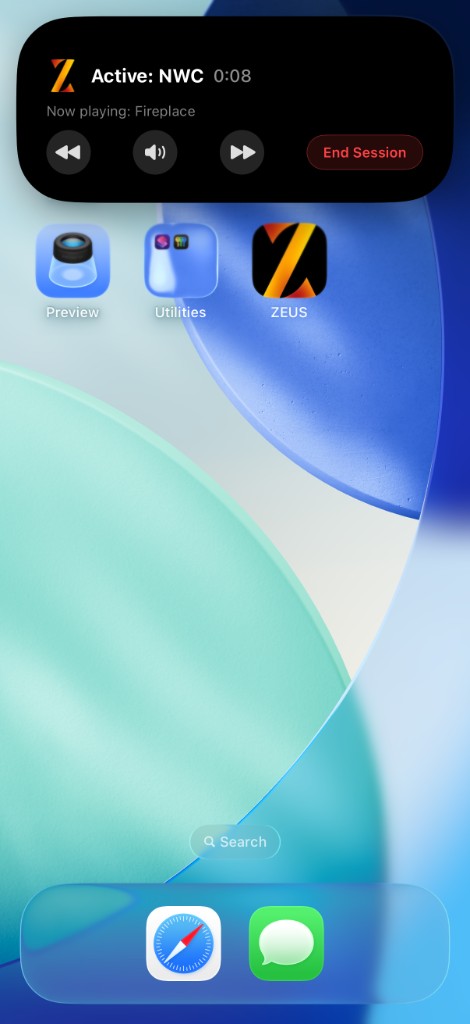
Enable Live Activities for ZEUS under Settings > ZEUS if it does not appear.
What the stale state means
If ZEUS stops updating the Live Activity for more than 30 seconds, the widget switches to a dimmed "Session ended — Tap to dismiss" state. This usually means:
- The audio session was interrupted by a phone call and didn't resume
- iOS suspended ZEUS due to memory pressure
- You pressed End Session from the widget
Tapping the stale widget or opening ZEUS will clear it.
Limitations on iOS
- Force quitting ZEUS (swipe up in the app switcher) kills the audio session and drops all relay connections. There is no way to recover without reopening the app.
- Low Power Mode makes iOS more aggressive about suspending background apps. The audio keep-alive still works in most cases, but don't rely on it for hours of uninterrupted connectivity in Low Power Mode.
- Incoming phone calls temporarily interrupt the audio. ZEUS will try to resume the relay subscription once the call ends, but there may be a brief gap.
- There is no battery-free way to keep NWC reliably alive on iOS. The ambient audio uses very little power, but it's not zero. How much it matters depends on your device and how long the session runs.
Tips for best results on iOS
- Leave at least one active NWC connection so ZEUS knows to start the background session.
- Enable Live Activities for ZEUS in iOS Settings so you can see and control the session from your Lock Screen.
- Don't force-quit the app. Swipe it away only when you intentionally want to stop NWC.
- If you notice ZEUS isn't responding to NWC requests, open the app and let it reconnect.
Android
Android allows apps to run foreground services — a long-lived process that stays active as long as the device is on. ZEUS uses this to keep the NWC relay subscription alive.
When Persistent Mode is enabled, Android shows a persistent notification in the system tray: "Nostr Wallet Connect is running in the background". This is required by Android to prevent the service from being killed.
Enabling Persistent Mode
- Go to
Menu>Tools>Nostr Wallet Connect service> gear icon. - Toggle Persistent Mode on.
- Restart ZEUS. The setting takes effect after a restart.
Once enabled, NWC keeps running even after you close the app, as long as the device is on and the battery isn't critically low.
Disabling Persistent Mode
Toggle Persistent Mode off and restart ZEUS. The foreground service stops after the restart. The notification will go away.
What happens without Persistent Mode
Without Persistent Mode, NWC only runs while ZEUS is open. The relay subscription is dropped when you switch away from the app or lock your screen.
Battery usage
The foreground service itself uses very little power. ZEUS stays subscribed to your Nostr relays but does no significant work until a remote app sends a request. Payments and invoice creation happen on demand, not continuously.
Frequently asked questions
Do I need to keep ZEUS open for NWC to work?
Yes, in the background. Remote apps reach your wallet through a live relay connection. ZEUS keeps that connection alive differently on each platform — see the iOS and Android tabs above.
Does NWC work without internet?
No. Both your phone and the remote app need internet to reach the Nostr relay. Requests fail while offline and pick back up when you're connected again.
iOS
Why does ZEUS play audio in the background?
iOS doesn't let apps run freely in the background. A quiet ambient loop keeps ZEUS alive so the relay connection stays open — the same idea music apps use.
I swiped ZEUS away in the app switcher. Did that break NWC?
Yes. Force-quitting stops the audio session and drops all relay connections. Open ZEUS again to restart NWC.
A remote app says my wallet is unavailable. What should I check on iOS?
- Open ZEUS and confirm your wallet is connected.
- Look for Active: NWC on your Lock Screen — if it's missing, open ZEUS to restart the session.
- Make sure you didn't force-quit ZEUS.
- Confirm the remote app is paired with your current connection (not an old one after regenerate).
Android
What is Persistent Mode?
A setting that keeps NWC running as a foreground service after you leave ZEUS. Android shows a notification: "Nostr Wallet Connect is running in the background." Turn it on in NWC settings (gear icon), then restart ZEUS.
What if Persistent Mode is off?
NWC only runs while ZEUS is on screen. Switching apps or locking your phone drops the relay connection.
A remote app says my wallet is unavailable. What should I check on Android?
- Open ZEUS and confirm your wallet is connected.
- Make sure Persistent Mode is on and the NWC notification is visible.
- Restart ZEUS if you just changed the setting.
- Confirm the remote app is paired with your current connection.
Both platforms
Can I use NWC over Tor?
Only if your Nostr relay works over Tor. Default relays like relay.getalby.com are clearnet-only.
What happens if I switch wallets in ZEUS?
Each wallet has its own connections. The NWC service restarts for the wallet you switch to. On iOS, background the app again to restart the audio session.