Connections
Each NWC connection is a separate pairing between ZEUS and one external app. You choose what that app can do and how much it can spend.
Open the NWC service
Go to Menu > Tools > Nostr Wallet Connect service.
If you don't see this option, your wallet backend doesn't support the NWC service. You need Embedded LND, LDK Node, remote LND, CLN REST, LNC, or LNDHub. The service is not available when ZEUS itself is set up as an NWC client.
Create a connection
Tap + in the top right corner to open Add Connection.
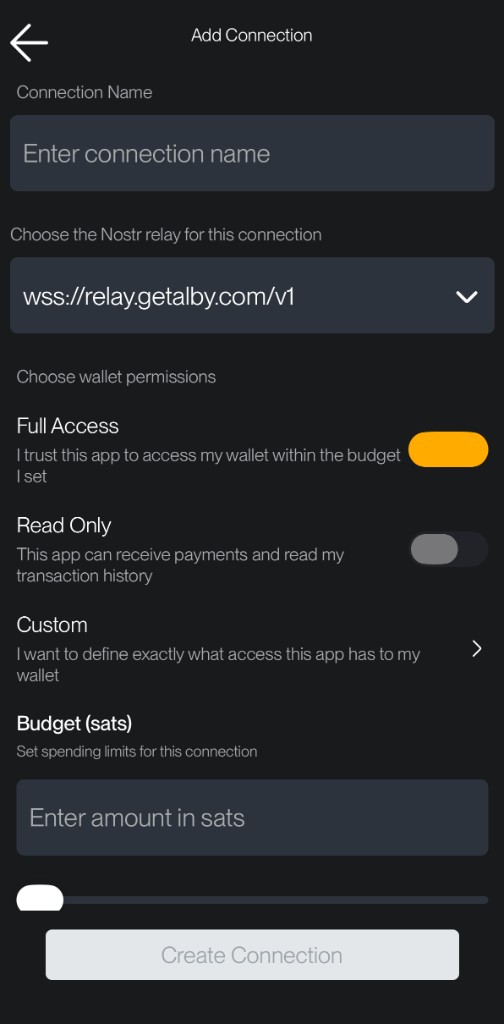
Fill in the form:
- Connection name — a label you'll recognize later, like
DamusorShop terminal. - Nostr relay — the relay both sides use to exchange messages. Defaults include
relay.getalby.com,relay.snort.social, andrelay.damus.io. You can pick another or enter your own. - Wallet permissions — Full Access, Read Only, or Custom (see below).
- Budget — spending cap in sats (required for Full Access).
- Connection expiration — optional; scroll down to set when the connection should stop working.
Tap Create Connection when you're done. ZEUS opens Connection Secret — scan the QR code or tap copy / share and paste the nostr+walletconnect:// link into the other app.
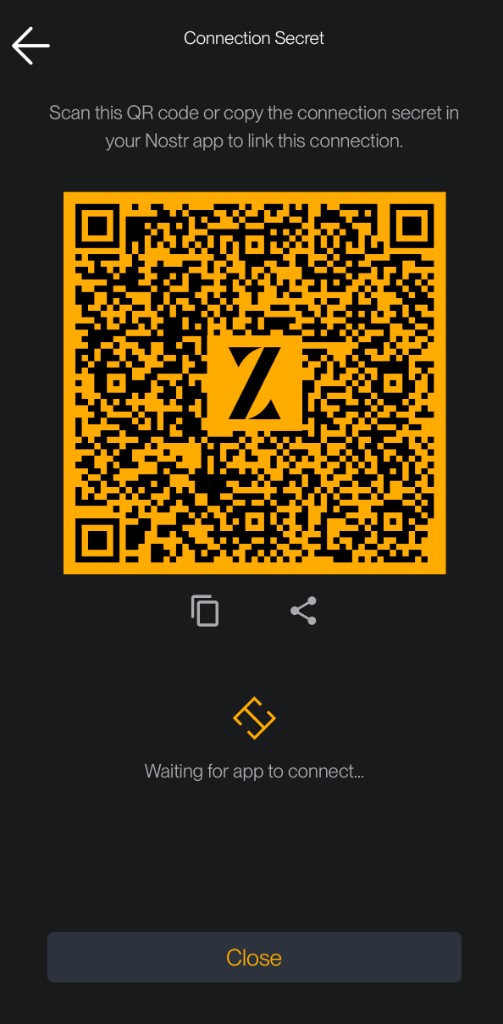
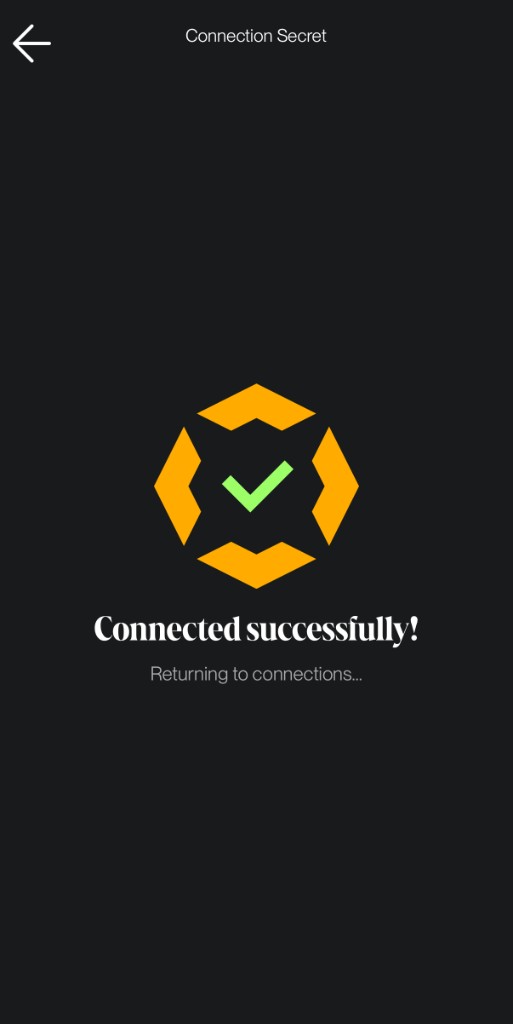
While ZEUS waits, you'll see Waiting for app to connect.... When the other app links up, ZEUS shows Connected successfully! and returns to your connections list.
Already paired in the other app but still waiting? Tap Close and start using the Nostr client. You don't need to stay on this screen — the connection works as soon as the client sends its first request.
Permissions
Pick a preset when you create or edit a connection:
| Preset | What the app can do |
|---|---|
| Full Access | Pay invoices, create invoices, look up payments, read balance, read node info, sign messages — within the budget you set. |
| Read Only | Read balance, node info, invoice status, and transaction history. Cannot send payments. |
| Custom | Pick each action individually. |
Individual actions:
| Action | What it does |
|---|---|
| Get info | Read your node's alias, public key, and network |
| Get balance | Read your spendable balance |
| Pay invoice | Send Lightning payments |
| Make invoice | Create invoices so others can pay you |
| Lookup invoice | Check whether an invoice has been paid |
| List transactions | Read payment history for this connection |
| Sign message | Sign arbitrary text with your node key |
Budgets
A budget caps how much a connection can spend. Useful if you want an app to zap on your behalf without risking your full balance.
- Amount — maximum spend in sats.
- Renewal — how often the budget resets: daily, weekly, monthly, yearly, or never.
When the budget is used up, payment requests fail until the budget renews or you raise the limit in the connection settings.
ZEUS warns you on the connections list if your wallet balance drops below a connection's budget.
Expiration
Set a connection to expire after 1 week, 1 month, 12 months, or a custom date. Expired connections stay in your list but are tagged Expired and reject new requests from the remote app.
Connection details
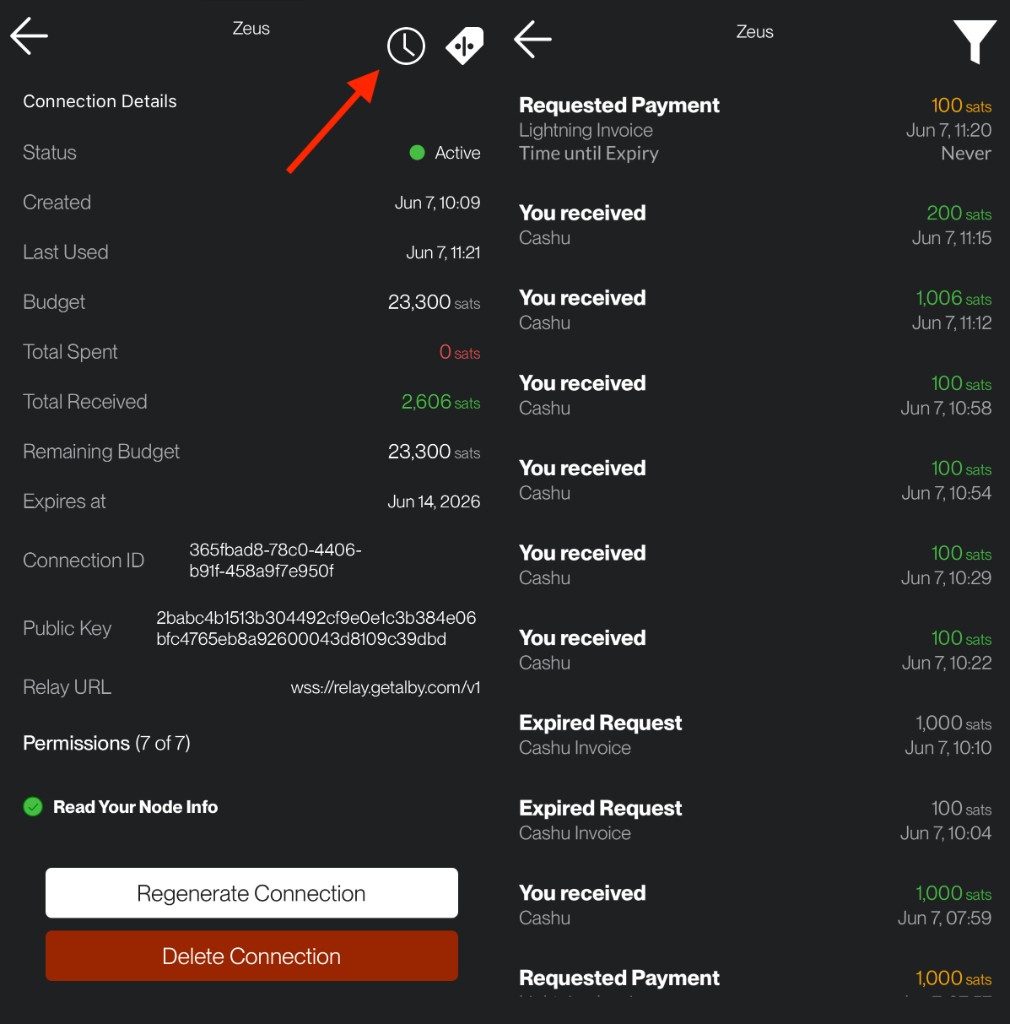
Tap a connection on the list to open Connection Details. Here you can review:
- Status — Active or Expired (connections without payment permissions also show a Read Only tag on the list)
- Budget — total spent, total received, and what's left
- Connection ID, public key, and relay URL
- Permissions granted to the remote app
Use the edit button in the header to change the name, permissions, budget, or expiry. Regenerate Connection and Delete Connection are at the bottom.
Changing the relay URL requires regenerating the connection — the other app will need the new QR code or link.
Activity
From Connection Details, tap the clock icon in the top right to view activity for that connection.
NWC settings
Tap the gear icon on the connections list.
| Setting | Notes |
|---|---|
| Switch to Cashu wallet | Routes pay and make-invoice through Cashu instead of Lightning. Only shown if Cashu is enabled. |
| Include Lightning Address | Adds your ZEUS Pay address to new connection URLs. Some Nostr clients use this for your profile. |
| Persistent Mode | Android only — keeps NWC running in the background. See background. |
| Background Audio | iOS only — ambient track for background relay connections. See background. |
| Learn more | Opens the full NWC guide at docs.zeusln.app. |
Frequently asked questions
Why don't I see "Nostr Wallet Connect service" under Tools?
Your wallet backend may not support it (you need Embedded LND, LDK Node, remote LND, CLN REST, LNC, or LNDHub), or ZEUS is currently set up as an NWC client. Switch to a supported wallet first.
Do ZEUS and the other app need the same relay?
Yes. The relay you pick when creating a connection is the one both sides must use. If pairing fails, check the relay URL matches on both apps.
The other app never connected after I created a connection. What should I do?
Scan the QR code or paste the link into the other app from Connection Secret. The first request can take a few seconds. If you've already linked the app but ZEUS is still on Waiting for app to connect..., tap Close and use the Nostr client — it will connect on its first request. Make sure you're using the latest QR code, not an old one.
Can I connect more than one app?
Yes. Tap + for each app. Every connection gets its own name, permissions, budget, and pairing secret.
A payment failed because of the budget. Now what?
The connection hit its spending limit. Edit the connection to raise the budget, wait for the renewal period (daily, weekly, etc.), or lower how much the app is trying to spend.
What does the budget warning on the connections list mean?
Your main wallet balance is lower than that connection's budget. The app may not be able to spend up to the full limit until you add funds or reduce the budget.
What happens when I regenerate a connection?
ZEUS creates a new pairing secret. The old QR code and link stop working. Any app using the old secret must be paired again. You also need to regenerate if you change the relay URL.